Wednesday, September 30, 2009

Using Group Policy Preferences to configure Windows Explorer

One of the great new features in Windows 7 are “Preferences”. This are files, folders, registry values etc. you can easily configure using an GPO to set values on the client.

As these are called “Preferences” the purpose of it is to allow the the administrator to configure something but still allow the user to change it later on. When using an policy, the user can change anything.

Preparing the Windows 7 rollout, I found that some settings inside the Windows Explorer should be changed, but I only wanted to change certain values, not the entire “Folder Options” (which is also possible).

Here are the list of values I’m changing using the Registry preference on all of the Windows 7 machines (all these are user settings, so the root is always HKEY_CURRENT_USER):

Folder Options -> Search -> Always search file names and contents (ON)

Path: Software\Microsoft\Windows\CurrentVersion\Explorer\Search\PrimaryProperties\UnindexedLocations
Name: SearchOnly (REG_DWORD)
Value: 0

Folder Options -> Search -> How to search -> Don't use the index when search in file folder for system files (ON)

Path: Software\Microsoft\Windows\CurrentVersion\Explorer\Search\Preferences
Name: WholeFileSystem (REG_DWORD)
Value: 1

Folder Options -> View -> Hide extensions for known file types (OFF)

Path: Software\Microsoft\Windows\CurrentVersion\Explorer\Advanced
Name: HideFileExt (REG_DWORD)
Value: 0

Folder Options -> Navigation Pane -> Show all folders (ON)

Path: Software\Microsoft\Windows\CurrentVersion\Explorer\Advanced
Name: NavPaneShowAllFolders (REG_DWORD)
Value: 1

Folder Options -> Navigation Pane ->Automatically expand to current folder (ON)

Path: Software\Microsoft\Windows\CurrentVersion\Explorer\Advanced
Name: NavPaneExpandToCurrentFolder (REG_DWORD)
Value: 1

Thursday, September 17, 2009

Misusing ROBOCOPY to delete old files

We have a lot of servers that store files that are not needed after some time (for example, Logfiles). Usually these files are sometimes needed for some days but not after that.

Therefore I needed a fast and quick way to delete old files. I found some programs that are able to do so, but I wanted a really simple solution.

After some testing, I decided to “misuse” Robocopy for that. Actually, Robocopy has no option to delete old files but it has the strange option “/CREATE”. This option will copy all files but with 0 bytes, so the copy is very fast.

The Batchfile that does the real work (DeleteOldFiles_Exec.bat) looks like this:


SET SRC=%1
SET PATRN=%2
SET DAYS=%3
IF NOT EXIST C:\TEMP\. md C:\TEMP
IF NOT EXIST C:\TEMP\TRASH\. md C:\TEMP\trash
%~dp0robocopy %SRC% "C:\TEMP\TRASH" %PATRN% /R:1 /s /mov /create /XA:A /minage:%days%
Rem /L for List only
rd C:\TEMP\TRASH /s /q


It will move the given files (%PATRN%) from the source folder (%SRC%) that are older than the given days (%DAYS%). The options for Robocopy are pretty easy except the /CREATE option (see above) and the /XA:A option which excludes all files with the ARCHIVE attribute set. This option is set since I do not want to delete any file that hasn't been backed up.

I then call this batch like this:

CALL deleteoldfiles_exec "C:\Temp" *.* 10

This will delete all files (*.*) in the directory C:\Temp that are older than 10 days.

Wednesday, August 26, 2009

Hexagon v3: Part 5 – Over clocking

This is a post about my new custom build PC. To see all posts, check out Hexagon v3: Part 1 – Main Components


Since Hexagon v3 is now working (Vista SP2 with all updates), it’s time to get started with over clocking. After all, this is just the process of using components outside their specification to save some money ;-).

As I said in a block post before, I want to over clock the CPU only. Therefore, I’m  concentrate on torturing and monitoring the CPU.

For torturing, I use a special program by Matthias Withopf: Core2MaxPerf (bottom of the page). This is the only program I know that is really able to fully load a Core CPU (yes, even Prime95 isn’t able to do so). For temperature monitoring I will use another tool from Mr. Withopf: CPUTempWatch together with SpeedFan by Alfredo Milani Comparetti.

In case you are wondering why I use these two instead of Gigabytes’s EasyTune6: The “CPU Temperature” inside the BIOS and EasyTune6 is measured on the board and has nothing to do with the real temperature of your CPU. On the other hand, I know there are several other programs that claim to read the real temperature from the CPU directly. Well, here’s an example what you get (example from my old computer):

11_Core2_Temp_Muahahaha

Do you find the error on this picture? If so: That’s the reason why I trust only SpeedFan and CPUTempWatch.

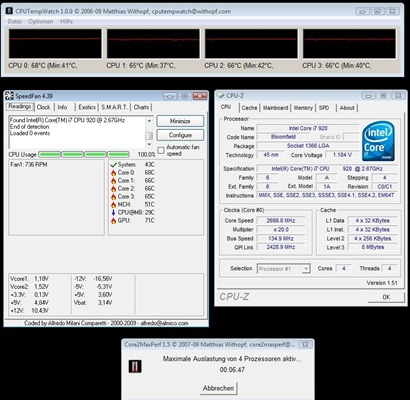
As I started testing with Core2MaxPerf and Prime95 (with all values AUTO, no over clocking), the somewhat expected happened: The system crashed. After some testing with various BIOS settings, it turned out that the memory modules were failing.

If the memory is configured to anything else than X.M.P. Memory (800 MHz/ 1600 MHz) with 1.65V voltage and the default timings (All values set to [AUTO] = 8-8-8-24), the system crashes. After that change, the system was stable.

12_MaxPerf_BeforeOC

Note: Actually I was running this for over an hour, but the print screen didn’t copied anything so I simply started Core2MaxPerf again and took the screenshot.

An 8 hours Prime95 stress test in Blend and In-place large FFT mode also worked, so I knew the system was stable and could start over clocking.


Given the crashes because of the memory modules, it was clear that the memory needs to be configured exactly as before or I would face crashes again. My initial goal was just above 3.0 GHz, so the base clock should be 151 MHz. However, this would cause the memory run outside the specification. Therefore, I created this small excel sheet to do the math:

13_OCCalc

I ended up using 160 MHz as the back clock, x10 as the memory multiplier and x20 as the Uncore multiplier. This means that both the memory and the Uncore frequency are exactly the same as before and no bad things should happen there. I also raised the CPU vCore slightly to 1,275V and the QPI Voltage to 1,280V (to make sure it’s within a 0,5V range of the memory modules voltage).

Now I simply repeated all tests:

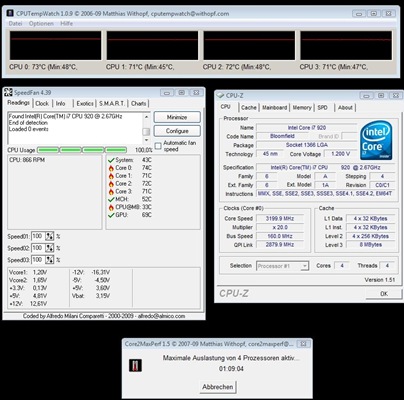
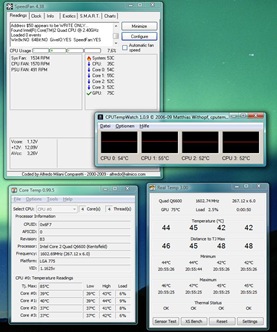
14_MaxPerf_OC

The temperature climbed to 73°C, which is okay for me (the CPU will shut down at 100°C) but the CPU fan management of the board is not as good as it could be.

If you use EasyTune6 and change the temperature control, the temperature is degreased to 69°C. That’s because the CPU cooler is than running at 1300 RPM while before it was only running at 800 RPM.

15_MaxPerdf_OC_Fancontrol

However, this would require having EasyTune6 running all the time and I don’t want that. Maybe I will later on try to control the CPU fan with SpeedFan to have more control over it.

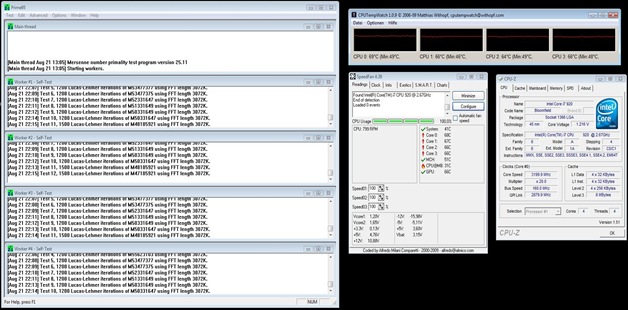
The final test, Prime95 Blend for over 9 hours, worked as well:

16_Prime95

Just for your reference: Although Prime95 was now running on all cores for more than 9 hours, the temperature wasn’t as high as with Core2MaxPerf. That’s what I meant with “Full Load Testing can only be done with Core2MaxPerf”.


Well, that’s it - I’m done with the setup of Hexagon v3. If just Windows 7 would be available already…

Friday, August 21, 2009

Hexagon v3: Part 4 – Full Assembly

This is a post about my new custom build PC. To see all posts, check out Hexagon v3: Part 1 – Main Components


The remaining assembly should be a peace of cake if you have at least build one PC in your life.

Install the CPU on the motherboard (this is described very good in the manual of the main board  and then install the Kabuto onto it. Using push pins with a cooler of this size can be tricky, but after watching the Kabuto installation video at Eiskaltmacher.de, this was a snap. You only need to make sure that the ends of the heat pipes are facing upwards!

When installing the memory modules, I did it (of course) wrong the first time. To enable triple channel operation, the modules must be installed into the white slots. Not the blue ones, although the memory modules are blue also.

When installing the hard disks, I noted each serial number of each drive and the SATA port it is connected to. Given how many screws you need to remove until you can exchange one, I though this would help in case of a hard disk failure.

I tried my best to do the cabling right this time, but the result is still somewhat… ugly.

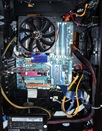
08_Inlay_DSCF1453    07_CaseBack_DSCF1448

Anyway, the good news is: It came to life! So I simply installed Vista and did the typical Windows Update stuff.

Since this is the first time I’m using Samsung HDs (I mostly used Hitachi drives before), I went on to change the Automatic Acoustic Management (AAM). Hitachi usually delivery their drives set to Middle, so the drive is not operating at full speed in favor for more silence. Therefore I decided to set the Samsung HDs to Fast.

This can only be changed with ES Tool from DOS. Therefore, I downloaded “Driver Free Disk for BIOS Flashing” from Bootdisk.com, copied ES Tool onto the floppy and booted.

Important: ES Tool can only access the HDs when the Intel ICH is no responsible for the disk. In other words: When the drives are set to IDE and not configured as array. Even if a an array is already configured, you can always change the setting “ICH SATA Control Mode” to IDE and “SATA Port 0-3 Native Mode” to DISABLED, make the changes with ES Tool, and change it back again. The array will not be destroyed as long as you do not write any data on the disks.

Using ES Tool is simple: When you see the DOS prompt, type ESTOOL to start it. I will then display all drives it has found. Select the first, select “AAM Mode” from the menu, change the value to FAST and select PROCESS. That’s it. To select another drive, simply select AUTO DETECT and repeat.

By default, all HDs had AAM set to DISABLED and the actually results of this change where by far not as good as I hoped.

Here are the benchmarks before the change (AAM = DISABLED):

09a_DiskMark_AAM Off  10a_Sandra_AAM_Off

And here after the change (AAM = FAST):

09b_DiskMark_AAM_Fast 10b_Sandra_AAM_Fast

Once the access time was significantly improved, same values were even worse than before. As it seems, AAM set to DISABLED is nearly the same as FAST when using Samsung drives.

Wednesday, August 19, 2009

Media Player Classic Rollout

We just solved a problem a customer had with media playback using Windows Media Player (WMP).

Basically there were two problems associated with WMP: First, several users complained that opening a file with WMP takes a long time. Secondly, a lot of users were confused by all the controls WMP offers and asked how to “clean” the interface. The help desk database showed that about 130 tickets were created about these issues in the last three months.

Our first idea was to see if we could solve this problem with registry settings and/or GPO settings. However, I personally didn’t use WMP for several years now; I always use Media Player Classic (MPC). Showing Media Player Classic the users that reported one of these issues the most resulted in one reaction: “Great. Exactly what I need”. If you do not quite understand what the user means, here’s an example of the interface difference between WMP and MPC:


_


Sure thing, this means we will roll out MPC to 550+ computers! A very important requirement of this rollout was that the changes could be reverted back easily. As Microsoft is constantly updating WMP, it might happen that a new version brings back a “clean” interface and is faster. At that time, MPC would be replaced by WMP again.

Therefore, we have created some .REG files and some .BAT files that install MPC. These scripts will then be executed by the computer management solution of the customer.

The first thing is to download MPC from http://mpc-hc.sourceforge.net/, and copying these files to Program Files folder.

md "%programfiles%\Media Player Classic\"

copy S:\soft\MPC\MPC_prog\*.* "%programfiles%\Media Player Classic" /V /Y

After that, Windows should know that a new program is available so we’ll add MPC to the “Applications” list by using this .REG file (simply import this file with the command regedit.exe /S app.reg)

REGEDIT4

[HKEY_CLASSES_ROOT\Applications\mplayerc.exe]
@="Media Player Classic"
"FriendlyAppName"="Media Player Classic"

[HKEY_CLASSES_ROOT\Applications\mplayerc.exe\DefaultIcon]
@="mplayerc.exe,0"

[HKEY_CLASSES_ROOT\Applications\mplayerc.exe\shell]
@="open"

[HKEY_CLASSES_ROOT\Applications\mplayerc.exe\shell\open]
@="&Open"

[HKEY_CLASSES_ROOT\Applications\mplayerc.exe\shell\open\command]
@="mplayerc.exe \"%L\""

[HKEY_CLASSES_ROOT\Applications\mplayerc.exe\shell\play]
@="&Play"

[HKEY_CLASSES_ROOT\Applications\mplayerc.exe\shell\play\command]
@="mplayerc.exe \"%L\""

[HKEY_CLASSES_ROOT\Applications\mplayerc.exe\SupportedTypes]
"WAV"=""
"WMA"=""
"MP3"=""
"OGG"=""
"SND"=""
"AU"=""
"AIF"=""
"AIFC"=""
"AIFF"=""
"MIDI"=""
"MPEG"=""
"MPG"=""
"MP2"=""
"VOB"=""
"AC3"=""
"DTS"=""
"ASX"=""
"M3U"=""
"PLS"=""
"WAX"=""
"ASF"=""
"WM"=""
"WMA"=""
"WMV"=""
"AVI"=""
"CDA"=""
"JPEG"=""
"JPG"=""
"GIF"=""
"PNG"=""
"BMP"=""
"D2V"=""
"MP4"=""
"SWF"=""
"MOV"=""
"QT"=""
"FLV"=""

After this, users can already right click any supported file type, select “Open with..” and choose “Media Player Classic”. However, when doing so this won’t work because Windows does not know where the file “mplayerc.exe” is. This REG file will help Windows to locate it:

REGEDIT4

[HKEY_LOCAL_MACHINE\SOFTWARE\Microsoft\Windows\CurrentVersion\App Paths\mplayerc.exe]
@="C:\\Program Files\\Media Player Classic\\mplayerc.exe"
"Path"="C:\\Program Files\\Media Player Classic\\"

Although it is of course possible to include the complete path in the first REG, we are using the AppPaths here because this gives us one location where MPLAYERC.exe is located. This will be more important later on.

The next step is to associate the needed files with MPC. As said earlier, we are trying to accomplish this as least changes as possible. Therefore we are simply adding to each file type that should open with MPC, a new command “Play2” and make this command the default. That way, switching back to Windows Media Player just requires changing the default command.

Please note that we are only changing those files that customer is using (often or sometimes) and leaving all other, even if MPC supports them, alone:

REGEDIT4

; .wav = soundrec (#1)
; default "play"
[HKEY_CLASSES_ROOT\SoundRec\shell]
@="play2"

[HKEY_CLASSES_ROOT\SoundRec\shell\play2]
@="&Open"

[HKEY_CLASSES_ROOT\SoundRec\shell\play2\command]
@="mplayerc.exe \"%L\""

; .mpeg = mpegfile (#2)
; default "play"
[HKEY_CLASSES_ROOT\mpegfile\shell]
@="play2"

[HKEY_CLASSES_ROOT\mpegfile\shell\play2]
@="&Open"

[HKEY_CLASSES_ROOT\mpegfile\shell\play2\command]
@="mplayerc.exe \"%L\""

; .avi = avifile (#3)
; default "play"
[HKEY_CLASSES_ROOT\avifile\shell]
@="play2"

[HKEY_CLASSES_ROOT\avifile\shell\play2]
@="&Open"

[HKEY_CLASSES_ROOT\avifile\shell\play2\command]
@="mplayerc.exe \"%L\""

; .mp3 = mp3file (#4)
; default "play"
[HKEY_CLASSES_ROOT\mp3file\shell]
@="play2"

[HKEY_CLASSES_ROOT\mp3file\shell\play2]
@="&Open"

[HKEY_CLASSES_ROOT\mp3file\shell\play2\command]
@="mplayerc.exe \"%L\""

; .mid = midfile (#5)
; default "play"
[HKEY_CLASSES_ROOT\midfile\shell]
@="play2"

[HKEY_CLASSES_ROOT\midfile\shell\play2]
@="&Open"

[HKEY_CLASSES_ROOT\midfile\shell\play2\command]
@="mplayerc.exe \"%L\""

; .MKV -> Not existsting by default (#6)
[HKEY_CLASSES_ROOT\.mkv]
@="MKVFile"

[HKEY_CLASSES_ROOT\MKVFile\DefaultIcon]
@="mplayerc.exe,0"

[HKEY_CLASSES_ROOT\MKVFile\shell]
@="play2"

[HKEY_CLASSES_ROOT\MKVFile\shell\play2]
@="&Open"

[HKEY_CLASSES_ROOT\MKVFile\shell\play2\command]
@="mplayerc.exe \"%L\""

; .divx = divxFile (#7)
; default "open"
[HKEY_CLASSES_ROOT\divxFile\shell]
@="play2"

[HKEY_CLASSES_ROOT\divxFile\shell\play2]
@="&Open"

[HKEY_CLASSES_ROOT\divxFile\shell\play2\command]
@="mplayerc.exe \"%L\""

; .FLV -> Not existing by default (#8)
[HKEY_CLASSES_ROOT\.flv]
@="Flash.VideoFile"

[HKEY_CLASSES_ROOT\Flash.VideoFile\DefaultIcon]
@="mplayerc.exe,0"

[HKEY_CLASSES_ROOT\Flash.VideoFile\shell]
@="play2"

[HKEY_CLASSES_ROOT\Flash.VideoFile\shell\play2]
@="&Open"

[HKEY_CLASSES_ROOT\Flash.VideoFile\shell\play2\command]
@="mplayerc.exe \"%L\""

As you can see, we are reusing the AppPath from above by executing “mplayerc.exe” without any path. If you want to install MPC in a different folder, just change the AppPath and everything else will still work. We simply find that a simpler solution then entering the complete path in every command, although Windows needs some milliseconds more to locate mplayerc.exe.

Once all these REG files have been imported (REGEDIT.EXE /S (SOMETHING).reg), give it a try if all files are opened with MPC as expected. In case you need test files, some very good ones could be found at Fx Sound and Magic.

Enjoy!

Saturday, August 15, 2009

Hexagon v3: Part 3 – Case Assembly

This is a post about my new custom build PC. To see all posts, check out Hexagon v3: Part 1 – Main Components 


Finally, all parts for Hexagon v3 have arrived. Time to get this rolling.

01_Standoff_DSCF1376Starting with the assembly, I first installed the standoffs for the motherboard into the case. While it’s empty, this is very easy to do. I used all available screw holes of the EX58-UD5, so at the end I installed nine standoffs.

Next was to completely disassembled the Twelve Hundred. As I said, I want to exchange all fans it has with the SilentWings ones.

02_CaseFans1_DSCF1384I started with the two case fans at the back. It’s a complete no brainer, you only need to remember to push out the two speed  switches from the back of the case.

A little bit more work is needed for the three drive bays. The problem is that the SilentWings use push pins and require a slightly bigger hole than the screws Antec uses. Left is the picture of the fan holder as delivered, on the right after the rework.

 03_DriveBay_B_DSCF139003_DriveBay_A_DSCF1388

04_DriveBay_SW1_DSCF141205_FanSpare_DSCF1417I only changed three holes, because one isn’t usable (speed controller knob) but three will keep the fan in place also. Once finished, I had four fan holders, three of them are for the front of the drive bays, one for the back (extra CPU cooling). Oh, and I also have five Antec TriCool spare fans now :-).

Assembling the drive bays again isn’t quite a problem. However, due to the size of the push pins the air filter needs some force to be installed again.

After that, I temporary installed the main board to get an idea how the cabling should be. Given that both the DVD drive and the floppy are installed with those ugly, old, wide and non flexible cables, I decided to install them at the bottom. That way, the cable aren’t going through the entire case.

06_Bottom_Front_DSCF1422Getting the floppy drive installed was the hardest part of the entire assembly. I spent nearly an hour to get it done right. To me, it looks like nobody at Antec has ever used that floppy spare. I ended up securing the adapter, as it chipped out somehow all the time, with the extra cover I installed for the power LED.

So the complete assignment of the bays is as follows (from the top):

  • 1-3: One drive bay with two HDs
  • 4-6: One drive bay with extra fan on the back (no HDs)
  • 7-9: One drive bay with two HDs
  • 10: extra cover with power LED
  • 11: Floppy
  • 12: DVD

Sunday, August 9, 2009

Hexagon v3: Part 2 – Case fans

This is a post about my new custom build PC. To see all posts, check out Hexagon v3: Part 1 – Main Components


When it comes to cooling, there are two characteristics that are mutually excluded. You want to fans to be silent, means you don’t hear them. On the other hand, your computer wants as much fresh air as it can get which means the fan should run at full power. And this causes noise.

The problem is based how fans work: An engine will spin a propeller that will blow fresh air to the area you need it. The higher the need of fresh air (air flow, measured in CFM – cubic feet per minute), the faster the propeller needs to spin. And this will simply cause more noise. An example might help:

A Silent Eagle SE 120mm (which is designed to be silent) run at 12 volts will spin at 1250 RPM (rounds per minute) and has a loudness of 1,1 Sone. This means: It has a loudness of “very calm talking”. You can hear it, but it’s not disturbing. The air flow of it is in this case 26 CFM.

If you now slow this fan down to 9 volts, it will spin with only 750 RPM and its loudness will go below 0.1 Sone. This means: It has a loudness of “calm breathing”, equals “You just can’t hear it” equals “Silence”. However, the air flow is reduced to 19 CFM.

To have the same air flow (CFM) as before, you would need two fans (38 CFM in total), but still completely silent.

To have a good air flow but also a silent operation, you should go for a fan that is running at low RPMs. To balance the reduced air flow, simply add more fans.

(I should add that an even better solution is to use a bigger fan, for example replacing a 120mm with a 200mm model. However, given how cases are build today, this isn’t an option. If the case expects a 120mm fan, you just can’t install a 200mm fan.)


That was also the reason why I choose the Antec Twelve Hundred as my case: It has three 120mm fans in front, two 120mm at the back and one 200mm fan on the top. The only problem with the fans that Antec delivers: You can only switch them between Low, Medium and High. Even when set to “Low”, the 120mm fans are running with 1200 rpm which is far too much for me. The 200mm fan on top of the case runs at “Low” 400 rpm (82 CFM) so this should not be a problem.

I know currently of exactly two fans that have a good airflow together with a silent operation:

image

be quiet! SilentWings USC 120mm (My number one choice)

Comes with 3-pin connector (not 4-pin for PMW!), 7V adapter to 4-pin Molex (7 volt, 900 RPM) and a 12V adapter to 4-pin Molex (12 volt, 1500 RPM). The fan case is decoupled, so vibrations will not cause more noise.

imageSharkoon Silent Eagle SE

Comes with several adapter cables :  "Standard": 4-pin to 4-pin PWM (color: white), "Low Noise" (black): 4-pin to 4-pin Molex 12V (1250 RPM), "Silent" (red): 4-pin to 4-pin Molex 9V (750 RPM) and "Ultra Silent" (blue): 4-pin to 4-pin Molex 7V (300 RPM).

I choose the SilentWings over the Silent Eagle SE for a simple reason: When run in silent mode (7V for the SilentWings, 9V for the Silent Eagle SE), the SilentWings is running at 900 RPM while the Silent Eagle SE is running at 750 RPM. This means that the SilentWings has a better air flow with more CFM.

 cooler3One more thing: When installing a fan, always make sure the install it in the right direction. Yes, I know this must sound odd but I also installed a fan in the wrong direction once. Simply have a look at the fan you want to install and check the arrows every fan has (click the picture to enlarge it).

This SilentWings has two arrows: The arrow on the left points to left and indicates that this is the direction the propeller is moving (in this case, to the left). The right arrow shows you in which direction the airflow is. In this case, the airflow will be bottom up, this means the fan will accelerate the air from the bottom to to the top.

Wednesday, August 5, 2009

ServicePrincipalNameCheck.cs – Check your SPN

In case you are programming with Windows Communication Foundation (WCF), you might want to use Kerberos authentication (instead of NTLM) one day. An example of an WCF client and server that use this security mode can be found on MSDN.

Kerberos authentication is faster than NTLM and more secure. The bad thing is, in order Kerberos is able to authenticate, it will need a ticket and for that it needs a service principal name (SPN) inside Active Directory.

I don’t want to explain all the details about SPNs, since other people already have done this already: 3 Simple Rules to Kerberos Authentication/Delegation SPNs and Using WCF service in load balanced environment with Kerberos delegation.

However, since I just finished the third projects were missing SPNs have caused a, well, not-as-planned, project start, I have created a class that can check SPNs.

The idea behind is quite simple: When the server starts, it will use this class to check if all necessary SPNs are set. If not, the class will return FALSE and you can use the Log property to log an error. That way, the admin is aware that there is a problem.

Please note that this class is intent for self-hosting services. This means, it will check if a SPN of SERVICENAME/HOSTNAME:PORT exists, e.g. CalcService/SERVER01:45563. If you plan to use it from IIS hosted services as well, you need to change this.

Anyway, here we go:

using System;
using System.Collections.Specialized;
using System.Collections.Generic;
using System.Text;
using System.DirectoryServices;
using System.DirectoryServices.ActiveDirectory;
using System.Net;

namespace PleaseChangeMeIDoNotLikeMe

{
    /*
     * This class is intent to check the SPN (Service principal Names) inside a domain environment.
     *
     * You need a SPN as soon as your client wants to use Kerberos authentication, for example: http://msdn.microsoft.com/en-us/library/ms735117.aspx
     *
     * Create this class with the service name you want to use and the port, e.g. “MyService” and 8081.  After that, call the function Check();
     *
     *
     * Given that the current computer name is “DaServer”, this class will search if a SPN of "MyService/DaServer" and
     * "MyService/DaServer.yourdnsdomain.ext" exists.
     *
     * If either of these two does not exist, Check will result FALSE. If more than one exists, it will also return FALSE.
     *
     * Please note: SPN are NOT case sensitive when used in Windows only environments, but are case sensitive when using with UNIX clients.
     *
     *
     * More information about SPN can be found here: http://technet.microsoft.com/en-us/library/cc731241%28WS.10%29.aspx
     *    
     */

    //Copyright (C) 2009 Xteq Systems - http://www.xteq.com/
    //Copyright (C) 2009 TeX Hex - http://www.texhex.info - http://texhex.blogspot.com/
    public sealed class ServicePrincipalNameCheck
    {
        string _service = string.Empty;
        int _port = 0;

        StringBuilder _log = new StringBuilder();

        StringCollection _adsPaths = new StringCollection();
        StringCollection _spns = new StringCollection();

        public ServicePrincipalNameCheck(string ServiceName, int Port)
        {
            if (string.IsNullOrEmpty(ServiceName))
            {
                throw new ArgumentException("ServiceName must be filled");
            }
            _service = ServiceName;

            if (Port <= 0)
            {
                throw new ArgumentException("Port must not be zero");
            }
            _port = Port;
        }

        public string Log
        {
            get
            {
                return _log.ToString();
            }
        }

        public bool Check()
        {
            _log = new StringBuilder();
            _adsPaths.Clear();
            _spns.Clear();

            string computerName = System.Environment.MachineName;
            string fqdn = Dns.GetHostEntry(computerName).HostName;

            _log.AppendLine(string.Format("Computer NetBIOS name: {0}", computerName));
            _log.AppendLine(string.Format("Computer FQDN: {0}", fqdn));
            _log.AppendLine();

            bool bCheckResult1=CheckInternal(computerName);
            bool bCheckResult2 = CheckInternal(fqdn);

            bool bCheckHostCount = true;

            //Write out found AD objects
            _log.AppendLine("Found computer(s):");
            if (_adsPaths.Count > 0)
            {
                foreach (string sHost in _adsPaths)
                {
                    _log.AppendLine(sHost);
                }
            }
            else
            {
                _log.AppendLine("(none)");
            }
            _log.AppendLine();

            //Check if we have more than one entry in _adsPath. If so, several hosts have registered our SPN
            //which is normally not that good idea
            if (_adsPaths.Count > 1)
            {
                _log.AppendLine("Error: More than one AD host was found!");
                bCheckHostCount = false;
            }

            //Write out found SPN
            _log.AppendLine("Found SPN(s) (might include other SPNs as well)");
            if (_spns.Count > 0)
            {
                foreach (string sSPN in _spns)
                {
                    _log.AppendLine(sSPN);
                }
            }
            else
            {
                _log.AppendLine("(none)");
            }
            return bCheckResult1 && bCheckResult2 && bCheckHostCount;
        }

        private bool CheckInternal(string Computer)
        {
            string serviceName = string.Format("{0}/{1}:{2}", _service, Computer, _port);

            _log.AppendLine("Checking for SPN: " + serviceName);

            bool bResult = false;

            string filter = string.Format("(serviceprincipalname={0})", serviceName);

            using (Domain localDomain = Domain.GetCurrentDomain())
            {
                using (DirectorySearcher search = new DirectorySearcher(localDomain.GetDirectoryEntry()))
                {
                    search.Filter = filter;
                    search.SearchScope = SearchScope.Subtree;

                    SearchResultCollection resultColl = search.FindAll();

                    if (resultColl.Count <= 0)
                    {
                        _log.AppendLine("Error: No SPN found!");
                        bResult = false;
                    }
                    else
                    {
                        if (resultColl.Count > 1)
                        {
                            _log.AppendLine("Error: More than one matching SPN found!");
                            bResult = false;
                        }
                        else
                        {
                            _log.AppendLine("SPN check okay");
                            bResult = true;
                        }

                        ProcessResults(resultColl);
                    }

                    _log.AppendLine();
                    return bResult;                   
                }
            }

        }

        void ProcessResults(SearchResultCollection resultColl)
        {
            ResultPropertyValueCollection rpvc;

            foreach (SearchResult res in resultColl)
            {
                rpvc = res.Properties["adsPath"];
                SaveResults(rpvc, _adsPaths);

                rpvc = res.Properties["serviceprincipalname"];
                SaveResults(rpvc, _spns);
            }

        }

        private void SaveResults(ResultPropertyValueCollection rpvc, StringCollection sColl)
        {
            foreach (Object propValue in rpvc)
            {
                string s=propValue.ToString();
                if (sColl.Contains(s) == false)
                {
                    sColl.Add(s);
                }
            }
        }

    }
}
Wednesday, July 22, 2009

Windows XP SP3 plus Internet Explorer 8 plus Microsoft Update equals malicious add-on (DEP) error

Yesterday I installed a netbook from scratch. Everything went fine.

After installing XP SP3 and IE8 I wanted to switch Windows Update to Microsoft Update. Currently this PC has no Office installed but I wanted to make sure that I don’t miss an update if I ever decide to install it.

Okay, clicked on Microsoft Update inside Windows Update and IE8 stalled. After a few moments I get an Data Execution Prevention error and IE was telling me that an malicious add-on was the cause of this. WTF!?!?

After trying to fix this unsuccessfully, I though that goggling might be an good idea.

Bingo, shortly after I came across a discussion about this on Microsoft Answers. Once more the solution Microsoft has declared as “answer” was not the answer, but a user named Valeyard had the solution:

Inside Tools – Internet Options – Advanced (Security section) disable/uncheck the option Enable memory protection to help mitigate online attacks.

Did that, restart the PC and Microsoft Update worked just fine.

Tuesday, July 21, 2009

Backup Exec 12.5: Error "The Backup Exec Server Service detected a schema version mismatch."

You need to love Symantec...

I just did an update from Backup Exec 12.0 to 12.5. Since the last update (11 to 12.0) failed with a version schema error, I though this time I will wait until at least SP1 is available.

No guess what? Software installation okay, restarted the server and here we go again: The Backup Exec Server Service detected a schema version mismatch. ÜBERFAIL SYMANTEC!

Fortunately, the fix is nearly the same as the last time. Using SQL Server Management Studio, open the following files and execute them. Please remember to switch the database (normally it will say MASTER inside the tool bar) to the BEDB database before executing any of those.

#1: C:\Program Files\Symantec\Backup Exec\betopcat.sql
#2: C:\Program Files\Symantec\Backup Exec\dbupgrade12.0.sql
#3: C:\Program Files\Symantec\Backup Exec\dbupgrade12.0-viewandsp.sql

After that, everything should be fine.


Appendix:

To: Product manager of Backup Exec
From: TeX HeX
Subject: Whoever is in charge for the schema upgrade process within BE...

Fire him!

'nuff said.

Monday, July 20, 2009

Trine or Bust!

If you haven't bought TRINE so far, you're missing something really cool.

I bought my copy on Sunday and playing it sense then. It's a side-scrolling action/puzzle game and it's just a h*** lot of fun.

You can get it for XBOX 360, PS3 and PC (using Steam).

Friday, July 17, 2009

Hexagon v3: Building my new PC

Sorry for the lack of updates in the last time, but first I needed to get X-Setup Pro 9.2 out of the door and after that I had my three weeks summer holiday.

Soon after I got my new BMW K1300S which causes me to drive around like crazy. If you are interested, have a look at my tracks.

Back to computer, I have a new project: My new custom build PC called Hexagon v3. See the next post for the introduction.

Hexagon v3: Part 1 - Components

This is a post about my new custom build PC. See the other posts as well:

Part 1 – Main Components
Part 2 – Case fans
Part 3 – Case assembly
Part 4 – Full assembly
Part 5 – Over clocking


My custom PCs are always named HEXAGON or OCTAGON (that’s because there are some weeks where I use them both and Windows does not like equally named computers within the same network). Each new build gets an version number because I’m a programmer and I like version numbers :-).  I’m writing this on OCTAGON v2, so the new PC will be HEXAGON v3.

Hexagon v3 Main Components

image

CPU: Intel Core i7 920 (Bloomfield)

I like the features it has like the integrated memory controller (although this idea is stolen from AMD) with the triple channel interface. As it looks like, you can overclock the 920 very good so I hope I can each 3.2 GHz with it. I know that new Core i7 “Lynnfield” are on their way, but they will no longer have the triple channel for the memory.


image Main board: Gigabyte GA-EX58-UD4P 

UPDATE As it seems this is EOL, replaced with Gigabyte GA-EX58-UD5

X58 chipset (not that you have a choice for the i7…), with Intel Controller Hub v10 RAID (ICH10R). I plan to use RAID 1+0 (Mirroring and Stripping) and the ICH10R will allow me just that. Also, it comes with EasyTune a software normally designed to over clock from Windows but I want to use it to read the current temperatures, voltages etc. directly from the board. It has Dual Bios so if flashing the production BIOS fails, you can still access the board. Great if you were stupid enough to flash a board during a storm…


image CPU Cooler: Scythe Kabuto

A top blower cooler, which should help cooling the components around the CPU. With a 120mm fan and a airflow of about 74 CFM (cubic feet per minute) it should operate silent but also keep the CPU cool.


imagePSU: Cooler Master Silent Pro M600

Very silent, very good efficiency in low to medium workloads and very good protection against surges, bursts etc. Its 600 watts should be enough since I don’t plane to build a SLI system (two or more graphic cards). If you want build a pure gaming PC with SLI, there are better PSUs for that.


image Memory: Patriot Viper Series DDR3 6GB (3 x 2GB) PC3-12800 Low Latency DIMM Kit (PVT36G1600LLK)

It is on the list of supported memory modules from Gigabyte and DDR3-1600 MHz speed will give me enough bandwidth when I try to overclock the CPU. And if overclocking fails: They look good too.


image Hard disks: Samsung EcoGreen F2 HD103SI (four times)

932 GB is more than I need, but it’s good to know that I never ever get the “HD full” message again. Beside this, this is a 5400 rpm (rounds per minute) drive and still has a performance of 105-121 MB/sec. This looked to me like the ideal compromise between silent operation and good performance. The switch between slower/silent and faster/louder will be explained in a different post.


image Case: Antec Twelve Hundred

This case has three 120 mm fan on the front, two 120 mm on the back and a 200 mm fan on the top. This should allow a very good cooling and (with good fans) a very silent operation. If you think I choose it because of the “cool” blue fans it has: No, since I will replace all (except one) of them.

Saturday, April 18, 2009

Xteq GetOSVersion 3.1 available

We have just updated Xteq GetOSVersion (XQGetOSVer) to Version 3.1, now supporting also Windows 7.

XQGetOSVer returns a number for each detected OS (Windows 95 up to Windows Server 2008 and Windows 7) and can therefore easily be used for batch files where you want to execute special commands depending on the OS in use. It is released as freeware, so you can use it right away.

Thursday, April 16, 2009

Removing Live Search from Internet Explorer 8

This week, we had to prepare an Internet Explorer 8 rollout at a customers side. This customer had very strict requirements which Accelerators, Links and Search providers should be installed.

We thought this should be no problem with the Internet Explorer Administration Kit (IEAK) so we created a package with it. We added the search providers, accelerators and links the customer wanted to have and imported them with IEAK to the package we wanted to created while also activating the option that no default items should be added.

Using VMWare Workstation we then tested our package (did I mentioned which great invention Snapshots are?) and everything looked quite good except that the search box beside the address bar still showed Live Search (not as default, but anyway) like this:

After several tests we are sure this wasn't a failure inside the package, but instead some "by design" issue. Tracking this down inside the registry we found that IE8 get's the list of Search providers from
HKEY_CURRENT_USER\Software\Microsoft\Internet Explorer\SearchScopes.
However, it also checks
HKEY_LOCAL_MACHINE\Software\Microsoft\Internet Explorer\SearchScopes
and if it finds a search provider there that is not already shown, it will simply display it as well. And Live Search did come from this HKLM key.

We resolved this issue by NOT adding any search provider inside the package and executing two batch files after the installation of IE.

IESearchProvider_UserSet.bat will remove Live Search from the HKCU SearchScopes, add Google (from IESearchProvider_GoogleSearch_User.reg) and make this the default.

IESearchProvider_ComputerSet.bat will remove Live Search from the HKLM SearchScopes, add Google (from IESearchProvider_GoogleSearch_Computer.reg) and make this the default.

Both scripts work identically, except one check HKCU and the other HKLM. Both check if the Google search provider is already installed (we have created our own GUID for this) and if not it will be added, set as the default and finally deleting the Live search provider.

We have added these commands to the Internet Explorer GPO (..UserSet.bat to the user scripts, ...ComputerSet to the computer scripts). And don't worry: This script will work even if IE8 is not rolled out, IE7 can use the Google search provider as well.

You can download all files here.

Tuesday, April 7, 2009

A script for fixing WMI problems

The last two months, I was helping a client to get his network running smoothly again. One of the topics were strange errors within various applications and problems with machines that did not received any update from the central Windows Server Update Services.

To cut a long story short, this all was caused by the WMI (Windows Management Instrumentation) service not working correctly. One very often rolled out image was broken in that area so 70% of all computers had a broken WMI installation.

After some research, I created a WMI Fixer batch file that was able to fix the WMI installation of nearly all machines (>400), except three we were forced to reinstall.

I took the idea from a script of David H. Lipman from this forum post, added some checking logic and also added some code from the WMI Isn't Working page.

Enjoy!


@cls
echo off
Rem
Rem Original by David H. Lipman:
http://www.pcreview.co.uk/forums/thread-1898592.php
Rem See also: http://www.microsoft.com/technet/scriptcenter/topics/help/wmi.mspx
Rem

SET WMIRoot=%windir%\system32\wbem
SET Rep_Bad=Repository_bad

echo WMI Fixer Batch v1.2
echo Copyright (C) 2008 Xteq Systems
echo
http://www.xteq.com/
echo.

echo Setting TEMP as current directory
cd /d %TEMP%

if exist %WMIRoot% goto Stop_Services
echo WMI doesn't seem to be installed here! Starting WMICore.exe...
wmicore /s
echo Creating folder WBEM 
mkdir %WMIROOT%

:Stop_Services
echo Trying to stop service...
net stop winmgmt /y

echo Using kill switch to make sure WMI has stopped...
winmgmt /kill

echo Switching to %WMIRoot%
cd /d %WMIRoot%

echo Checking if folder %Rep_Bad% exists and delete it if necessary
if exist %Rep_Bad% rd %Rep_Bad% /s /q

echo Moving current Repository to %Rep_Bad%..
rename Repository %Rep_Bad%

echo Registering all DLL files...
echo on
@for %%i in (*.dll) do RegSvr32 -s %%i
@echo off

echo Registering all EXE files...
for %%i in (*.exe) do call :FixSrv %%i
REM for %%i in (*.mof,*.mfl) do Mofcomp %%i
Rem not used

net start winmgmt
echo Done!
goto Ende

:FixSrv
if /I (%1) == (mofcomp.exe) goto SkipSrv
if /I (%1) == (wmic.exe) goto SkipSrv
if /I (%1) == (wbemcntl.exe) goto SkipSrv
if /I (%1) == (wbemtest.exe) goto SkipSrv

echo on
%1 /RegServer
@echo off
:SkipSrv
goto LongTail

:Ende

pause
exit 0

:LongTail

Wednesday, March 4, 2009

Creating a self-signed certificate for SSL

In case you want to secure an internal web server with an SSL certificate you normally can get a certificate from your PKI Administrator.

However, if you only want to test something a self-signed certificate will also do the trick. The only drawback: Since it's self-signed, user will get a certificate warning when connecting to the server. For test environment however, this should be okay.

I'm using the MAKECERT.EXE command from Visual Studio for this. The command to create the cert is as follows:

"%ProgramFiles%\Microsoft Visual Studio 8\SDK\v2.0\Bin\makecert" -r -pe -n "CN=my-server.corp.acme.com" -b 01/01/2000 -e 01/01/2036 -eku 1.3.6.1.5.5.7.3.1 -ss my -sr localMachine -sky exchange -sp "Microsoft RSA SChannel Cryptographic Provider" -sy 12


@echo.

@echo Now start mmc.exe, add the snap-in "Certificates" and

@echo acceess the certificate store of the local computer.

@echo Below "My certificates" the newly create certifcate will be located!

@echo.


pause


Once this command has completed, open MMC.EXE, add the "Certificates" snap-in, select "Local computer" as the scope and the newly created certificate will be inside the "My certificates" folder.

Enjoy!

Thursday, February 26, 2009

Adobe Flash Player Update

Once again, there is a security hole in Adobe Flash and everyone should update to version 10.0.22.87 (open Flash Player Version Display in case you want to know the version of your Flash Player).

Home users can easily go to the Get Flash page from Adobe and update their player. No big deal.

However, in a company with more than 500 computers, users are normally not allowed to install any software and any ActiveX/XPI download is blocked. Means: All these users can't update their flash player; it must be installed by the IT.

Normally this isn't a big problem at all since the Flash player for Internet Explorer is just an OCX file that you can easily replace. Starting with version 10, Adobe patches the security ACL for this file and denies the user EVERYONE the access to write the attributes for the OCX. Before they do this, they set the attributes of the file to READ-ONLY.

Boink, you can't copy the new OCX file because it's marked READ-ONLY. ATTRIB –R does also not help, because the ACL on the file prevent you from doing this. To make a long story short: In order to update Adobe Flash manually you need to perform the following steps.

  • Get a new Flash OCX from Adobe. Easiest way possible is to use one machine that is directly connected to the internet and update Flash from the Get Flash Page page.
  • Copy the Flash OCX from C:\WINDOWS\system32\Macromed\Flash\Flash10b.ocx to a network share where all machines have access to.
  • Use the following batch file which will first delete the old Flash OCX, then patch the ACLs on the file, which will allow us to change the attributes using ATTRIB (remove READ-ONLY) which ultimately allows us to copy the OCX file.

SET FOLDER=%SYSTEMROOT%\system32\Macromed\Flash

SET OLDFILE1=%FOLDER%\Flash10a.ocx

SET NEWFILE=%~dp0flash10b.ocx
SET NEWFILE_DEST=%FOLDER%\Flash10b.ocx


IF NOT EXIST %FOLDER%. GOTO ENDE


IF EXIST %OLDFILE% DEL %OLDFILE1%

CACLS %NEWFILE_DEST% /E /R Everyone
CACLS %NEWFILE_DEST% /E /R Jeder
echo j|CACLS %NEWFILE_DEST% /E /G Users:F
echo y|CACLS %NEWFILE_DEST% /E /G Users:F
echo j|CACLS %NEWFILE_DEST% /E /G Benutzer:F
echo y|CACLS %NEWFILE_DEST% /E /G Benutzer:F

ATTRIB -R %NEWFILE_DEST%

COPY %NEWFILE% %NEWFILE_DEST% /Y /V

regsvr32.exe %NEWFILE_DEST% /S

:ende


Please note: This script will not install Flash, it will just update it. And it only updates Flash for Internet Explorer, not for Firefox or any other Browser. That every call to CACLS is duplicated is simply due to the fact that we also have German machines which expect "J" for JA instead of "Y" for YES.

Wednesday, February 4, 2009

.Net DateTime vs. TickCount compare operations

Yesterday, a friend of mine called me. He is writing a small program for a client and this program should execute simple operations at a given time. These operations don't take very long, but there will be a lot of checks in a second to make sure that the operation starts (nearly) exactly at the given time.

My friend has concerns that a simple "TriggerDate>DateTime.UtcNow" would take to long so he started to use Environment.Ticks. The Ticks operation is for sure faster, because this is only a simple addition and comparsion. However, the ticks will go from Int.MinValue to Int.MaxValue in about 49 days, when the counter will flip back to Int.MinValue. This caused him a lot of headache.

I first tried to improve his code, when I realized I first need to determine how much slower is a DateTime comparison. So I wrote the following small test code:

private void CheckDateTime()
{
DateTime dtStart = dtNow new TimeSpan(0, 0, 5);
long iCount = 0;

DateTime dtNow = DateTime.UtcNow;

for (; DateTime.UtcNow < dtStart; iCount )
{
}
PrintResult(dtNow, iCount);

}

private void CheckTicks()
{
int iTick = Environment.TickCount & int.MaxValue;
int iTickStart = iTick (5 * 1000);

long iCount = 0;

DateTime dtNow = DateTime.UtcNow;

for (; (Environment.TickCount & int.MaxValue) < iTickStart; iCount )
{
}
PrintResult(dtNow, iCount);

}

private void PrintResult(DateTime starttime, long Operations)
{
DateTime dtNewNow = DateTime.UtcNow;

TimeSpan elapsed = starttime - dtNewNow;

textBox1.Text = "Time: " elapsed.TotalSeconds.ToString() "\r\n";
textBox1.Text = "Operations: " Operations.ToString() "\r\n";

}


The result: On a standard 1.8 GHz Intel Core 2 machine (E2160), I had 192 million DateTime comparisons in about 5 seconds and 593 million TickCount comparisons. This means: My computer is able to do a whopping 39 millions DateTime comparisons/second and 120 million TickCount comparisons/second.

Conclusion: Yes, DateTime is slower than checking Ticks, but given these figures you really don't need to care about this difference.

Monday, February 2, 2009

Calculating when an integer identity column will be exhausted

Last week, we had an interesting discussion with a client which data type an identity column on a table should have. We are working with this client on a redesign of an in-house LOB.

In particular, we were discussing one table that we expecting to have one to two new rows per second each day. The customer wanted to define the identity as bigint, while we said that integer (int) is enough and faster for sure. What would you think how long it takes until an integer column as identity will "explode" on this table? Two Month? Three Years?


Well, if we calculate with three changes per second it would actually take 23 years!


In case you find this Excel file useful, you can download it here.