Saturday, August 15, 2009

Hexagon v3: Part 3 – Case Assembly

This is a post about my new custom build PC. To see all posts, check out Hexagon v3: Part 1 – Main Components 


Finally, all parts for Hexagon v3 have arrived. Time to get this rolling.

01_Standoff_DSCF1376Starting with the assembly, I first installed the standoffs for the motherboard into the case. While it’s empty, this is very easy to do. I used all available screw holes of the EX58-UD5, so at the end I installed nine standoffs.

Next was to completely disassembled the Twelve Hundred. As I said, I want to exchange all fans it has with the SilentWings ones.

02_CaseFans1_DSCF1384I started with the two case fans at the back. It’s a complete no brainer, you only need to remember to push out the two speed  switches from the back of the case.

A little bit more work is needed for the three drive bays. The problem is that the SilentWings use push pins and require a slightly bigger hole than the screws Antec uses. Left is the picture of the fan holder as delivered, on the right after the rework.

 03_DriveBay_B_DSCF139003_DriveBay_A_DSCF1388

04_DriveBay_SW1_DSCF141205_FanSpare_DSCF1417I only changed three holes, because one isn’t usable (speed controller knob) but three will keep the fan in place also. Once finished, I had four fan holders, three of them are for the front of the drive bays, one for the back (extra CPU cooling). Oh, and I also have five Antec TriCool spare fans now :-).

Assembling the drive bays again isn’t quite a problem. However, due to the size of the push pins the air filter needs some force to be installed again.

After that, I temporary installed the main board to get an idea how the cabling should be. Given that both the DVD drive and the floppy are installed with those ugly, old, wide and non flexible cables, I decided to install them at the bottom. That way, the cable aren’t going through the entire case.

06_Bottom_Front_DSCF1422Getting the floppy drive installed was the hardest part of the entire assembly. I spent nearly an hour to get it done right. To me, it looks like nobody at Antec has ever used that floppy spare. I ended up securing the adapter, as it chipped out somehow all the time, with the extra cover I installed for the power LED.

So the complete assignment of the bays is as follows (from the top):

  • 1-3: One drive bay with two HDs
  • 4-6: One drive bay with extra fan on the back (no HDs)
  • 7-9: One drive bay with two HDs
  • 10: extra cover with power LED
  • 11: Floppy
  • 12: DVD

Sunday, August 9, 2009

Hexagon v3: Part 2 – Case fans

This is a post about my new custom build PC. To see all posts, check out Hexagon v3: Part 1 – Main Components


When it comes to cooling, there are two characteristics that are mutually excluded. You want to fans to be silent, means you don’t hear them. On the other hand, your computer wants as much fresh air as it can get which means the fan should run at full power. And this causes noise.

The problem is based how fans work: An engine will spin a propeller that will blow fresh air to the area you need it. The higher the need of fresh air (air flow, measured in CFM – cubic feet per minute), the faster the propeller needs to spin. And this will simply cause more noise. An example might help:

A Silent Eagle SE 120mm (which is designed to be silent) run at 12 volts will spin at 1250 RPM (rounds per minute) and has a loudness of 1,1 Sone. This means: It has a loudness of “very calm talking”. You can hear it, but it’s not disturbing. The air flow of it is in this case 26 CFM.

If you now slow this fan down to 9 volts, it will spin with only 750 RPM and its loudness will go below 0.1 Sone. This means: It has a loudness of “calm breathing”, equals “You just can’t hear it” equals “Silence”. However, the air flow is reduced to 19 CFM.

To have the same air flow (CFM) as before, you would need two fans (38 CFM in total), but still completely silent.

To have a good air flow but also a silent operation, you should go for a fan that is running at low RPMs. To balance the reduced air flow, simply add more fans.

(I should add that an even better solution is to use a bigger fan, for example replacing a 120mm with a 200mm model. However, given how cases are build today, this isn’t an option. If the case expects a 120mm fan, you just can’t install a 200mm fan.)


That was also the reason why I choose the Antec Twelve Hundred as my case: It has three 120mm fans in front, two 120mm at the back and one 200mm fan on the top. The only problem with the fans that Antec delivers: You can only switch them between Low, Medium and High. Even when set to “Low”, the 120mm fans are running with 1200 rpm which is far too much for me. The 200mm fan on top of the case runs at “Low” 400 rpm (82 CFM) so this should not be a problem.

I know currently of exactly two fans that have a good airflow together with a silent operation:

image

be quiet! SilentWings USC 120mm (My number one choice)

Comes with 3-pin connector (not 4-pin for PMW!), 7V adapter to 4-pin Molex (7 volt, 900 RPM) and a 12V adapter to 4-pin Molex (12 volt, 1500 RPM). The fan case is decoupled, so vibrations will not cause more noise.

imageSharkoon Silent Eagle SE

Comes with several adapter cables :  "Standard": 4-pin to 4-pin PWM (color: white), "Low Noise" (black): 4-pin to 4-pin Molex 12V (1250 RPM), "Silent" (red): 4-pin to 4-pin Molex 9V (750 RPM) and "Ultra Silent" (blue): 4-pin to 4-pin Molex 7V (300 RPM).

I choose the SilentWings over the Silent Eagle SE for a simple reason: When run in silent mode (7V for the SilentWings, 9V for the Silent Eagle SE), the SilentWings is running at 900 RPM while the Silent Eagle SE is running at 750 RPM. This means that the SilentWings has a better air flow with more CFM.

 cooler3One more thing: When installing a fan, always make sure the install it in the right direction. Yes, I know this must sound odd but I also installed a fan in the wrong direction once. Simply have a look at the fan you want to install and check the arrows every fan has (click the picture to enlarge it).

This SilentWings has two arrows: The arrow on the left points to left and indicates that this is the direction the propeller is moving (in this case, to the left). The right arrow shows you in which direction the airflow is. In this case, the airflow will be bottom up, this means the fan will accelerate the air from the bottom to to the top.

Wednesday, August 5, 2009

ServicePrincipalNameCheck.cs – Check your SPN

In case you are programming with Windows Communication Foundation (WCF), you might want to use Kerberos authentication (instead of NTLM) one day. An example of an WCF client and server that use this security mode can be found on MSDN.

Kerberos authentication is faster than NTLM and more secure. The bad thing is, in order Kerberos is able to authenticate, it will need a ticket and for that it needs a service principal name (SPN) inside Active Directory.

I don’t want to explain all the details about SPNs, since other people already have done this already: 3 Simple Rules to Kerberos Authentication/Delegation SPNs and Using WCF service in load balanced environment with Kerberos delegation.

However, since I just finished the third projects were missing SPNs have caused a, well, not-as-planned, project start, I have created a class that can check SPNs.

The idea behind is quite simple: When the server starts, it will use this class to check if all necessary SPNs are set. If not, the class will return FALSE and you can use the Log property to log an error. That way, the admin is aware that there is a problem.

Please note that this class is intent for self-hosting services. This means, it will check if a SPN of SERVICENAME/HOSTNAME:PORT exists, e.g. CalcService/SERVER01:45563. If you plan to use it from IIS hosted services as well, you need to change this.

Anyway, here we go:

using System;
using System.Collections.Specialized;
using System.Collections.Generic;
using System.Text;
using System.DirectoryServices;
using System.DirectoryServices.ActiveDirectory;
using System.Net;

namespace PleaseChangeMeIDoNotLikeMe

{
    /*
     * This class is intent to check the SPN (Service principal Names) inside a domain environment.
     *
     * You need a SPN as soon as your client wants to use Kerberos authentication, for example: http://msdn.microsoft.com/en-us/library/ms735117.aspx
     *
     * Create this class with the service name you want to use and the port, e.g. “MyService” and 8081.  After that, call the function Check();
     *
     *
     * Given that the current computer name is “DaServer”, this class will search if a SPN of "MyService/DaServer" and
     * "MyService/DaServer.yourdnsdomain.ext" exists.
     *
     * If either of these two does not exist, Check will result FALSE. If more than one exists, it will also return FALSE.
     *
     * Please note: SPN are NOT case sensitive when used in Windows only environments, but are case sensitive when using with UNIX clients.
     *
     *
     * More information about SPN can be found here: http://technet.microsoft.com/en-us/library/cc731241%28WS.10%29.aspx
     *    
     */

    //Copyright (C) 2009 Xteq Systems - http://www.xteq.com/
    //Copyright (C) 2009 TeX Hex - http://www.texhex.info - http://texhex.blogspot.com/
    public sealed class ServicePrincipalNameCheck
    {
        string _service = string.Empty;
        int _port = 0;

        StringBuilder _log = new StringBuilder();

        StringCollection _adsPaths = new StringCollection();
        StringCollection _spns = new StringCollection();

        public ServicePrincipalNameCheck(string ServiceName, int Port)
        {
            if (string.IsNullOrEmpty(ServiceName))
            {
                throw new ArgumentException("ServiceName must be filled");
            }
            _service = ServiceName;

            if (Port <= 0)
            {
                throw new ArgumentException("Port must not be zero");
            }
            _port = Port;
        }

        public string Log
        {
            get
            {
                return _log.ToString();
            }
        }

        public bool Check()
        {
            _log = new StringBuilder();
            _adsPaths.Clear();
            _spns.Clear();

            string computerName = System.Environment.MachineName;
            string fqdn = Dns.GetHostEntry(computerName).HostName;

            _log.AppendLine(string.Format("Computer NetBIOS name: {0}", computerName));
            _log.AppendLine(string.Format("Computer FQDN: {0}", fqdn));
            _log.AppendLine();

            bool bCheckResult1=CheckInternal(computerName);
            bool bCheckResult2 = CheckInternal(fqdn);

            bool bCheckHostCount = true;

            //Write out found AD objects
            _log.AppendLine("Found computer(s):");
            if (_adsPaths.Count > 0)
            {
                foreach (string sHost in _adsPaths)
                {
                    _log.AppendLine(sHost);
                }
            }
            else
            {
                _log.AppendLine("(none)");
            }
            _log.AppendLine();

            //Check if we have more than one entry in _adsPath. If so, several hosts have registered our SPN
            //which is normally not that good idea
            if (_adsPaths.Count > 1)
            {
                _log.AppendLine("Error: More than one AD host was found!");
                bCheckHostCount = false;
            }

            //Write out found SPN
            _log.AppendLine("Found SPN(s) (might include other SPNs as well)");
            if (_spns.Count > 0)
            {
                foreach (string sSPN in _spns)
                {
                    _log.AppendLine(sSPN);
                }
            }
            else
            {
                _log.AppendLine("(none)");
            }
            return bCheckResult1 && bCheckResult2 && bCheckHostCount;
        }

        private bool CheckInternal(string Computer)
        {
            string serviceName = string.Format("{0}/{1}:{2}", _service, Computer, _port);

            _log.AppendLine("Checking for SPN: " + serviceName);

            bool bResult = false;

            string filter = string.Format("(serviceprincipalname={0})", serviceName);

            using (Domain localDomain = Domain.GetCurrentDomain())
            {
                using (DirectorySearcher search = new DirectorySearcher(localDomain.GetDirectoryEntry()))
                {
                    search.Filter = filter;
                    search.SearchScope = SearchScope.Subtree;

                    SearchResultCollection resultColl = search.FindAll();

                    if (resultColl.Count <= 0)
                    {
                        _log.AppendLine("Error: No SPN found!");
                        bResult = false;
                    }
                    else
                    {
                        if (resultColl.Count > 1)
                        {
                            _log.AppendLine("Error: More than one matching SPN found!");
                            bResult = false;
                        }
                        else
                        {
                            _log.AppendLine("SPN check okay");
                            bResult = true;
                        }

                        ProcessResults(resultColl);
                    }

                    _log.AppendLine();
                    return bResult;                   
                }
            }

        }

        void ProcessResults(SearchResultCollection resultColl)
        {
            ResultPropertyValueCollection rpvc;

            foreach (SearchResult res in resultColl)
            {
                rpvc = res.Properties["adsPath"];
                SaveResults(rpvc, _adsPaths);

                rpvc = res.Properties["serviceprincipalname"];
                SaveResults(rpvc, _spns);
            }

        }

        private void SaveResults(ResultPropertyValueCollection rpvc, StringCollection sColl)
        {
            foreach (Object propValue in rpvc)
            {
                string s=propValue.ToString();
                if (sColl.Contains(s) == false)
                {
                    sColl.Add(s);
                }
            }
        }

    }
}

Wednesday, July 22, 2009

Windows XP SP3 plus Internet Explorer 8 plus Microsoft Update equals malicious add-on (DEP) error

Yesterday I installed a netbook from scratch. Everything went fine.

After installing XP SP3 and IE8 I wanted to switch Windows Update to Microsoft Update. Currently this PC has no Office installed but I wanted to make sure that I don’t miss an update if I ever decide to install it.

Okay, clicked on Microsoft Update inside Windows Update and IE8 stalled. After a few moments I get an Data Execution Prevention error and IE was telling me that an malicious add-on was the cause of this. WTF!?!?

After trying to fix this unsuccessfully, I though that goggling might be an good idea.

Bingo, shortly after I came across a discussion about this on Microsoft Answers. Once more the solution Microsoft has declared as “answer” was not the answer, but a user named Valeyard had the solution:

Inside Tools – Internet Options – Advanced (Security section) disable/uncheck the option Enable memory protection to help mitigate online attacks.

Did that, restart the PC and Microsoft Update worked just fine.

Tuesday, July 21, 2009

Backup Exec 12.5: Error "The Backup Exec Server Service detected a schema version mismatch."

You need to love Symantec...

I just did an update from Backup Exec 12.0 to 12.5. Since the last update (11 to 12.0) failed with a version schema error, I though this time I will wait until at least SP1 is available.

No guess what? Software installation okay, restarted the server and here we go again: The Backup Exec Server Service detected a schema version mismatch. ÜBERFAIL SYMANTEC!

Fortunately, the fix is nearly the same as the last time. Using SQL Server Management Studio, open the following files and execute them. Please remember to switch the database (normally it will say MASTER inside the tool bar) to the BEDB database before executing any of those.

#1: C:\Program Files\Symantec\Backup Exec\betopcat.sql
#2: C:\Program Files\Symantec\Backup Exec\dbupgrade12.0.sql
#3: C:\Program Files\Symantec\Backup Exec\dbupgrade12.0-viewandsp.sql

After that, everything should be fine.


Appendix:

To: Product manager of Backup Exec
From: TeX HeX
Subject: Whoever is in charge for the schema upgrade process within BE...

Fire him!

'nuff said.

Monday, July 20, 2009

Trine or Bust!

If you haven't bought TRINE so far, you're missing something really cool.

I bought my copy on Sunday and playing it sense then. It's a side-scrolling action/puzzle game and it's just a h*** lot of fun.

You can get it for XBOX 360, PS3 and PC (using Steam).

Friday, July 17, 2009

Hexagon v3: Building my new PC

Sorry for the lack of updates in the last time, but first I needed to get X-Setup Pro 9.2 out of the door and after that I had my three weeks summer holiday.

Soon after I got my new BMW K1300S which causes me to drive around like crazy. If you are interested, have a look at my tracks.

Back to computer, I have a new project: My new custom build PC called Hexagon v3. See the next post for the introduction.

Hexagon v3: Part 1 - Components

This is a post about my new custom build PC. See the other posts as well:

Part 1 – Main Components
Part 2 – Case fans
Part 3 – Case assembly
Part 4 – Full assembly
Part 5 – Over clocking


My custom PCs are always named HEXAGON or OCTAGON (that’s because there are some weeks where I use them both and Windows does not like equally named computers within the same network). Each new build gets an version number because I’m a programmer and I like version numbers :-).  I’m writing this on OCTAGON v2, so the new PC will be HEXAGON v3.

Hexagon v3 Main Components

image

CPU: Intel Core i7 920 (Bloomfield)

I like the features it has like the integrated memory controller (although this idea is stolen from AMD) with the triple channel interface. As it looks like, you can overclock the 920 very good so I hope I can each 3.2 GHz with it. I know that new Core i7 “Lynnfield” are on their way, but they will no longer have the triple channel for the memory.


image Main board: Gigabyte GA-EX58-UD4P 

UPDATE As it seems this is EOL, replaced with Gigabyte GA-EX58-UD5

X58 chipset (not that you have a choice for the i7…), with Intel Controller Hub v10 RAID (ICH10R). I plan to use RAID 1+0 (Mirroring and Stripping) and the ICH10R will allow me just that. Also, it comes with EasyTune a software normally designed to over clock from Windows but I want to use it to read the current temperatures, voltages etc. directly from the board. It has Dual Bios so if flashing the production BIOS fails, you can still access the board. Great if you were stupid enough to flash a board during a storm…


image CPU Cooler: Scythe Kabuto

A top blower cooler, which should help cooling the components around the CPU. With a 120mm fan and a airflow of about 74 CFM (cubic feet per minute) it should operate silent but also keep the CPU cool.


imagePSU: Cooler Master Silent Pro M600

Very silent, very good efficiency in low to medium workloads and very good protection against surges, bursts etc. Its 600 watts should be enough since I don’t plane to build a SLI system (two or more graphic cards). If you want build a pure gaming PC with SLI, there are better PSUs for that.


image Memory: Patriot Viper Series DDR3 6GB (3 x 2GB) PC3-12800 Low Latency DIMM Kit (PVT36G1600LLK)

It is on the list of supported memory modules from Gigabyte and DDR3-1600 MHz speed will give me enough bandwidth when I try to overclock the CPU. And if overclocking fails: They look good too.


image Hard disks: Samsung EcoGreen F2 HD103SI (four times)

932 GB is more than I need, but it’s good to know that I never ever get the “HD full” message again. Beside this, this is a 5400 rpm (rounds per minute) drive and still has a performance of 105-121 MB/sec. This looked to me like the ideal compromise between silent operation and good performance. The switch between slower/silent and faster/louder will be explained in a different post.


image Case: Antec Twelve Hundred

This case has three 120 mm fan on the front, two 120 mm on the back and a 200 mm fan on the top. This should allow a very good cooling and (with good fans) a very silent operation. If you think I choose it because of the “cool” blue fans it has: No, since I will replace all (except one) of them.

Saturday, April 18, 2009

Xteq GetOSVersion 3.1 available

We have just updated Xteq GetOSVersion (XQGetOSVer) to Version 3.1, now supporting also Windows 7.

XQGetOSVer returns a number for each detected OS (Windows 95 up to Windows Server 2008 and Windows 7) and can therefore easily be used for batch files where you want to execute special commands depending on the OS in use. It is released as freeware, so you can use it right away.

Thursday, April 16, 2009

Removing Live Search from Internet Explorer 8

This week, we had to prepare an Internet Explorer 8 rollout at a customers side. This customer had very strict requirements which Accelerators, Links and Search providers should be installed.

We thought this should be no problem with the Internet Explorer Administration Kit (IEAK) so we created a package with it. We added the search providers, accelerators and links the customer wanted to have and imported them with IEAK to the package we wanted to created while also activating the option that no default items should be added.

Using VMWare Workstation we then tested our package (did I mentioned which great invention Snapshots are?) and everything looked quite good except that the search box beside the address bar still showed Live Search (not as default, but anyway) like this:

After several tests we are sure this wasn't a failure inside the package, but instead some "by design" issue. Tracking this down inside the registry we found that IE8 get's the list of Search providers from
HKEY_CURRENT_USER\Software\Microsoft\Internet Explorer\SearchScopes.
However, it also checks
HKEY_LOCAL_MACHINE\Software\Microsoft\Internet Explorer\SearchScopes
and if it finds a search provider there that is not already shown, it will simply display it as well. And Live Search did come from this HKLM key.

We resolved this issue by NOT adding any search provider inside the package and executing two batch files after the installation of IE.

IESearchProvider_UserSet.bat will remove Live Search from the HKCU SearchScopes, add Google (from IESearchProvider_GoogleSearch_User.reg) and make this the default.

IESearchProvider_ComputerSet.bat will remove Live Search from the HKLM SearchScopes, add Google (from IESearchProvider_GoogleSearch_Computer.reg) and make this the default.

Both scripts work identically, except one check HKCU and the other HKLM. Both check if the Google search provider is already installed (we have created our own GUID for this) and if not it will be added, set as the default and finally deleting the Live search provider.

We have added these commands to the Internet Explorer GPO (..UserSet.bat to the user scripts, ...ComputerSet to the computer scripts). And don't worry: This script will work even if IE8 is not rolled out, IE7 can use the Google search provider as well.

You can download all files here.

Tuesday, April 7, 2009

A script for fixing WMI problems

The last two months, I was helping a client to get his network running smoothly again. One of the topics were strange errors within various applications and problems with machines that did not received any update from the central Windows Server Update Services.

To cut a long story short, this all was caused by the WMI (Windows Management Instrumentation) service not working correctly. One very often rolled out image was broken in that area so 70% of all computers had a broken WMI installation.

After some research, I created a WMI Fixer batch file that was able to fix the WMI installation of nearly all machines (>400), except three we were forced to reinstall.

I took the idea from a script of David H. Lipman from this forum post, added some checking logic and also added some code from the WMI Isn't Working page.

Enjoy!


@cls
echo off
Rem
Rem Original by David H. Lipman:
http://www.pcreview.co.uk/forums/thread-1898592.php
Rem See also: http://www.microsoft.com/technet/scriptcenter/topics/help/wmi.mspx
Rem

SET WMIRoot=%windir%\system32\wbem
SET Rep_Bad=Repository_bad

echo WMI Fixer Batch v1.2
echo Copyright (C) 2008 Xteq Systems
echo
http://www.xteq.com/
echo.

echo Setting TEMP as current directory
cd /d %TEMP%

if exist %WMIRoot% goto Stop_Services
echo WMI doesn't seem to be installed here! Starting WMICore.exe...
wmicore /s
echo Creating folder WBEM 
mkdir %WMIROOT%

:Stop_Services
echo Trying to stop service...
net stop winmgmt /y

echo Using kill switch to make sure WMI has stopped...
winmgmt /kill

echo Switching to %WMIRoot%
cd /d %WMIRoot%

echo Checking if folder %Rep_Bad% exists and delete it if necessary
if exist %Rep_Bad% rd %Rep_Bad% /s /q

echo Moving current Repository to %Rep_Bad%..
rename Repository %Rep_Bad%

echo Registering all DLL files...
echo on
@for %%i in (*.dll) do RegSvr32 -s %%i
@echo off

echo Registering all EXE files...
for %%i in (*.exe) do call :FixSrv %%i
REM for %%i in (*.mof,*.mfl) do Mofcomp %%i
Rem not used

net start winmgmt
echo Done!
goto Ende

:FixSrv
if /I (%1) == (mofcomp.exe) goto SkipSrv
if /I (%1) == (wmic.exe) goto SkipSrv
if /I (%1) == (wbemcntl.exe) goto SkipSrv
if /I (%1) == (wbemtest.exe) goto SkipSrv

echo on
%1 /RegServer
@echo off
:SkipSrv
goto LongTail

:Ende

pause
exit 0

:LongTail

Wednesday, March 4, 2009

Creating a self-signed certificate for SSL

In case you want to secure an internal web server with an SSL certificate you normally can get a certificate from your PKI Administrator.

However, if you only want to test something a self-signed certificate will also do the trick. The only drawback: Since it's self-signed, user will get a certificate warning when connecting to the server. For test environment however, this should be okay.

I'm using the MAKECERT.EXE command from Visual Studio for this. The command to create the cert is as follows:

"%ProgramFiles%\Microsoft Visual Studio 8\SDK\v2.0\Bin\makecert" -r -pe -n "CN=my-server.corp.acme.com" -b 01/01/2000 -e 01/01/2036 -eku 1.3.6.1.5.5.7.3.1 -ss my -sr localMachine -sky exchange -sp "Microsoft RSA SChannel Cryptographic Provider" -sy 12


@echo.

@echo Now start mmc.exe, add the snap-in "Certificates" and

@echo acceess the certificate store of the local computer.

@echo Below "My certificates" the newly create certifcate will be located!

@echo.


pause


Once this command has completed, open MMC.EXE, add the "Certificates" snap-in, select "Local computer" as the scope and the newly created certificate will be inside the "My certificates" folder.

Enjoy!

Thursday, February 26, 2009

Adobe Flash Player Update

Once again, there is a security hole in Adobe Flash and everyone should update to version 10.0.22.87 (open Flash Player Version Display in case you want to know the version of your Flash Player).

Home users can easily go to the Get Flash page from Adobe and update their player. No big deal.

However, in a company with more than 500 computers, users are normally not allowed to install any software and any ActiveX/XPI download is blocked. Means: All these users can't update their flash player; it must be installed by the IT.

Normally this isn't a big problem at all since the Flash player for Internet Explorer is just an OCX file that you can easily replace. Starting with version 10, Adobe patches the security ACL for this file and denies the user EVERYONE the access to write the attributes for the OCX. Before they do this, they set the attributes of the file to READ-ONLY.

Boink, you can't copy the new OCX file because it's marked READ-ONLY. ATTRIB –R does also not help, because the ACL on the file prevent you from doing this. To make a long story short: In order to update Adobe Flash manually you need to perform the following steps.

  • Get a new Flash OCX from Adobe. Easiest way possible is to use one machine that is directly connected to the internet and update Flash from the Get Flash Page page.
  • Copy the Flash OCX from C:\WINDOWS\system32\Macromed\Flash\Flash10b.ocx to a network share where all machines have access to.
  • Use the following batch file which will first delete the old Flash OCX, then patch the ACLs on the file, which will allow us to change the attributes using ATTRIB (remove READ-ONLY) which ultimately allows us to copy the OCX file.

SET FOLDER=%SYSTEMROOT%\system32\Macromed\Flash

SET OLDFILE1=%FOLDER%\Flash10a.ocx

SET NEWFILE=%~dp0flash10b.ocx
SET NEWFILE_DEST=%FOLDER%\Flash10b.ocx


IF NOT EXIST %FOLDER%. GOTO ENDE


IF EXIST %OLDFILE% DEL %OLDFILE1%

CACLS %NEWFILE_DEST% /E /R Everyone
CACLS %NEWFILE_DEST% /E /R Jeder
echo j|CACLS %NEWFILE_DEST% /E /G Users:F
echo y|CACLS %NEWFILE_DEST% /E /G Users:F
echo j|CACLS %NEWFILE_DEST% /E /G Benutzer:F
echo y|CACLS %NEWFILE_DEST% /E /G Benutzer:F

ATTRIB -R %NEWFILE_DEST%

COPY %NEWFILE% %NEWFILE_DEST% /Y /V

regsvr32.exe %NEWFILE_DEST% /S

:ende


Please note: This script will not install Flash, it will just update it. And it only updates Flash for Internet Explorer, not for Firefox or any other Browser. That every call to CACLS is duplicated is simply due to the fact that we also have German machines which expect "J" for JA instead of "Y" for YES.

Wednesday, February 4, 2009

.Net DateTime vs. TickCount compare operations

Yesterday, a friend of mine called me. He is writing a small program for a client and this program should execute simple operations at a given time. These operations don't take very long, but there will be a lot of checks in a second to make sure that the operation starts (nearly) exactly at the given time.

My friend has concerns that a simple "TriggerDate>DateTime.UtcNow" would take to long so he started to use Environment.Ticks. The Ticks operation is for sure faster, because this is only a simple addition and comparsion. However, the ticks will go from Int.MinValue to Int.MaxValue in about 49 days, when the counter will flip back to Int.MinValue. This caused him a lot of headache.

I first tried to improve his code, when I realized I first need to determine how much slower is a DateTime comparison. So I wrote the following small test code:

private void CheckDateTime()
{
DateTime dtStart = dtNow new TimeSpan(0, 0, 5);
long iCount = 0;

DateTime dtNow = DateTime.UtcNow;

for (; DateTime.UtcNow < dtStart; iCount )
{
}
PrintResult(dtNow, iCount);

}

private void CheckTicks()
{
int iTick = Environment.TickCount & int.MaxValue;
int iTickStart = iTick (5 * 1000);

long iCount = 0;

DateTime dtNow = DateTime.UtcNow;

for (; (Environment.TickCount & int.MaxValue) < iTickStart; iCount )
{
}
PrintResult(dtNow, iCount);

}

private void PrintResult(DateTime starttime, long Operations)
{
DateTime dtNewNow = DateTime.UtcNow;

TimeSpan elapsed = starttime - dtNewNow;

textBox1.Text = "Time: " elapsed.TotalSeconds.ToString() "\r\n";
textBox1.Text = "Operations: " Operations.ToString() "\r\n";

}


The result: On a standard 1.8 GHz Intel Core 2 machine (E2160), I had 192 million DateTime comparisons in about 5 seconds and 593 million TickCount comparisons. This means: My computer is able to do a whopping 39 millions DateTime comparisons/second and 120 million TickCount comparisons/second.

Conclusion: Yes, DateTime is slower than checking Ticks, but given these figures you really don't need to care about this difference.

Monday, February 2, 2009

Calculating when an integer identity column will be exhausted

Last week, we had an interesting discussion with a client which data type an identity column on a table should have. We are working with this client on a redesign of an in-house LOB.

In particular, we were discussing one table that we expecting to have one to two new rows per second each day. The customer wanted to define the identity as bigint, while we said that integer (int) is enough and faster for sure. What would you think how long it takes until an integer column as identity will "explode" on this table? Two Month? Three Years?


Well, if we calculate with three changes per second it would actually take 23 years!


In case you find this Excel file useful, you can download it here.

Friday, January 30, 2009

IF EXIST for directories

Sometimes you simply need to use batch files, although they are something from the past. In a current project, a custom made service wanted to copy a given file using a batch file. This didn't worked on all machines, because the customer has started to roll out MUI installations where the userprofile folder differs:

Default Windows XP (German) profile folder: C:\Dokumente und Einstellungen\
Default Windows XP (MUI) profile folder: C:\Document and Settings\

The solution (seems) rather simple:

IF EXIST "%SYSTEMDRIVE%\Dokumente und Einstellungen" GOTO DEUTSCH

Well, this doesn't work because IF EXIST can only check for files, but not for folders. The trick is to append "\." at the end because every folder contains this "virtual file". Therefore, the batch would look like this:

IF EXIST "%SYSTEMDRIVE%\Dokumente und Einstellungen\." GOTO DEUTSCH

GOTO ENGLISH


:DEUTSCH

echo German XP

goto ende


:ENGLISH

echo English or MUI XP

goto ende


:ende

pause

Wednesday, January 21, 2009

DHCP Error: Service provider could not loaded or initialized

I just had to fix a Windows XP machine that displayed the following error message in event log:

Event Type: Warning
Event Source: Dhcp
Event Category: None
Event ID: 1006
Description:
Your computer was unable to automatically configure the IP parameters for the Network Card with the network address XXXXXXX. The following error occurred during configuration: The requested service provider could not be loaded or initialized.

The computer did not receive any DHCP address and instead always used a automatically assigned one (169.x.x.x). Trying ipconfig /renew also resulted in the exact same message:

An error occurred while renewing interface Local Area Connection. The requested service provider could not loaded or initialized.

This has happened after the removal of an UMTS (3G) Network card. The solution is rather simple: Just enter

netsh winsock reset catalog (More information)

inside a command prompt After that command, the computer was back to normal.

Monday, January 12, 2009

Amazon A9 gone mad

Normally Amazon finds what I'm looking for. But searching for a "Fritz! Box", a router with WLAN, VoIP options etc. in Black (schwarz in German) resulted in these three results.

The first result one is okay, result two is not really what I was searching for but the last result is really insane: Swimmies!

Tuesday, January 6, 2009

Please replace the non-existent hard drive

I just love HP ProLiant Servers. I think I have set up nearly 100 of those in my carrier, and exactly one really failed every (main board broken). You get great support and even new drivers for servers that are out of production for three years.

However, the following message I received yesterday was just so funny:


BTW: Yes I know the message comes from the fact that the drive I added had still some array information on it. But it's funny anyway.

Monday, December 22, 2008

RPO and RTO

As soon as you start to deal with backup strategies, you will come across two abbreviations you need to deal with: RTO and RPO.

Recovery Time Objective (RTO) simply means the time in minutes until a crashed system is up and running again. For example, if your backup server is able to restore your entire file server within 60 minutes, you have a RTO of 60.

However, this does not say anything about if the data you have restored were from one hour ago, yesterday or from last year. This is defined by the Recovery Point Objective (RPO).

A quick example: You save your file server every night at 20:00 (8pm). One day, all data on this server is lost at 11:00 (11am). You then do the restore and everything is up and running again at 13:00 (1pm).

In this example, you had an Recovery Time Objective (RTO) of 120 minutes (11:00 - 13:00). The Recovery Point Objective (RPO) was however 15 hours (20:00 - 11:00).

Dealing with these values can be quite challenging, but sometimes the biggest problem is not to confuse RTO with RPO.

I simply remember RTO as "Ready to gO" (after a crash) so RPO means how old the backup can be.

Friday, December 19, 2008

Fixing the local Live Mesh client

In case you are also playing with Live Mesh from Microsoft, you might end up that the synchronization between your local Live Mesh client and the server goes havoc.

In my case, I didn't had any folders in my mesh but my local client still showed several folders as being available inside the mesh. Trying to delete them from the "Live Mesh Folders" resulted in this nice error message:

Request to MOE failed with status code
404 Resource not found

If this happens to you, simply should down the Live Mesh client, then search the your computer where MOE.exe is located. On my Vista box, it was C:\Users\TeX HeX\AppData\Local\Microsoft\Live Mesh\GacBase\.

Inside that folder, you will find a folder called Store. Simply delete it and start the client again. Although it will have forgotten all settings, the "Zombie" folders are gone as well.

BTW: In case the client does not accept a folder inside the "Synchronize folder with this computer" (Error 400): Check if the folder is not on a removable medium (USB Stick, SD Card). Live mesh seems to accept hard drives only at this time.

Tuesday, November 18, 2008

Fable 2 bug collection

Don't get me wrong: Fable II is a great game and I enjoyed playing it. However, sometimes the engine just fails badly. But it funny anyhow....

Grilled chicken


Flying dead body


Dog wayfinding (sort of)


Fancy lady twins

10.000G - Finally

After playing for three years, I was finally able to pass 10K of "G" points on XBOX Live. Yeah!

Tuesday, November 11, 2008

SSIS XML Destination

Today, I needed to create a transmogrification that reads from a SQL Server table and creates a XML file.

The destination format included 98% mandatory fields and only two percent of data from the table. Easy: Read the data from SQL Server into a very simple XML file and then use a XSLT style sheet to transform it into the destination XML format.

First problem: SSIS does not have a XML destination. Fortunately, I found the following code that you can use inside a destination script component (Create a new data flow, drop a script component on it, select “Destination” as type and then copy and paste this code into the component, overwriting any existing code).


Imports System
Imports System.Data
Imports System.Math
Imports Microsoft.SqlServer.Dts.Pipeline.Wrapper
Imports Microsoft.SqlServer.Dts.Runtime.Wrapper
Imports System.IO
Imports System.Reflection

Public Class ScriptMain
Inherits UserComponent

Private rootElement As String = "Root"
Private rowElement As String = "Row"

Private targetFile As String
Private xmlWriter As StreamWriter
Private columns As Integer()
Private columnames As String()

Public Overrides Sub AcquireConnections(ByVal Transaction As Object)
targetFile = CType(Me.Connections.Destination.AcquireConnection(Nothing), String)
End Sub

Public Overrides Sub PreExecute()
xmlWriter = New StreamWriter(targetFile, False)
xmlWriter.WriteLine(FormatElement(rootElement))

Dim input As IDTSInput90 = ComponentMetaData.InputCollection(0)

ReDim columns(input.InputColumnCollection.Count)
columns = Me.GetColumnIndexes(input.ID)

Dim column As IDTSInputColumn90
ReDim columnames(input.InputColumnCollection.Count)

Dim counter As Integer
counter = 0

For Each column In Me.ComponentMetaData.InputCollection(0).InputColumnCollection
columnames(counter) = column.Name
counter = counter 1
Next

End Sub

Public Overrides Sub PostExecute()
xmlWriter.WriteLine(FormatElement(rootElement, True))
xmlWriter.Close()
End Sub

Public Overrides Sub ProcessInput(ByVal InputID As Integer, ByVal Buffer As Microsoft.SqlServer.Dts.Pipeline.PipelineBuffer)

While Buffer.NextRow()
xmlWriter.Write(FormatElement(rowElement))

Dim counter As Integer
counter = 0

For Each index As Integer In columns
Dim value As Object = Buffer(index)
xmlWriter.Write(FormatElement(columnames(counter).ToString()) value.ToString() FormatElement(columnames(counter).ToString(), True))
counter = counter 1
Next

xmlWriter.WriteLine(FormatElement(rowElement, True))
End While
End Sub

Private Function FormatElement(ByVal elementName As String) As String
Return FormatElement(elementName, False)
End Function

Private Function FormatElement(ByVal elementName As String, ByVal closingTag As Boolean) As String
Dim returnValue As String

If closingTag Then
returnValue = "</"
Else
returnValue = "<"
End If

returnValue = elementName ">"
Return returnValue
End Function

End Class


Please note: I ripped this code from somewhere on the internet but I was not able to find out the original author.


Using this code, you will get a very simple XML file that you can transmogrify using XSLT. Because this should happen within SSIS, the best way to use a command-line XSLT processor and the best one I was able to find was nsxlt2.

Just drop an “Execute process” component to launch nsxlt2 and configure the arguments like this:

\\srv\test\Source.xml \\srv\test\SimpleXML2Destination.xslt -o \\srv\\test\DestFormat.xml

And you are done.

Wednesday, November 5, 2008

For more information: Go 404

Update found, for more details go to "File not Found". Great Symantec!

Sunday, November 2, 2008

No Flatrate + Boy + XBOX = Lots of trouble

Got a call from a friend of mine. He was complaining that he must have a Trojan horse on his computer since his ISP told him he had downloaded more than 4 GB of data (he only has a 500MB/month rate).

After checking his computer for some time and didn't find anything, I suddenly heard a sound I knew: It was Castle Crashers on XBOX.

So I got to the room of his boy, saw a XBOX 360 and opened the downloads:

So much for my "You must have a unknown virus" theory...

Wednesday, October 22, 2008

Eee PC 901 SSD and SD card performance/benchmark

Because I take my Eee PC 901 always with me, I'm pretty sure it will be broken in less than two years. The last Subnotebook I had had was broken because it fell down a stairway. That's when I decided I will never carry a 1k € notebook with me anymore, and use a Netbook in the future.

Knowing that, I wanted to store my user profile on a disk that I can easily detach from the EEE when it's broken. The C:\ SSD is build-in so no chance to detach is. Only solution left: Either the D:\ drive (the 12 GB SSD) or a Secure Digital card. Because I have a lot of different SD cards around here, I have done some performance test with CrystalDiskMark. The list below shows the results, sorted by Random Write 4 KB (bigger values are better).


I now have my user profile on a Kingston Ultimate 133x disk and so far everything works fine.

Tuesday, October 14, 2008

ImageCodr.org Update

I just made some changes on ImageCodr.org.

Some bug fixing: We had a typo inside the footer which is now corrected. Also, the example picture we were using is no longer licensed under a CC license, so clicking on the example link resulted in an error. We are now using a new photo which is also just looking great.

Finally, some people wanted to have a tooltip when hovering over the image or the CC license button (currently we only fill the ALT tag for screen readers). ImageCodr does now also fill the TITLE attribute which will cause Firefox and other browsers to display a tooltip as well.

No idea what ImageCodr does? See this example!

Wednesday, October 8, 2008

MySQL Administrator Backup Error 2003 (10061)

I just tried to use MySQL Administrator to make a scheduled backup. As instructed, I created a backup project and saved the connection info.

Using the GUI the Backup worked, but executing the command line (that is run with Scheduled Tasks) didn’t work. It simply log the following to the event log:

Can't connect to MySQL server on 'localhost' (10061) (Error 2003).

I looked at the command it generates and couldn’t find an error:

"C:\Program Files\MySQL\MySQL Tools for 5.0\MySQLAdministrator.exe" "-UDC:\Documents and Settings\Administrator.ACME\Application Data\MySQL\" "-cROOT-LOCAL" "-bpFullBackup" "-btD:\MySQL5\backup\" "-bxFullBackup"

Until I realized that the extra “-“ inside my saved connection “ROOT-LOCAL” might confuse MySQL Administrator. I renamed this connection info to "ROOTLOCAL" and change the parameter in the command line: Bingo, everything is working.

Great, even today argument parsers are causing trouble…

Thursday, September 25, 2008

Wednesday, September 17, 2008

Windows Search Server (SharePoint): An unexpected error has occurred.

I have a sort of a „Love/Hate“ relationship with SharePoint. I like the product because I think it offers a lot you can do with it, but I hate it when it comes to troubleshooting.

This time, I have setup Windows Search Server 2008 and it works just perfectly on our site. I then gave the URL to somebody else from a different site and he only got An unexpected error has occurred. Great, here we go again.

The first thing is to turn on real error messages, not this stupid “Something went wrong, but I won’t tell you”.

To do so, open the web.config file for your site. For a default installation, this file will be located at C:\Inetpub\wwwroot\wss\VirtualDirectories\80. Open it in Notepad and search for customErrors mode="On". Replace it with customErrors mode="Off". To get more details, we will also turn on the call stack (in which procedure the error is actually happening). Search for CallStack=”false” and change it to CallStack="true" (this is in the SafeMode section).

Once we have done this, we were getting (somewhat) more detailed error messages:

Object reference not set to an instance of an object.

[NullReferenceException: Object reference not set to an instance of an object.] Microsoft.Office.Server.Search.WebControls.CoreResultsWebPart.OnLoad(EventArgs e) +94 System.Web.UI.Control.LoadRecursive() +65

On another machine we were getting this error:

Object reference not set to an instance of an object.

[NullReferenceException: Object reference not set to an instance of an object.] Microsoft.Office.Server.Administration.SqlSessionStateResolver.System.Web.IPartitionResolver.ResolvePartition(Object key) +77

The server was also now logs a lot of ASP.NET errors 1309 into the Application event log. Somehow I cam across a post from Chinmay Vartak showing the same error message (but for a different problem) and the steps he pointed out were the solution.

The problem was that on the remote site the name of the server was resolvable, but pointed to a wrong IP address. Although we were using a FQN (http://servername.site.acme.com instead of just http://servername) to access the server, internally WSS was not using the FQN but just the server name. So, all you need to do is to tell SharePoint to always use the FQN.

To do this, go to the Central Administration of the server and select Operations -> Alternate access mappings

Click on Edit Public URLs and change the entry for Default to be a FQN and click on Save.

In case you want to use SSL (https) also, you will need to create an entry for this also by using Add internal URLs and enter the https FQN URL for this server. When you have done this also, Alternate access mappings should show a list similar to this one:

Now all this stupid errors should be gone and everyone can access your server with either http or https.

Enjoy!

Friday, September 12, 2008

SideBySide Event Log Error

Just came across a computer that was going havoc and displayed this funny error message in the system event log (Rough translation of the original version in German):

Dependend assembly "Microsoft.VC80.MFC” could not be found. “Last Error”: The references Assembly is not installed on this computer.

After search a little bit around, I finally found out that VC80 stand for Visual C++ 2005 (internally 8.0). And because Microsoft installs all newer Visual C++ runtime files as side by side assemblies into C:\WINDOWS\WinSXS, you don’t get the normal “DLL not found” but this message.

Well, the solution is easy: Just download and install the Visual C++ 2005 Redistributable Package from here

http://www.microsoft.com/downloads/details.aspx?familyid=200B2FD9-AE1A-4A14-984D-389C36F85647&displaylang=en

Please note that there is also a new package available (Visual C++ 2008 Redistributable Package) but this will install the files for Microsoft.VC90. Also note that you need to download and install the version that matches your computer. If you are using a 64bit Version of Windows, you will need to download the x64 version, not the x86 one I linked above.

And for your reference:
Visual C++ 2003 = Version 7.0
Visual C++ 2005 = Version 8.0
Visual C++ 2008 = Version 9.0

Thursday, September 4, 2008

Mozilla Firefox in "Jelly mode"

In case your are using a Netbook with an Solid-state drive (SSD), like the Asus EeePC 901, you will notice that Firefox 3 from time to time behaves like being in "jelly mode": it stops responding for a few seconds and simply freezes. Although this "jelly mode" will only last a few seconds, it will drive you mad if you try to use it for more than five minutes. Fortunately this can be fixed with some easy tricks and less than 10 minutes of time.

We got reports about this issue from several users of X-Setup Pro and they all asked us if there is a way to make Firefox faster and get rid of this jelly mode. Since we couldn't explain why this would happen, and we wanted to test X-Setup Pro on a netbook anyway, we bought a EeePC 901. After doing the typical "original setup, driver download and install, Windows Update check" procedure we installed Firefox 3.01 and within the first five minutes we were experiencing the jelly mode as well.

With the help of Process Monitor, DriveGLEAM, Wikipedia and mozillaZine we are pretty sure what this is causing. While using Firefox, it will perform a lot of small write operations to several SQlite databases (e.g. urlclassifier2.sqlite or places.sqlite) and other files like configuration files of add-ons or files for the cache. While this is fine with a normal HD, this causes a lot of stress for an SSD. SSDs are fast when reading data but very slow when writing. Although Firefox will only perform small write operations the SSD is not fast enough to perform this in time and causing Firefox to wait. And this is exactly what we are calling the "Firefox jelly mode".

The solution is quite simple: Move the Firefox profile (where all these write operations take place) to a location that is faster. But: The EeePC 901 only has two SSDs (C: and D:) plus an SD slot, meaning that there is no fast location available. This means, the only solution that is left is a RAM disk. The people at My Digital Life have written about this some weeks ago and made a package we can use right away.

Download the package and extract it to a folder on your HD (SSD), e.g. C:\ProgramFiles\RamDisk. From there, start RAMDISK.exe and click on the right on Install Ramdisk.
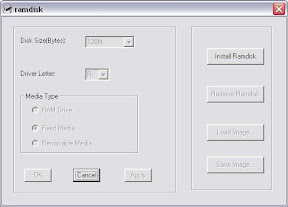
After a few seconds, the controls on the left will be selectable and we can choose which size this RAM disk should have. Since the 901 I'm using has 2 GB of memory, I selected 128M (128 MB) for size, if you netbook as only 1 GB, you might want to use 64 MB. All other settings (Drive: R:, Fixed Media) remain unchanged. Click OK and the program should report Success.

The next thing we need to do is to prepare the RAM disk, since it is currently set to use FAT instead of NTFS. Create a new Batch file in the same folder where RAMDISK.exe is located and name it Setup.bat. This batch will create some folders and save the image (with the folders) to the registry. Since we are using a RAM disk, rebooting the computer will wipe the entire contents of the R: drive. With the batch, we are creating an image of the drive and store it to the registry. When the computer is booted, the RAM disk is re-created from this image automatically.

@echo off

echo This will setup the RAM Disk
pause

format /FS:NTFS /Q /V:RamDisk /A:512 R:
chkdsk /L:2048 R:
CACLS R:\ /G Administrators:F

MKDIR R:\TEMP
MKDIR R:\FFCache
MKDIR R:\IECache
MKDIR R:\Stuff

rdutil R: registry

pause

Execute the batch. Press return to get things rolling, then enter RamDisk to confirm you want to format the R: drive, confirm the format again (Y) and once again (Y). If you now open Explorer, you should have an R: drive with several folder in it. Please note: If you ever change your mind about the size of the RAM disk and change it using RAMDisk.exe you need to execute this batch again!

Next, we need to create a profile in Firefox that will be stored on the RAM disk. Using Explorer, open R:, change to the folder Stuff and create a new folder named RamDiskProfile. Now open a command prompt (Start - Run - cmd.exe) and change to the path where Firefox is installed, e.g. cd "c:\program files\Mozilla Firefox". Execute firefox.exe -ProfileManager. Click on New profile and enter as name RamDiskProfile. As folder, select R:\Stuff\RamDiskProfile. Back in the profile selection, click Start Firefox.

If everything works as expected, you should see the Welcome to Firefox page. Notice: Do not, repeat, DO NOT copy your existing profile! At least on my 901, several files inside the profile had direct likes in it (e.g. C:\Documents and Settings\TeX HeX\...). If you simply copy your existing profile you will end up having some of the files will be written on the SSD again.

What we now need to do is to change the location where this Firefox profile will put the cache files to. In the address bar, type about:config and confirm the warning that appears. Right-click anywhere in the list and select New -> String. As name of the new value type browser.cache.disk.parent_directory. As value for it, type R:\FFCache. Close Firefox.
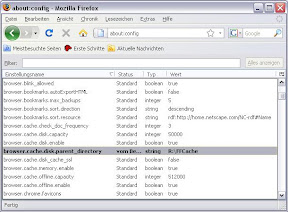
Now we will create a backup of this profile to the SSD. Use Start -> Run again and type %APPDATA%, which will display the folder where your personal data is normally saved. Open the folder Mozilla, then Firefox and then Profiles. Copy the folder R:\Stuff\RamDiskProfile there.

Okay, we are almost there. Create a new batch file that is used to start Firefox with the profile from the RAM disk. It will copy the files from the RamDiskProfile (from %APPDATA%) to the R: drive, wait for Firefox to exit (= you are done with browsing) and copy then any files that were changed back to %APPDATA%.

@echo off
echo.
echo Launching Firefox from RAM disk...
echo.

IF NOT EXIST R:\Stuff\RamDiskProfile\. mkdir R:\Stuff\RamDiskProfile

REM The xcopy command is one line until the "cd" command
xcopy "%APPDATA%\Mozilla\Firefox\Profiles\RamDiskProfile\*.*" "R:\Stuff\RamDiskProfile" /S /I /Y /H /Q
cd /D "R:\Stuff\RamDiskProfile"
attrib -a *.* /S

echo.
echo Firefox launched, this window will close when Firefox is closed
start /wait "Firefox from RAM disk" "%ProgramFiles%\Mozilla Firefox\firefox.exe" -profile R:\Stuff\RamDiskProfile

echo.
echo Copying files back from RAM disk...
REM The xcopy command is one line
xcopy "R:\Stuff\RamDiskProfile\*.*" "%APPDATA%\Mozilla\Firefox\Profiles\RamDiskProfile" /S /I /Y /H /Q /M

Now you also know why we have changed the location of the cache files earlier on: Because the cache files are now longer part of the profile (but instead on R:\FFCache), they don't need to be copied back. Of course, if you want to have your cache persistent, you can easily delete the browser.cache.disk.parent_directory from about:config and the cache files will be copied as well.

Start the batch file and give it a try, I'm pretty sure you will think you have just got a new computer. No more jelly mode, and the speed is what you were expecting from Firefox.

To verify that everything has worked, type about:cache into the address bar and look at the two cache directories, both should be pointing to R. One thing you need to keep in mind: In case you install an add-in or a theme, Firefox is offering to restart it with a single click. Don't do this since the batch will close when Firefox exists. Simply close it manually and restart it again using the batch.

Some other things you can do with the RAM disk: There is already a folder called TEMP so you can simply reconfigure your environment variables TEMP and TMP to use this folder. And finally, the folder IECache can be used to put the temporary internet files there.

Enjoy!