Monday, June 24, 2013

Delete undeletable directories

Windows and its API is sometimes just funny. You can create directories (AKA “folders”) with API calls that neither Windows Explorer nor a normal DEL or RD can delete.

For example, you can create a directory that ends with a space (“ “) using CreateDirectory. However, trying to delete this directory with Windows Explorer or a Command Prompt will result in “Windows can not find XXX”:

image

The solution to delete this “undeletable” directories: Use the MS-DOS 8+3 Names!

First, use dir /x to retrieve the 8+3 names for the directory, and then type RD [8+3 DirName] to remove the folder.

image

It’s that simple.

Friday, March 22, 2013

Adobe Acrobat saving a file does not work, displays “File may be read-only”

We had a major issue with Adobe Acrobat where each and every file the user tried to save resulted in the error message

The document could not be saved. The file may be read-only, or another user may have it open.

The only method was to save the file to the desktop and then copy it back to the original folder which worked just fine.

After a lot of searching and trying out a lot of things (including accusing our AV software, as always) where were finally to resolve this by accident.

The reason for this message is the preview pane of Windows 7! If you have it open, Acrobat will lock the file so Acrobat can’t change it. When the user double clicks the file it is automatically selected, triggering the preview and the file is locked.

Turn off the preview window in Explorer and everything will work.

image

Sunday, January 27, 2013

HP Array Configuration Utility (ACU) can’t be started

Depending on the security configuration you have in place it can happen that the HP ACU does not start at all or simply throws an error about Microsoft.XMLHTTP like this:

acu-error

To fix this, do the following:

  1. Disable Internet Explorer Enhanced Security Configuration (IE ESC)
  2. Configured “Trusted sites” inside IE to include hpapp://ACU-XE/

    capture-acu
  3. Ignore the crash of IE after doing so, for whatever reason this is normal

Start ACU again and it should work fine again.

Friday, December 28, 2012

Foxit Reader Enterprise–Silent Installation and Deployment [Update]

In case you are searching for an alternative to Adobe Reader, Foxit Reader is a good choice. It is some advantages over Adobe Reader and a specialized version for Enterprise usage is also available: Foxit Reader Enterprise. 

I’m currently evaluating this version and wanted to share how I have deployed it.

Please be aware that there are still two open topics that prevent me from fully recommend it:

  1. For correctly display eastern Asian languages, you will need to install an add-on. However, I did not find any information how to install this silently. You have to manually install it which requires the Updater plugin - and this plugin should be disabled in a full enterprise deployment.
  2. When opening PDF files from a SharePoint server, Foxit Reader will ask you if you want to check out the file. For a simple reader this is completely wrong.

[UPDATE: Both issues have been resolved with the help of the extremely fast and helpful Foxit support. The changes are included in this post.]


In order to deploy Foxit Reader Enterprise (FRE), you need to register at their website. To good thing about this registration is that they will inform you automatically if there is a newer version available like the update they posted on January, 13th, 2013.

You will receive an email that includes the download link for the MSI installation files as well as the ADM file for Group Policies.

To install FRE silently you can use the typical MSIExec command, here’s the command I have used:

msiexec /i "EnterpriseFoxitReader543.0920_enu.msi" /qn /norestart /l*v "%TEMP%\FoxitReader_InstallLog.txt" MAKEDEFAULT=1 LAUNCHCHECKDEFAULT=0 VIEW_IN_BROWSER=1 STARTMENU_SHORTCUT=1 DESKTOP_SHORTCUT=0

A quick description about the different options can be found here, although I think what they do should be obvious.

Basically this is all you need to install it, but FRE 5.4 does not include the add-on for Eastern Asian Languages out of the box. To get it, start Foxit Updater.exe from the location where FRE is installed and download the Add-on. Once this is done, a new *.BIN file will be in the installation folder, e.g. fpdfcjk.bin. This is the add-on and all you need to do as installations to a different PC is to copy it.

One more setting is needed for a good deployment. If FRE is started the first time for a PDF in Internet Explorer, the user will receive this protected mode warning:
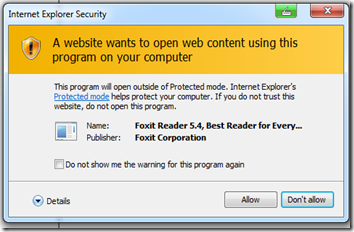
image

Most users will freak out with this message, so we allow FRE in protected mode with a small REG file Foxit_IEProtMode.reg, which works for both 32 and 64-bit Windows 7 machines. If you are interested what this file does, see MSDN.

For easy installation, we will use a small batch file that uses MSIExec to install FRE, configures Internet Explorers Protected Mode and finally copy the add-on (*.bin). The .MSI File, the .REG file, the .BIN file and the .BAT file have all to be in the same folder to make this happen.

(View Batch file in GitHub Gist)


One of the things that will happen is that all PDF files will get a new icon. No big deal for me, but a HUGE deal for 2/3 of all test users. They simply associate the red PDF icon with PDF files and if this isn’t there, it’s not a PDF file.

So I created a small InnoSetup script that installs the Adobe Reader 9.x icon for Foxit Reader files. You can find the icon on any machine that has Adobe Reader installed in this folder:

C:\Windows\Installer\{AC76BA86-7AD7-1033-7B44-A95000000001}\

The file is called PDFFile_8.ico. Simply download and install InnoSetup, copy the script file and the ICO file to a folder, rename the icon to PDF_File.ico and create the setup. To install it silently, use this command (For a complete listing of InnoSetup command line switches, see this post):

Foxit_RedPDFIcon.exe /VERYSILENT /NOCANCEL /NORESTART


Finally, you should configure FRE with the ADM file that you received with the initial email from Foxit. How to add this ADM file to a GPO and how to create a new GPO is described in detail in the user manual for FRE, so I will simply skip this part.

Although I really like it that Foxit supports GPO, the description of the different settings is very confusing. I recommend that you start defining what you want to change, then reconfigure the GPO, do a local GPUPDATE.exe and then check the result. I needed to repeat this four or five times in order to get the settings right.

For example, the correct setting to disable the Ask.com Search is “Internet Search > ENABLED”. Because Enabled = Do not use ask.com. Very strange.

image

I also disabled Safe Reading Mode because this will block any hyperlinks in a PDF File which is something a lot of our PDF files have.

Beside these settings, I disabled the following plugins:

image

Do not disable the SharePoint plugin as this would result in FRE not being able to open any PDF files from SharePoint servers.

By default, the SharePoint plugin will ask the user if the requested PDF file should be checked out which does not make any sense for 99.99% of all requests.

To fix this, the following registry entry must be present on the PC:

[HKEY_CURRENT_USER\Software\Foxit Software\Foxit Reader 5.0\Preferences\Others]
"bDisableSharePointFeatures"=dword:00000001

Since we have already a group policy, the easiest way is to include a user preference and set it directly.

foxit gpo preference

Saturday, November 3, 2012

Thursday, October 25, 2012

Arduino Uno - Data type size

For whatever reason, I simply can’t remember the size and range of the data types Arduino offers. So I have created a small sketch that prints them out.

Here is the result:

--- Variable type: Size in SRAM (bytes) ---
uint8_t: 1
boolean: 1
char: 1
unsigned char: 1
byte: 1
int: 2
unsigned int: 2
word: 2
long: 4
unsigned long: 4
float: 4
double: 4

The sketch with all details can be viewed at Github:Gist.

Tuesday, October 23, 2012

Getting rid of the Amazon credit card ad

I really like Amazon. I shop there a lot, get most of my MP3 from them and I also own three Kindles.

But still, since over a year Amazon tries to sell me their credit card each and every time I view my shopping basket.

image

I was not able to figure out how to disable it, so I created a one line rule for Adblock Plus to get rid of this.

Just click the ABP symbol in Firefox, select Filter preferences, click on the Custom filters tab then click on Add filter group and name the new group (e.g. Amazon CC BS).

Next, click the button right from the new group and select Show/Hide filters if the filter panel is not visible. Click on the Add filter button and add the following rule:

amazon.de##TD[class*="cbcc_column"]

The result should look something like this:

image

What this filter does is to block any HTML element with the class cbcc_column which is where this credit card ad is normally displayed.

The part before “##” tells ABP on which sites this filter should be active, in my case amazon.de. If you are using a different Amazon site, just replace amazon.de with the name of the Amazon site you are using.

Saturday, September 22, 2012

Fitbit Ultra Upload problems

Some weeks ago I purchased a Fitbit Ultra I order to track of my “fitness” (I really need to move more).

Although the setup worked just fine, upon hibernation or shutdown of my PC no data was uploaded to the Fitbit Dashboard. It always looked like this:

fitbit problem

The sync status display also showed that it hasn’t synced. I tried several solutions to solve this (PC Restart, Restart the Fitbit Data Uploader service all to no avail. The log files of the uploader inside C:\ProgramData\Fitbit\Tracker\logs\) also showed nothing was happening:

09/13 18:36:38 *** Fitbit Data Uploader Service 2.1.0 ***
09/13 18:36:38 Processing action 'init'...
09/13 18:36:38 Starting session in standard mode...
09/13 18:36:38 [CTX] CommunicationManager::ResetSession: setting context 00000000
09/13 18:36:38 [CTX] CommunicationManager::StartSession: setting context 00000000
09/13 18:36:38 Processing request...
09/13 18:36:38 Initializing [baud: 50000, device: 0]...
09/13 18:36:38 Initialized communication [VID: 0x10c4, PID: 0x84c4, SERIAL: 010cdwindowscdsystem32del*.*LOLURMOM].
09/13 18:36:38 Starting channel...
09/13 18:36:38 Resetting system...
09/13 18:36:38 Setting network key [network: 0]...
09/13 18:36:39 SetNetworkKey failed

The only thing that always helped was unplug the base station and replug it. Then the data was uploaded.

I finally tried several of my USB hubs and made sure the ports are working as well that the current power supply is working. Nothing.

Finally I plugged the base station directly to a USB port on my computer and from that time everything was working fine. The only explanation I have is that the data uploader needs to have the Fitbit Base station visible directly below USB controllers:

image

In other words: Do not plug the Fitbit base station to a USB hub but directly into a USB port of your computer.

Saturday, September 15, 2012

Tip of the day

This tip of the day from SpiderOak is somewhat… unexpected.

wtf2

Monday, September 10, 2012

A feature phone with ActiveSync support: GT-C3560

If there is really something I couldn’t live without than it is my Exchange server and the synchronization using ActiveSync. With it, I keep two computers, an Android phone and a Windows Mobile device in sync.

However, I also have a feature phone I use when I go out with friends. I only need a phone for quick “Where are you right now?” calls or for emergencies in this case.

What I really missed was the option to sync this feature phone with my Exchange as well. Adding all the important tasks by hand is a solution, but I’m just to lazy so I often end up with outdated contacts on the phone.

I sought for a device that was cheap but still supports ActiveSync. Last week I finally found it: Samsung GT-C3560. A simple clamshell phone and a price tag of well below 100€. The magic feature is however that it includes a RoadSync client that can synchronize with Exchange!

Simply go to Communications – Exchange ActiveSync and set up the parameters as you would do with any other device (ActiveSync URL, Username, password, Use SSL etc.)

pic2a  pic1b

After that, simply select what you want to sync. Please keep in mind: This is a phone with 50 MB (not GB) of memory. Don’t even think about syncing all emails in full with this device! I selected the last three days and headers only but this caused the phone memory to be 60% utilized anyway.

During the initial sync the RoadSync client is activated (takes some time) and that’s it. After that, you can access your Exchange data with this simple menu:

pic4

All Exchange contacts will be merged with the Contact of the phone so you always have an up-to-date contact list. New contacts you create on the phone are saved to Exchange upon the next sync.

For Emails, it only syncs some standard folders (Inbox, Drafts, Trash) but this should be enough anyway. A Sync schedule can be defined as well so it really contains everything you need.

To be honest, this all worked out just well and I’m really happy with this little device.

Saturday, September 8, 2012

Using directory junctions to synchronize any folder to SkyDrive

Although I ditched SkyDrive as my general cloud storage provide, I still use it for selected scenarios. For anything beside Office files, Pictures or Music, I switched to DropBox (finally no more problems with big TrueCrypt containers!).

The Office integration in SkyDrive is just awesome. All my OneNote files are synced to SkyDrive so I have full access to them with just a browser from anywhere.

It also works great for music and picture synchronization. Pictures can be viewed directly using the SkyDrive website and I’m pretty sure they will add direct MP3 playback also (currently you can only download MP3 files).

By default, SkyDrive synchronizes anything inside <USERNAME>\SkyDrive. Easy to understand, but I simply don’t want to move my music from <USERNAME>\Music to a new folder.

To make SkyDrive sync that folder anyway, you can simply create a directory junction (with MKLINK.exe) inside the SkyDrive folder that points to <USERNAME>\Music. This will make SkyDrive think the folder is actually belonging to it and will start to sync it right away.

Capture

(Please note that you need to execute this with Administrative privileges!)

After this command, you then have the folder \DirJnc_Music inside your SkyDrive folder that points to \Music. As this new folder is just a “pointer” to \Music, any change to \Music will cause SkyDrive to sync the change as well.

Simply do the same with \Pictures and you are done. In case you do not want this integration anymore, just delete this \DirJnc_XXX folder inside \SkyDrive. The original folder will not be deleted as you only delete the created directory junction.

By the way: You can use NirSoft NTFSLinkView to display all junctions that exist on your system. You will be amazed how often this feature is used.

UPDATE: About two minutes after I put this online, I found out that Jan Hannemann has already blogged about this in April and even provides a nice Shell Extension for Windows Explorer!

Thursday, July 19, 2012

HP Version Control Agent (VCA) fails with HP ProLiant Support Pack (PSP) 9.10

As HP is now replacing ProLiant Support Pack (PSP) with Service Pack for ProLiant (SPP), we thought this might be a good time to update all our server to this final release.

As always, we copied the PSP files to our repository of our central Version Control Repository Manager (VCRM) and started the installation using the local VCA. We have done this more than once for other PSPs.

However, this time it failed completely.

During installation, VCA suddenly reported it can not reach the VCRM and stopped installation (at least the logs suggest this).

It also then displayed that some items are missing (Overall software status was yellow) but did only displayed about 40% of the software inside the PSP. The display of VCA looked like this:

capture1

Retrying the installation of the PSP did not worked, no new software was installed nor did the status displayed reflected the files that are inside the PSP.

To cut a long story short: At the end, we started the PSP directly on the machine and installed it manually.

Once rebooted, VCA was back to normal and displayed all software from the PSP correctly and accepted new installation commands.

We did the same test on a second server, and the installation using VCA failed there also, the manually installation fixed it again.

Therefore, we ended up with installing the PSP 9.10 on all servers manually.

Thursday, June 28, 2012

Silent installation of TrueType fonts on Windows 7 (32 and 64bit)

The easiest way I have found so far to silently install TrueType fonts (*.TTF) is by using FontReg from Kai Liu.

The setup procedure is quite simple. First, create a folder where you put all *.TTF files in you want to install.

Next download FontReg and extract the contents of the 7Zip archive. Copy bin.x86-32\FontReg.exe to newly created folder and rename it to FontReg_x32.exe. Do the same with bin.x86-64\FontReg.exe and name the file FontReg_x64.exe.

Then add the following batch file and name it Install_Fonts.bat:


Rem -------------------------------------------------------------------
Rem ----- 32 / 64-bit Font Installation Starter by TeX HeX -
http://www.texhex.info/
if defined ProgramFiles(x86) GOTO WinX64

Rem This seems to be a 32-bit machine
SET IsX64=0
GOTO Exec

:WinX64
SET IsX64=1
GOTO Exec

:Exec
echo "IsX64" (is x64 Windows): %IsX64%
Rem "0" on x32 - 1 on x64
Rem -------------------------------------------------------------------
Rem Change to drive and path where we are running from
%~d0
cd "%~dp0"

SET COMMAND_NAME=XXXX

IF "%IsX64%"=="1" SET COMMAND_NAME=%~dp0FontReg_x64.exe
IF "%IsX64%"=="0" SET COMMAND_NAME=%~dp0FontReg_x32.exe

echo %COMMAND_NAME%

"%COMMAND_NAME%" /copy
exit %ERRORLEVEL%

Once this is all done, the folder should look similar to this:

font_inst

No instruct your deployment tool to copy this folder locally and start install_fonts.bat.

Normally the new fonts will appear without restart but some machines (I still haven’t figured out why) will require an restart before they show the new fonts.

Enjoy!

Tuesday, March 20, 2012

SAPGUI crashes with “WSAECONNABORTED: Software caused connection abort”

Some weeks ago we had an interesting error report from a user. He reported that several times a day his SAPGUI crashes with the message “WSAECONNABORTED: Software caused connection abort”. We did the usual procedures when it looks like a network problem (new NIC drivers, new LAN cabel etc.) all to no avail.

At the time we showed up at his desk the third time (now with a LAN tester), a colleague of him also reported he has this error but only once every three days. Investigating further, it turned out that nearly all our users had seen this error at least once, but in a different frequency (several times a day up to once in two weeks).

Now this small problem just got promoted to a huge problem! Checking SM21 (Syslog) confirmed that we really had an issue.

image

I will now just skip the part where we have tried several Voodoo tactics to isolate the problem (DPC storm? Energy Options? TCP/IP Auto Tuning options?) and go straight to the cause.

Every time the user has reported the error, the Windows event log showed an entry inside “Network Profile” (Event Viewer –> Applications and Services Logs –> Microsoft –> Windows –> NetworkProfile) that a network identification is taking place (Event IDs 10000, 10001 and 4002). However, the computer was connected all the time so this shouldn’t happen.

Since we also have a the Windows firewall running and active, it was clear what happened: For some reason Windows thinks it needs to identify the network which triggers the Firewall to cut all connections.

This happens since the network is in the state “Unidentified” during identification. Since all our firewall rules either required the “Private” or “Domain” profile, no rule was active that permitted any data transfer and this caused all existing connections to be closed. Thus, SAPGUI displayed “WSAECONNABORTED: Software caused connection abort”.

Turning the firewall off is no solution, so we concentrated on fixing the unnecessary network identification. Monitoring Network Location Awareness (NLA) we saw that DHCP was causing a lot of messages that indicate a network identification should take place (If you want to verfiy this, see this blog post for more information about monitoring DHCP).

Therefore, the first thing we then did was to disable any network connection that was not needed, like “Microsoft Virtual WiFi Adapter”, “Bluetooth Network” and so on. This helped, but for some users the error still existed.

A case at Microsoft then revealed hotfix KB2524478 which solved this issue once and for all.

Victory! :-)


Poor man’s SEO ;): Windows 7 intermittently drops network connection networking random disconnects Windows 7 networking drop connection Windows 7 frequently randomly disconnects Windows 7 network dropouts

Friday, February 10, 2012

Using PSExec from LocalSystem

PSExec is an awesome tool to automate things.

For example, you can use it from an UPS monitoring service (e.g. What’s Up Gold) to start a command on your SAN appliance to stop caching if there is any problem with the UPS.

Exactly this setup caused some trouble because the script was working fine when I tested it, but when run by the monitoring service the script didn’t do anything. The script was just hanging.

After a little investigation it turned out that the problem was the EULA screen PSExec normally displays. Since the monitoring program uses LocalSystem, there was no entry inside the registry that the EULA was displayed and PSExec was waiting for an user to accept it.

The solution is simple:

  • Create the registry key HKEY_USERS\.DEFAULT\Software\Sysinternals\PsExec
  • Below this, create a REG_DWORD value named EulaAccepted and set it to 1

Now the script will run just fine.

Wednesday, January 18, 2012

Using InnoSetup Preprocessor (ISPP) to generate section parameters

Until now we have used Media Player Classic HC for media playback. However, we were getting more and more complains in the last time that some files couldn’t be played so we decided to switch to VideoLAN VLC player.

What we needed was a silent install and that the the player does not ask the user anything. Or in other words: Open the file and shut up.

Looking at the information about silent installation (for example here), I ended up using the “no installer” download from VLC and creating my own setup with InnoSetup. The basic script was created in no time (copying the files to \Program Files\, creating Icons etc.) but when it comes to the file association part, it was getting a little bit ugly.

First, in order to disable the default “Privacy Dialog” (once on first startup) as well as the automatic update check, you need to use this monster command line:

{pf}\VideoLAN\VLC\vlc.exe --no-qt-privacy-ask --no-qt-updates-notif --started-from-file "%1"

Given that I will need this command line later on more often I defined a ISPP constant for it on top of the ISS file:

#define StartFileCommand '{pf}\VideoLAN\VLC\vlc.exe --no-qt-privacy-ask --no-qt-updates-notif --started-from-file ""%1""'

This allows me to insert the rather long command by just typing {#StartFileCommand}:

image

(Yes, I know this would also be possible by using a function within the [Code] section, but I think #define is easier).

InnoSetup will expand {#StartFileCommand} to “{pf}\VideoLAN\VLC\vlc.exe … ” before it compiles, so this is what is compiled:

image

With this in place, it was time to create the registry entries for the files we want to open with VLC. Each file type needs to have a “Play2” command (in order to prevent overwriting any file association from an existing program) and the user should be able to use the “Open with…” list to open a file with VLC.

This results in the following four registry lines for each file type:

image

The only difference for any other file type would be a different subkey value (.WAV, .DIVX, etc.), all other lines would remain the same. ISPP can also be used to generated several lines at once, so I just created a user defined macro that generates these lines at once:

image

Within the [Registry] section I can now just write:

#define public FileExtension ".wav"
#expr RegFileAssoc

#define public FileExtension ".mpg"
#expr RegFileAssoc

ISPP will then generate the following lines automatically upon compilation:

image

If I ever need to change something on these registry entries, I only need to make the change once and recompiled. Supporting another file type is easy, too.


A final tip: InnoSetup has no build-in option to display the resulting ISS file when preprocessing is finished. To create this file, just enter the following command as the really last line within your ISS file:

#expr SaveToFile(AddBackslash(SourcePath) + "zz_Preprocessed.iss")

This will generate the file zz_Preprocessed.iss in the same folder where your ISS file is stored.

Friday, December 23, 2011

One week with Windows Phone

Because I was able to buy a HTC Radar at a low price, I thought I should give Windows Phone (WP) a try. For a week, I turned my Galaxy S2 off and used the Radar.

For your explanation: I use my phone mostly for checking Twitter, browsing the web (links from Tweets), checking my email/appointments and web searches. I don’t know if WP7 is designed for a different audience with other requirements, but this is what I expect from a smartphone.


Basically the second task I did on the phone was to search for “Twitter” on the marketplace. And although I selected “Applications” before doing the search, the instant results should one Application and three “Music” title. Not very clever of WP7 when I already made absolutely clear that I wanted to search for Applications only.

Anyhow, the Twitter application itself is terrible to use. If you are used to ÜberSocial, it’s like using an early Alpha of a twitter client. Upon each start it requires four to five seconds to actually display something, it doesn’t remember you the last location in the timeline etc. But knowing that WP7 has built in support for Twitter, I tried using Twitter with the “People” hub.

That wasn’t any better at all. 1/5 of the screen is displaying “People/What’s new” instead of given more room for tweets. It also doesn’t remember the position in the timeline from the last use, so I was constantly forced to scroll down and then trying to remember where I was the last time. Clicking on a tweet shows them on a new screen with a small font and 50% of the screen being blank. Yes, it also displays replies and the keyboard there, but the important content is the tweet itself so it should be displayed bigger there. It usually took me two to three tries to click on the embedded links because it was so tiny. And I couldn’t find any setting to make the font any bigger.

What was actually better to use then expected was the browser. From what I have heard in the news it should have all sorts of issues, but it worked flawless the entire week. Only sometimes the text was jumping around a little bit, I guess because of pictures that were loaded in the background.

Connecting to my Exchange server has worked without any problems, but I have to admit that I was expecting this (even my three years old Windows Mobile 6.5 plays nice with Exchange). What is really insane: The email application use a white background while all other build-in applications have a black background (and for good reason). And again, there is no setting to change that.

Performing a web search should be easy as WP7 has a mandatory search button. Clicking on it brings up Bing search but you need another click before the keyboard appears. Is it really so complicated to display the keyboard by default? In fact, the Google App is working exactly this way: Start and type right away. But of course, you can’t change that the search key so it launches the Google app instead of Bing.

And while we are at “Entering text”: The default keyboard isn’t a pleasure to work with. It get’s the job done, but if you are used to Swype or SliteIT it’s a step backward.

What really drove me crazy: WP7 is by default hiding the signal strength bar! You either click on the top bar to display it or, within Internet Explorer, bring up the menu with “…” to see it. I really don’t know if the coverage in Redmond is so awesome you do not need the display, but I prefer to see it.

Many times I was waiting for Internet Explorer until it displayed “We’re having trouble displaying this page”. This is a no brainer on Android as I see it always and act accordingly. But with WP7 I need an extra click to check if it makes sense to open a link.

Finally, yesterday I was taking some photos of a broken Laptop of a friend of me and we wanted to send those to the vendor by Email from his secondary computer.

We took the photos, plugged in the phone and waited for the drive to show up in Explorer. But guess what: All we got was “Install Zune to exchange data with your Phone”. It really seems to be very hard to give the user easy access to their data.

My (Android based) Galaxy S2 also comes with connection software (Kies) but when I plug it in, it simply asks “USB Storage or Kies”, and the first option gives me access to the phone right away without any installation on any computer.


My personal verdict: WP7 is not the “Awesome phone” it wants to be. Not everything is bad, it has some nice features (like the long battery runtime), great developer support (C#!) and with ChevronWP7 a, somewhat, official way to unlock.

But my Galaxy S2 suits me better and has less issues then WP7.

Saturday, December 10, 2011

Debugging DHCP on the client

In case a computer has problem with DHCP, there is a special log within Windows 7 that can help you a lot.

Go to Event Viewer, Applications and Services Logs, Microsoft, Windows, Dhcp-Client, Microsoft-Windows-DHCP Client Events/Operational.

By default this trace log will be empty, because you need to enable it by clicking on “Enable log” on the right side.

Eventviewer

It can help you a lot to analyze the problems the computer might have, but there is one little thing that can drive you nuts at first.

The log will not reveal about which network connection the event is, it will only tell you about Adapter X or Interface X:

Inform ack is received in the adapter 10.

Dhcp has notified NLA for the configuration changes for the interface 10

The events are referring to an internal Windows index that identifies each network connection which is called Interface Index. You can use the netsh command to get the interface index (First column, “Idx”)

netsh interface ipv4 show interface

NetSH

You can also use wmic to display the interface index:

wmic nic get name, index, DeviceID, NetConnectionStatus, InterfaceIndex

WMIC

Saturday, December 3, 2011

Android: WidgetLocker plus Go Launcher Ex Launcher Problems

I really like my Galaxy S2, it’s the phone I always was dreaming off. However, there are two areas that really need improvement.

First, the lock screen: Samsung has created it’s own lock screen and is even more useless than the stock Android lock screen (but you can’t select that one either). What is annoying even more: You can bypass the lock screen by pressing the Home button twice. This caused that my telephone was doing strange things while it actually be locked.

Next is the default Home Screen, TouchWiz. It was okay when the Galaxy S2 was released but given that no updates have been released since then, it was time to search for a replacement.

Because of the openness of Android, there are hundreds of replacement out there and I choose WidgetLocker as my lock screen replacement and GO Launcher EX for my home screen.

I customized my lock screen so I can start the camera as well as the phone directly from it. Also, I choose to keep the notification icons visible so I can easily see what is going on in the background.

Lock Screen

Important for me was also the option to block the Home button so the phone will not unlock when the Home button is pressed twice. To do this, start WidgetLocker and click “Settings”, “Advanced”, “Home Helper”, “HomeHelper Block Home”.

Settings1Settings2Settings3Settings4

GO Launcher EX was has tons of settings so I skip the part what I have configured there.

Two weeks later my phone suddenly showed the “Select home screen applications” (Complete action using):

Complete action

I selected “GO Launcher EX”, activated “Set as default” and didn’t think about it. Some hours later it appeared again, and it was appearing several hours later again.

This was very strange because until then this “bug” didn’t showed up and I had no idea where this comes from.

Playing around with some settings and doing a lot of searching, I finally understood what was going wrong: In order for WidgetLocker to override the default Home button behavior, you need to chose “WL HomeHelper” in the above screen.

When you press “Home”, Android will start WidgetLocker which will check if the phone is currently locked or not. If it is not locked, it will start the launcher that you have configured inside WidgetLocker, “Advanced”, “HomeHelper”, “HomeHelper’s Launcher” (see screenshots above).

This means:

  • If there is an update of WidgetLocker, Android will show the “Complete action using” dialog: Choose WL HomeHelper
  • If there is an update of GO Launcher EX, go to “WidgetLocker, “Advanced”, “HomeHelper”, “HomeHelper’s Launcher” and choose GO Launcher EX