Monday, May 8, 2017

BIOS Sledgehammer: fully automated BIOS updates, TPM firmware update and BIOS settings for HP business devices

When we started our Windows 10 project last year, it was decided that we need to support 85% of our entire device fleet which are HP business client devices

At the same time, we also agreed on a “Security first” approach which means that Windows 10 will only be rolled out in UEFI boot mode with Secure Boot on and, if supported, with a TPM 2.0 firmware. This is required to get the maximum benefit from the security features in Windows 10 like Device Guard.

Given that most devices has never received a regular firmware update, it was clear that we need BIOS updates, TPM updates and BIOS setting changes on nearly all devices. As we use our device three to five years, this meant we need to support about 20 different HP models.

The “classic” way would be to create a job/script that does all changes for exactly one model, declare this model as “Supported” and move on to the next model. The PowerShell scripts required for this would be copied so at the end we would have 20 slightly different scripts and if we need to support future devices, it would be even more. On top of that, there would be no central place we could check which BIOS version we install on model X.

We decided to use a complete different approach, with the following design goal:

  • Create a central, file-based repository where everything is stored
  • This should contain BIOS firmware files, TPM firmware files, BIOS settings and BIOS passwords
  • A shared-nothing approach should be used, so each model has its own stack of files. This ensures that supporting a new device does not accidently break other models
  • The repository should be sorted by model, e.g. EliteBook 850 G2, EliteBook Folio 1040 G1
  • Everything should be configurable using normal Text (*.TXT) files, no extra scripting for any model
  • In any case, no downgrade should ever happen.

Given that I had developed some firmware updates, I thought this couldn’t be that complicated. Turned out, I was totally wrong about this. To give you an idea:

  • HP has at least five different BIOS version schemas:
    - SBF13 F.64 (Yes, that’s a „F“ as major version)
    - N02 Ver. 02.07 01/11/2016
    - L83 Ver. 01.34
    - L01 v02.53 10/20/2014
  • A TPM upgrade from 1.2 to 2.0 could lead to a LOWER firmware version because the firmware is from a different vendor (never happened for HP so far, but this is at least possible for DELL  and I wanted the script to be prepared)
  • For TPM upgrades it is also necessary to full decrypt BitLocker it it’s in use since all keys will be lost during the TPM upgrade flash.
  • The details why something went wrong are in the private log files of the HP tools, so they need to be appended to the “main” log file to know what went wrong.
  • Finally, we found out that we have several BIOS passwords in use so the script needed some way to test several passwords until the correct one is found.

I spare you the details of how many tries it took until I got it right, but the first version BIOS Sledgehammer went into production in 2016-11 and was used on 500 machines since then with exactly one defect so far that was caused by a power loss during the upgrade process.

The usage is as follows:

  • Download and extract the latest version from the repository
  • It comes with several examples for several HP models, but does not include the actual firmware files
  • To get a full set of examples, run "StartExampleDownloads.bat” which will download them from HP.com
  • Check the file structure and files, this should be mostly self explanatory
  • Grab a test machine (for best results, this machine should be on Windows 10 already) and execute BiosSledgehammer.ps1
  • Check what it does, tweak around with the different settings files for your model (it will tell you exactly which files are used) and change the configuration to your liking
  • The full documentation is on the repository as README.md
  • When you have everything ready, you can use it directly from MDT or SCCM. It will detect the environment and save the logs to the matching \logfiles folder
  • As an extra bonus, as of 2017-04, it also supports the “BIOS legacy to UEFI” change introduced with Windows 10 1703 (using MBR2GPT.exe) with the –ActivateUEFIBoot command line switch

BIOS Sledgehammer is open source and available under the Apache 2 license, which means: You can use it without any cost, on any number of devices.

Enjoy.

Saturday, November 19, 2016

Windows Bitness Helper

Although it was just six years ago I wrote about the 32-bit and 64-bit issues on Windows, the issues still exist today. Most Windows system these days are 64-bit, but a good portion of programs are still just 32-bit. To get an idea, just open C:\Program Files (x86)\ on your PC – that’s all 32-bit programs you see.

Normally, you don’t need to take care what is 64- or 32-bit, except you need to write a batch file and know exactly where which files are. To give you an example, the environment variable %ProgramFiles% points to different folders, depending on the system and how it’s executed:

  • On a 32-bit Windows it points to: C:\Program Files\
  • On a 64-bit Windows, from a 64-bit Process, it points to: C:\Program Files\
  • On a 64-bit Windows, from a 32-bit Process, it points to: C:\Program Files (x86)\

This is somewhat logical, but where things go totally haywire is when you need to know the location of the Windows EXE files:

  • On a 32-bit Windows, the 32-bit files are in C:\windows\system32\
  • On a 64-bit Windows, the 32-bit files are in C:\windows\SysWoW64\
  • On a 64-bit Windows, from a 32-bit Process, the 32-bit files are in C:\windows\system32\
    * Because this will be redirected to \SysWoW64
  • On a 64-bit Windows, from a 32-bit Process, the 64-bit files are in C:\windows\sysnative
    * This is a special virtual redirection folder
  • On a 64-bit Windows, from a 64-bit Process, the 64-bit files are in C:\windows\system32
    For real this time, no redirection will occur.

The special case is here “32-bit process on 64-bit Windows” (aka Windows on Windows = WoW) where Windows will redirect any access to the \system32 folder to \SysWow64. This also means, you can’t access the “real” \system32 folder where the 64-bit files are located. Only in this case the virtual redirection folder \sysnative exists.

Because I was tired to write this detection logic repeatedly, I create a batch file that adds some _BIT_xxx environment variables that are always set to the correct values. For example, if I want to start PowerShell, I use the following lines:

REM This call will provide the _BIT_xxx variables
call "%~dp0BitnessHelper.cmd"

REM Use one of those variables – will work in 32-bit, 64-bit or when running as WOW
"%_BIT_SYSTEM_NATIVE%\WindowsPowerShell\v1.0\powershell.exe"

Here is a screen shot of the variables it creates. The left shows a WoW process, the right a 64-bit process:

BitnessHelperCapture

This batch should work Windows XP up to Windows 10 and always report correct values. You can get it from GitHub: https://github.com/texhex/BitnessHelper

Wednesday, September 14, 2016

Samsung Gear Fit2 Quick Start Tutorial

Because I never used any Gear smartwatch before, I was hoping there would be some sort of Quick Start Tutorial delivered with the Gear Fit2. Unfortunately, there wasn’t one – so I wrote this in the hope that it will aid others.

Before you begin

Your Gear Fit2 requires a Samsung account to be useable. You should create this account using your PC because its way easier that way. Go to https://account.samsung.com/account/signUp.do and create your account.

Then, you should install all four required programs for your Fit2. You can install them to your device directly from your browser when you are signed in with the same Google account you use on your phone.

  • Samsung Gear, the application to setup and control your Fit2. Once installed, it will request to install “Samsung Accessory Service”. Confirm and install it as well.
  • Gear Fit2 Plugin, required by Samsung Gear to communicate with your Fit2.
  • S Health, the application to sync and review the Fitness data.

Connect your Gear Fit2

Make sure Bluetooth is enabled, then start Samsung Gear and follow the instructions to connect your Fit2. Once done, try if the connection fully works by going to Watch faces and tap another watch face.

Your Fit2 should change to the selected watch face within a few seconds. More on changing watch faces later on.

Basic operations

The Fit2 only has two buttons: Home (Lower) and Back (Top). To wake up your Fit2, you can press any of those. The information it displays is divided into three sections:

  • Left: Notification
  • Middle: Watch face
  • Right: Widgets

To move between these sections just swipe left or right. If you are lost, press Home (Lower button) shortly to return to the middle screen with the watch face.
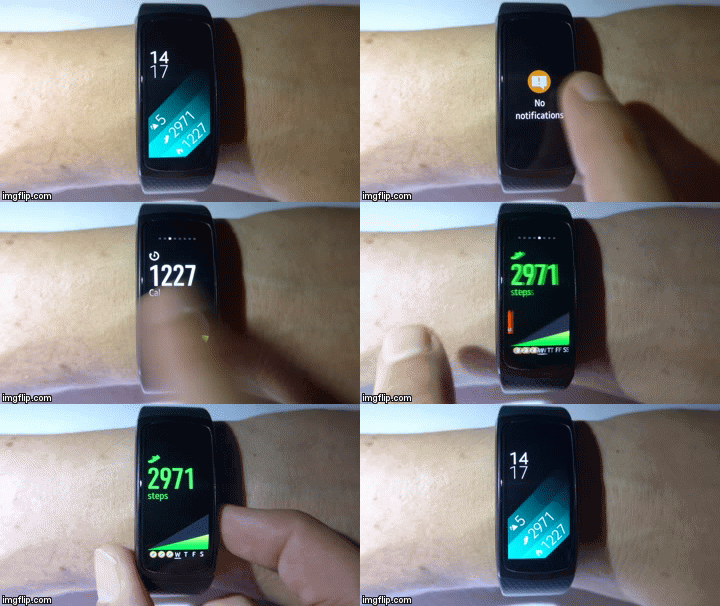
1akxzm

To view how many battery is left, if the device is connected, to change the brightness or to start up the build in music player, swipe anywhere from the top to see the system screen.

1aky1o

To change the settings of your Fit2, press Home (lower button) while the watch face is active to display the app drawer, then select the first entry Settings. Swipe up and down to navigate through the categories, select what you want to change and press Home to return.
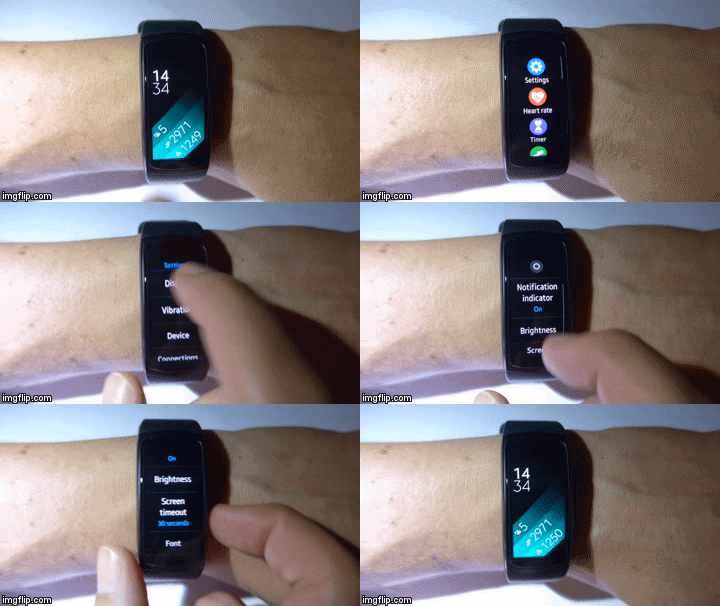
1akzvv

Finally, the Fit2 will show a small yellow circle in the top left corner if you have unread notifications (swipe to the left to view them) and a small white bar in the top right corner if it has lost the Bluetooth connection to your phone.

watchface4

Customizing watch faces

To change the active watch face, press and hold anywhere on the screen, swipe left or right to select the watch face you want and tap again. The new watch face will be shown.
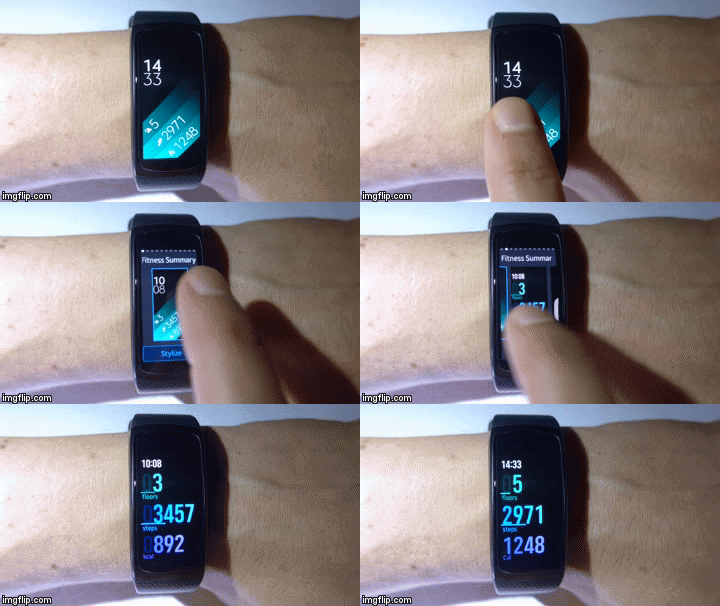
1akyvi

To change the style of the current watch face, press and hold again, then select the “Stylize” button. Tap on the upper part to change the color. If the watch face offers several areas to stylize, swipe left or right to select what to change. Please note that some watch faces only come in one style and can’t be changed that way.

1amv9w

To remove a watch face, tap and hold on the current watch face, swipe left or right to select the watch face you want to remote and press the small white minus button. Confirm to uninstall the watch face.

1al218

The currently displayed watch face can not be removed, so you first need to activate another one. All Samsung preinstalled watch faces cannot be removed.

Customizing widgets

The widgets your Fit2 displays can be changed to your liking. To add another widget, move to the right until you see “+ Add”, then select the widget you wish to add.
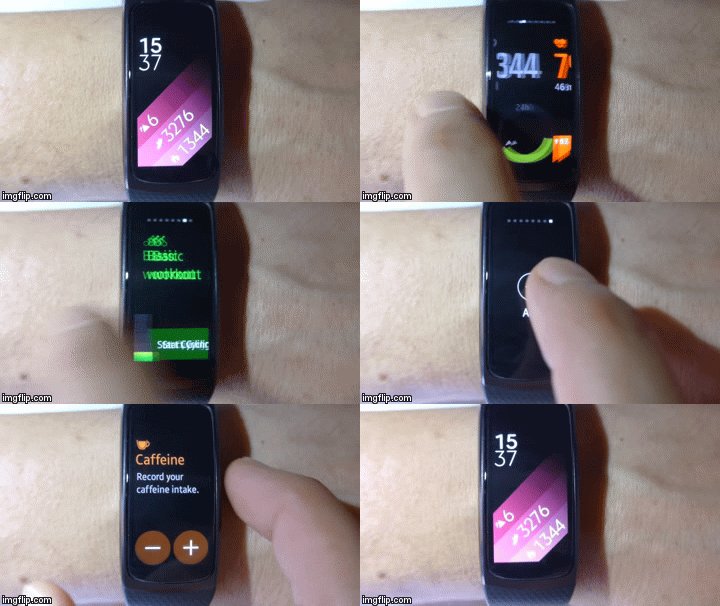
1al33y

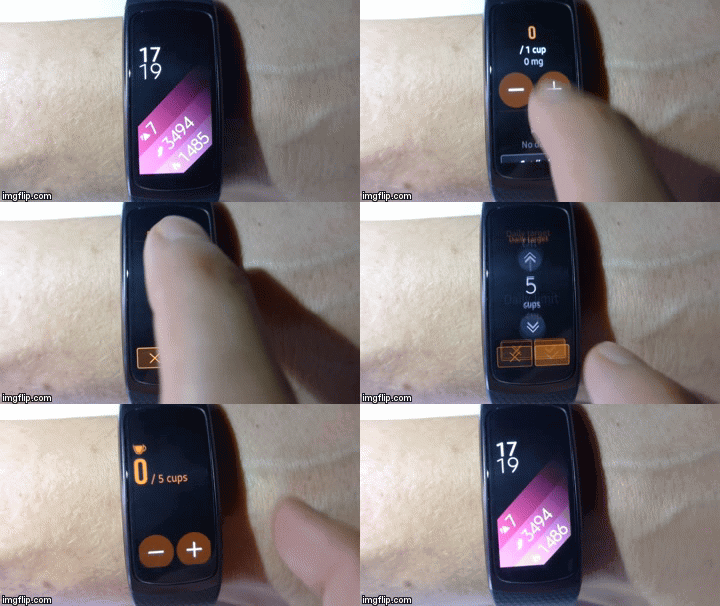
Most widgets support settings targets or limits. Just tap once on the widget, scroll down to the button, change the setting and press Back or Home to confirm.
1ala9x

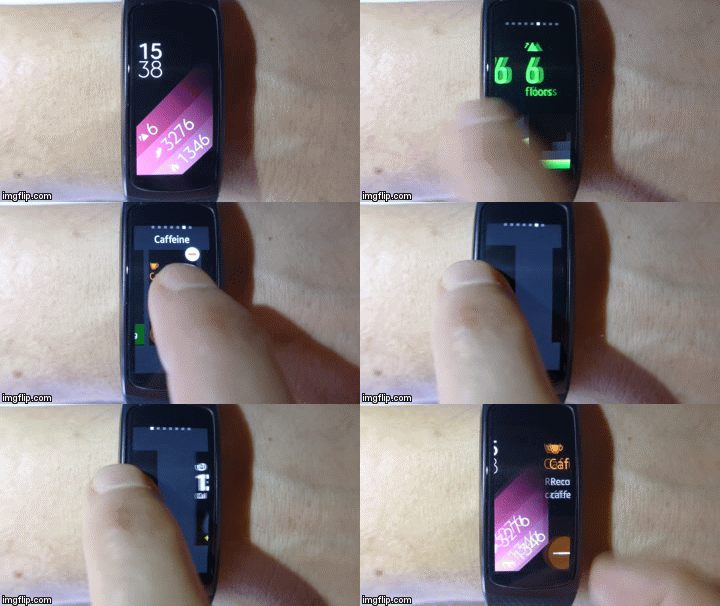
The widgets can also be reordered. To do so, swipe right to widgets. Press and hold until the widgets become smaller, then press and hold on the widget you want to move and drag it left or right and let go when it’s on the correct position. When done, press the Back or Home button.
1al3pc

To remove a widget, first move to the right until you see the widget you want to remove. Then press and hold until the widget becomes smaller and press the white minus button.

1al3ax

Customizing the app drawer

You can customize the order in which the apps are displayed, so apps you use often are on the top of the list. Please note that many applications provide widgets, so you should first check if the app isn’t providing a widget which is faster to navigate to.

To reorder the app list, open the App drawer by pressing the Home button once. Tap and hold the app you wish to move until a blue border is visible. Then tap and hold an app and move it to new position and let go. Press Back or Home to confirm.

1al8uw

To remove an app, tap and hold until the blue border is visible again, then press the small white minus button. Confirm to remove the app.

1al64i[3]

Using the Home key

The Home button (key) is the lower button on your Fit2.

  • If the display is off, press it once to turn it on
  • Press it again to display the App drawer to start apps or change your settings
  • Press it twice (very fast, like a double click) to start an application. You can configure which app to start in the Samsung Gear app –> Settings –> Double press Home key, or directly on your Fit2 using Settings –> Device –> Double press Home key
  • If you keep the Home button pressed for two seconds, you can turn your Fit2 off or start “Power saving”. Activating this mode is recommended if you don’t wear your Fit2 as it only needs about 1% battery per hour.
  • If you keep the Home button pressed even longer (eight to nine seconds) your Fit2 will reboot. No data is lost during this process. 

Recommended settings for your Fit2

To change settings, press the Home button once and select Settings in the App Drawer.

1akzvv[1]

  • Vibration – Both settings on (the normal vibration of the Fit2 is easy to miss)
  • Device – Wake-up gesture ON (just raise your arm and the Fit2 will turn on automatically)
  • Connections – Wi-Fi and Location OFF (to save battery)
  • Health Nudges – All on (to receive an inactivity alert as well as if you meet your goals)
  • Profile – Make sure the data is correct so your Fit2 can correctly measure your calories

Connect to the Galaxy Apps Store

In order to download apps and watch faces on your Fit2, you need to connect to the Galaxy Apps store. You find it inside the Samsung Gear app - the last item in the list.

fit2_main

Depending on the version of your Samsung Gear app, it will directly ask for your Samsung account. Enter it to proceed.

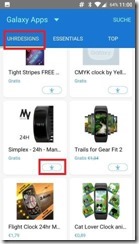
Click on >Watch Faces< tab and look for a free of charge design that suits you. Click on the “Arrow down” button below the picture to download it (Sorry for German/English mix-up, I have no idea why some items are in local language and others are not).
fit2_watchfaces

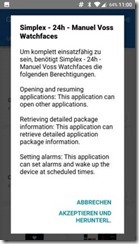
Galaxy Apps will then display the permissions it requires - select Accept and continue.
clip_image006

You can now use the new watch face on your Fit2.

Using the Galaxy Apps Store

As described, you acquire new watch faces using the Samsung Galaxy Apps function from within Samsung Gear. The process of getting new apps is the same as for watch faces; look for something that interests you in >Essentials< or >Top<, then click on the “Down arrow” to download it. If the icon shows a check mark, it’s already on your Fit2.

clip_image002[5]  Check mark = Already installed
  Down arrow = Download and install

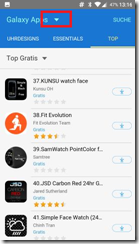
To view your account in the Galaxy Apps Store, select the drop down behind Galaxy Apps
clip_image003

The account screen will open which you can use to:

  • Open your Samsung account data by clicking on your email address
  • Change or remove your credit card for paid downloads from the store (credit card icon on the right)
  • Manage the installed applications and watch faces on your Fit2 by selecting the green “Own Apps” icon

clip_image005

From the Own Apps list, you can first check if there are any updates available to the apps and watch faces you have downloaded.

fit2_ownappslist2

If the icon behind the name is a down arrow (like in this case Fit Evolution), an update is available and you should install it. If the icon is a check mark, the installed version is current.

Please note that this also applies for the build-in “Fitness-Apps” by Samsung (Steps, Floor and Calories counter). At least for my device, they required an update to work correctly

Deleting apps and watch faces

If you have removed (uninstalled) either an app or a watch faces, these will still be shown in the “Own apps” list of Galaxy Apps (Samsung Gear app -> Samsung Galaxy Apps -> Drop down at the top -> Own Apps) so you can later on install them again.

If you also want to remove them from this list, select “More” at the top of the Own apps list and choose Delete.

clip_image002[7]

Select the items in question and choose Delete.

clip_image004[4]

In case you can’t select the item you wish to remove, it means it is still installed on your Fit2. First remove it there, then try again.

Using S Health

S Health is the Samsung fitness app and also provides a connecting to Samsung Gear. You will need to login with your Samsung Account and once done, S Health will display something similar to this:

clip_image002[11]

By default, S Health does not sync your data. Which means that f you lose your phone, all your data is gone. To change that click on the three dots in the upper right corner, then select your account (first entry) and make sure Auto Sync is on.

clip_image004[6]

Final tip

There are several very good paid watch faces available that display all information at once and allow you to start several apps directly from the watch face itself. A good example for that is “Black Modern Clock 4”, search for it on the Galaxy Apps Store.

Thursday, July 28, 2016

Android fast and reliable file management

Since I started using Android, I have tried many things to find a reliable file copy from or to my device. For a single file copy, the default mode using USB is slow but kind of works. But in case you need to copy 400+ files with several gigabytes, this takes ages and some files will just not be copied without any message.

I also tried several “File Transfer” apps from the play store, they all were either fast, but unreliable, or slow and unreliable or just plain broken. So I searched for something different and the final solution was using FTP (File Transfer Protocol).

First, download and install FileZilla, an Open Source FTP client. Next, install the FTP Server app by Pieter Pareit on your Android device (The source code for it is also available).

Start the FTP Server, tap on “Login settings...” and change the default user and password to something unique for the sake to security. Please do NOT activate anonymous login, again for security reasons.

androidftp_loginsettings

Go back to the main screen of FTP Server and flip the ON/OFF switch on ON. It will now tell which IP address and port it is using. Please make sure that your Android and your computer are connected to the same network so the connection will work.

androidftp_start

Launch FileZilla and enter the data from the FTP Server in input fields below the toolbar. In Host: enter the IP Address from your device, in Username/Password the entries from “Login settings...” and in Port 2121 (default setting in FTP Server). When done, click Quickconnect.

androidftp_filezilla1

FileZilla should now be able to connect and show you the contents of /sdcard or /storage in the right section. The contents of your PC are on the left, so you can simply drag & drop items between your PC and your device. Once you are finished, open FTP Server again and set it to OFF.

If you need access again, turn FTP Server ON, start FileZilla and select the dropdown field behind Quickconnect to open the connection again.

Saturday, January 23, 2016

SQLite, RowID, INDEX and AUTOINCREMENT

In case you already worked with SQLite you most likely already come across the concept of ROWIDs and their relations to PRIMARY KEY (INDEX). I had a hard time to understand all these topics and I want to share what I learned here (all commands are also available in a GIST).

A ROWID is an identifier so SQLite can identify each row. You can create tables without ROWID but for now simply assume that every table has a hidden field ROWID. You can display it by including the ROWID (or _ROWID_) column in your query. Here’s an example:

CREATE TABLE names_none (name TEXT);

INSERT INTO [names_none] VALUES ("JAMES");
INSERT INTO [names_none] VALUES ("DAVID");
INSERT INTO [names_none] VALUES ("ROBERT");
INSERT INTO [names_none] VALUES ("MICHAEL");
INSERT INTO [names_none] VALUES ("WILLIAM");

SELECT ROWID as RowID, * FROM [names_none];

The result (I’m using DB Browser for SQlite):

clip_image001

So, even this table with only one column has a row ID. You can also use ROWID for normal queries:

select ROWID,* from names_none where ROWID>3;

clip_image002

Because it already has a unique index for each row, SQLite will just reuse the ROWID for and PRIMARY KEY field.

CREATE TABLE names_primarykey (ID INTEGER PRIMARY KEY, name TEXT);

INSERT INTO [names_primarykey] VALUES (NULL, "JAMES");
INSERT INTO [names_primarykey] VALUES (NULL, "DAVID");
INSERT INTO [names_primarykey] VALUES (NULL, "ROBERT");
INSERT INTO [names_primarykey] VALUES (NULL, "MICHAEL");
INSERT INTO [names_primarykey] VALUES (NULL, "WILLIAM");

SELECT ROWID as RowID, * FROM [names_primarykey];

clip_image003

As you can see ROWID and ID are identical. Finally, let’s create a table with PRIMARY KEY AUTOINCREMENT and see if the ROWID is reused again.

CREATE TABLE names_autoincrement (IDA INTEGER PRIMARY KEY AUTOINCREMENT, name TEXT);

INSERT INTO [names_autoincrement] VALUES (NULL, "JAMES");
INSERT INTO [names_autoincrement] VALUES (NULL, "DAVID");
INSERT INTO [names_autoincrement] VALUES (NULL, "ROBERT");
INSERT INTO [names_autoincrement] VALUES (NULL, "MICHAEL");
INSERT INTO [names_autoincrement] VALUES (NULL, "WILLIAM");

SELECT ROWID as RowID, * FROM [names_autoincrement];

clip_image004

SQlite is reusing ROWID again.

Now we will delete some records from the tables to check what happens with the ROWIDs.


delete from [names_none] where name="JAMES" or name="ROBERT";

delete from [names_primarykey] where name="JAMES" or name="ROBERT";

delete from [names_autoincrement] where name="JAMES" or name="ROBERT";


There is no change and all ROWIDs for all tables still look the same.

clip_image005

However, this changes when we compact the database using the VACUUM command. Do the following in DB Browser for SQLite:

  • File -> Close Database (Yes, save changes)
  • File -> Open Database
  • File -> Compact Database, OK

Query the tables again:

SELECT ROWID as RowID, * FROM [names_none];

clip_image006

For the table without index, the ROWIDs has changed, SQLite reorganized them starting with 1. “David” was “2” before and is now “1”. “Michael” was ROWID 4 before, and is now 2.

The other two tables are unaffected, the still have the same ROWIDs.

clip_image007

clip_image008

In other words: SQLite does only change the ROWID if you execute VACUMM and if that table does not have a PRIMARY KEY field.

Right now, there we no difference between using PRIMARY KEY and PRIMARY KEY AUTOINCREMENT. Additionally, the SQLite docs say that AUTOINCREMENT is using extra CPU, memory and disk I/O and should be avoided when possible.

To order to demonstrate the difference between PRIMARY KEY and PRIMARY KEY AUTOINCREMENT, we will insert rows that have a ROWID of 9223372036854775807 which is the largest possible integer supported by SQLite:


INSERT INTO [names_none](ROWID, name) VALUES (9223372036854775807,"XENA");

INSERT INTO [names_primarykey] VALUES (9223372036854775807, "XENA");

INSERT INTO [names_autoincrement] VALUES (9223372036854775807, "XENA");

SQLite will be happy to insert these values into each table:

clip_image009

Now we try to add a row to each table:

INSERT INTO [names_none] VALUES ("ZULU");

clip_image010

SQLite has chosen a random ROWID below 922... , so the insert works.

INSERT INTO [names_primarykey] VALUES (NULL, "ZULU");

clip_image011

The same happened here: Random ROWID below the maximum value and the insert worked.

Finally, we try the same for the PRIMARY KEY AUTOINCREMENT table:

INSERT INTO [names_autoincrement] VALUES (NULL, "ZULU");

This time, we get an error:

database or disk is full: INSERT INTO [names_autoincrement] VALUES (NULL, "ZULU");

The reason for this is that a PRIMARY KEY AUTOINCREMENT tells SQLite to always return a bigger value then the last inserted key (ROWID). Hence, because we already used the largest integer, SQLite can’t go any further and stops with an error.

In other words: You should use AUTOINCREMENT if you depend on that the values are always increasing. For example, if your software generates bills and you print on each bill the unique key, it would be rather confusing for the users that a bill generated Mondays might have a bigger number than the one generated on Thursday.

But, it’s not likely that you every reach the point where your AUTOINCREMENT field stops working: If your key starts with 1 and a table get inserted 100 records per second for 360 days a year, it would take about 2.924.712.087 years (!!) for it to reach 9223372036854775807 value.

Sunday, December 20, 2015

Blogger web fonts might not work when Ghostery is active

In case you wish to use a web font for your Blogger host by using Template > Customize > Page and then select an entry from the >Font< list that is listed below >Web fonts< this might not work if the visitor is using Ghostery.

This happens because Blogger uses a JavaScript that loads the font and something about this script is classified as tracker by Ghostery and gets blocked.

To fix this, you need to add a link to the web font yourself.

First, select the font within the template designer you wish to use and apply the change.

image

Next, head over to Google Fonts and search for this font (in my case “Open sans”) and select the second button (Quick use):

image

Then scroll down until you see the section >Add this code to your website<. Copy that text to your clipboard.

image

Move back to Blogger and select >Edit HTML<.

image

Insert the copied text just after the <head> tag but change the final “>” to “/>”. Blogger is eager to have fully valid XHTML.

image

Done.

Wednesday, August 19, 2015

Booting Service Pack for ProLiant (SPP) only displays “Return to Main Menu”

If you create a bootable USB stick from a Service Pack for ProLiant (SPP)  ISO with the HP USB Key Utility and then boot a server with it, you might end up that the boot menu only shows “Return to Main Menu”.

This happens because newer SPP releases organize things differently on the ISO, so the USB Key Utility does not know what to copy. But it does not issue any error messages about this.

To fix this, get the newest USB Key Utility (2.0) and recreate the USB stick. Then it will work.

Tuesday, December 30, 2014

Choosing a command line argument parser

In case you are searching for an library to help you parse command line arguments for a .NET project, there are plenty to choose from. However, most of them are missing important features so I wanted to share a list of those I think that can be used and get the job done:

Command Line Parser Library

For sure the most complete solution you will find. If this library can’t handle it, you are in big trouble. However, it seems the creator is no longer active so don’t except any further development.

Cmdline - Command Line Parser

Easier to use then the first project, but is lacking some of the features the first project offers. Uses a clever system (Reflection) to get the job done, so it might be worth a look.

Lightweight C# Command Line Parser

This is my personal favorite. One class (~30kB) you simply add to your project and you are ready to go. This is as minimalistic as it can get, so it isn’t for complicated uses cases. See this code how I use it.

Saturday, September 13, 2014

Delete WiFi profiles (known WLAN networks) from the command line

Some days ago I came across a computer that couldn’t connect to any WiFi networks. Checking the machine, it turned out that it had over 50 (!) WiFi networks configured and it seemed one of them caused a problem.

To list all configured WiFi profiles, use the command netsh wlan show profiles

wlan show profiles

Because I was to lazy to delete them all using the GUI, I used netsh to delete them all:

netsh wlan delete profile name=* i=*

This will delete any WiFi profile (name=*) configured for any WiFi adapter (i=*).

Please note that these commands only work if you let Windows manage your WiFi connections. If you use a 3rd party connection manager, or Windows can’t detect any WiFi adapter, all you get is this error message:

wlan no beef

Thursday, April 3, 2014

Applying a BranchCache Group Policy (GPO) to Windows 8 Pro: Bad idea

If you apply a BranchCache policy that sets a hosted cache server to a Windows 8 Pro or Windows 8.1 Pro computer, this machine will go havoc.

One symptom is that absolutely no GPO scripts from any policy will be execute because they all fail with Event ID 1130 from Microsoft-Windows-GroupPolicy in the SYSTEM event log.

image

The reason is quite simple: Only Windows 8 Enterprise (BranchCache Requirements on TechNet) fully supports all features of BranchCache while Windows 8 Pro only supports a subset. So Windows 8 Pro tries to comply with the settings in the GPO but fails to do so. And instead of just ignoring the settings, it goes havoc…...

The easiest solution is to create a WMI filter for the BranchCache Client GPO that limits the policy to Enterprise versions:

image

(select * from Win32_OperatingSystem WHERE OperatingSystemSKU=4)

Saturday, March 22, 2014

Deleting local or network printers as well as printer drivers from the command line

To delete printers from the command line, you can use printui.exe which is supported on Windows 7 or above.

Deleting a locally connecter printer is done by using the /dl command which stands for “Delete Local”. This command must be executed from an elevated command prompt.

  printui.exe /dl /n "NAME_OF_PRINTER"

If you wish to make the operation silent, just enter /q like this:

  printui.exe /dl /n "NAME_OF_PRINTER" /q

Managing network connected printer is also possible with printui.exe. Given there is a printer called PR-XX-03 on FS-ZZ-TU-1:

image

To remove this printer, use the command /dn for “Delete Network Printer”

  printui.exe /dn /n "\\fs-zz-tu-1\pr-xx-03”

Note: You have to use the \servername\queuename format, the name displayed within Devices and Printers is “beautified” for the user.

If you wish to remove the drivers for this printer also, you need to restart the printer spooler first. That’s because the driver files are loaded within the spooler process so they can’t be removed directly.

  net stop spooler
net start spooler
After that, you can remove the drivers by specifying the model of the printer (/dd = Delete Driver)
  printui.exe /dd /m "Lexmark T642 (MS)"

Again, all these command can be execute silently by using the /q switch at the end.