Flickr currently hosts more than 75 million images that are licensed under a Creative Commons license, and a lot of them can be used even on commercial pages (depending on the exact Creative Commons license).
If you want to freshen up your homepage and want to link to some images from Flickr, you need to take some steps. You need to find out the correct URL of the photo and it must be linked back to the photo page; you must give the author proper credits and link back to the authors profile page; show that the photo is licensed under a Creative Commons license and finally include describing text on the image for people using screen readers.
After doing this several times, I got tired of it and created a small website that automates this process: ImageCodr.org. You simply pass it the URL (as seen in your browser) of the photo page and it will generate ready to use HTML code. Here is an example of the result.
A small link that you can drop on your browser’s toolbar is also available on the Get code! page, so you can simply click this when viewing an interesting photo.
Enjoy!
Monday, July 28, 2008
Tuesday, July 8, 2008
Wednesday, June 18, 2008
Digital Photo Display Feed
Surfing the Internet while searching for picture for my digital photo display, I came across two brilliant artists I would like to share with you.
First is Tom Wilcox at deviant ART which makes stunning 3D pictures, a little bit like Ryan Bliss from Digital Blasphemy. If you have a look at the works of art Tom designs, you will easily notice that you can look at them for hours and still notice new details you didn't saw until then. Just brilliant!
Second is Hamad Darwish, a photographer that makes simply beautiful landscape photographs, the ones you stare at and won't believe this is still planet earth. Two pictures of him are even included as Wallpaper within Windows Vista, but the entire set contains much more pictures. More pictures can be found at his Gallery.
First is Tom Wilcox at deviant ART which makes stunning 3D pictures, a little bit like Ryan Bliss from Digital Blasphemy. If you have a look at the works of art Tom designs, you will easily notice that you can look at them for hours and still notice new details you didn't saw until then. Just brilliant!
Second is Hamad Darwish, a photographer that makes simply beautiful landscape photographs, the ones you stare at and won't believe this is still planet earth. Two pictures of him are even included as Wallpaper within Windows Vista, but the entire set contains much more pictures. More pictures can be found at his Gallery.
Monday, June 2, 2008
Sunday, June 1, 2008
Asterisk Dialer
Once you have an Asterisk based VoIP PBX (for example TrixBox) running for more than one hour, you will have a great need for a possibility to dial directly from Office Outlook. You might also know this as TAPI for Asterisk.
I have tested several options and programs that allow you to do this, and the best I found so far is the Asterisk Outlook Dialer (Freeware!).
It contains of a small PHP file you install on the Asterisk server and a local extension that integrates into Office Outlook (tested successfully with Office Outlook 2007). Entering a number into the box and hitting Dial will call the PHP file which in turns informs Asterisk to call your phone and connect you.
 You only need to change the PHP file (originate.php) to include a context, username and password that can perform the actions on Asterisk. For example:
$sContext = "from-internal";
$UserName="AstTapi";
$Password = "D1QdC1xbkJ";
Once you have installed the extension, you need to configure it directly in Outlook using Tools -> Options -> Asterisk Dialer
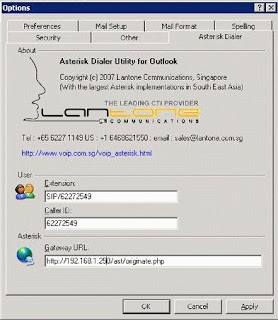 The only glitch I have found was that non numeric chars inside the number (e.g. “+49..”) will cause the call to fail. Therefore you should patch the PHP file a little bit more.
Replace the part where you need to enter the context, username and password with the following:
//Number patching
$sNumber = preg_replace("/[^\+0-9]/", "", $sNumber);
$sNumber = str_replace("+49", "00", $sNumber);
$sNumber = str_replace("+", "000", $sNumber);
//User information
$sContext = "from-internal";
$UserName="AstTapi";
$Password = "D1QdC1xbkJ";
This line will strip out any chars that are not either numbers or the “+” sign. That way a number like “+49 (6232) 3987-x312” will become “+4962323987312”.
The next two lines will change the number as required by the backend PBX. A call from Germany to Germany needs to be initiated with “00”, a call to any other country needs to be initiated with “000”. You might need to change these two lines to meet your requirements.
In case you wish to mass deploy this extension, simply perform a normal installation on a given computer and enter the URL of the PHP file directly inside the setup (e.g. http://trixbox1.corp.acme.com/originate.php). Once setup has finished, copy “AsteriskDialer.dll” and “AsteriskDialer.ini” to any network folder. Inside that folder create a batch file with the following content:
md "%ProgramFiles%\AsteriskDialer"
copy "%~dp0AsteriskDialer.dll" "%ProgramFiles%\AsteriskDialer" /Y
copy "%~dp0AsteriskDialer.ini" "%ProgramFiles%\AsteriskDialer" /Y
regsvr32.exe "%ProgramFiles%\AsteriskDialer\AsteriskDialer.dll" /s
reg add HKLM\Software\AsteriskDialer /v IniFilePath /t REG_SZ /d "%ProgramFiles%\AsteriskDialer\AsteriskDialer.ini" /f
And that’s it!
I have tested several options and programs that allow you to do this, and the best I found so far is the Asterisk Outlook Dialer (Freeware!).
It contains of a small PHP file you install on the Asterisk server and a local extension that integrates into Office Outlook (tested successfully with Office Outlook 2007). Entering a number into the box and hitting Dial will call the PHP file which in turns informs Asterisk to call your phone and connect you.
 You only need to change the PHP file (originate.php) to include a context, username and password that can perform the actions on Asterisk. For example:
$sContext = "from-internal";
$UserName="AstTapi";
$Password = "D1QdC1xbkJ";
Once you have installed the extension, you need to configure it directly in Outlook using Tools -> Options -> Asterisk Dialer
 The only glitch I have found was that non numeric chars inside the number (e.g. “+49..”) will cause the call to fail. Therefore you should patch the PHP file a little bit more.
Replace the part where you need to enter the context, username and password with the following:
//Number patching
$sNumber = preg_replace("/[^\+0-9]/", "", $sNumber);
$sNumber = str_replace("+49", "00", $sNumber);
$sNumber = str_replace("+", "000", $sNumber);
//User information
$sContext = "from-internal";
$UserName="AstTapi";
$Password = "D1QdC1xbkJ";
This line will strip out any chars that are not either numbers or the “+” sign. That way a number like “+49 (6232) 3987-x312” will become “+4962323987312”.
The next two lines will change the number as required by the backend PBX. A call from Germany to Germany needs to be initiated with “00”, a call to any other country needs to be initiated with “000”. You might need to change these two lines to meet your requirements.
In case you wish to mass deploy this extension, simply perform a normal installation on a given computer and enter the URL of the PHP file directly inside the setup (e.g. http://trixbox1.corp.acme.com/originate.php). Once setup has finished, copy “AsteriskDialer.dll” and “AsteriskDialer.ini” to any network folder. Inside that folder create a batch file with the following content:
md "%ProgramFiles%\AsteriskDialer"
copy "%~dp0AsteriskDialer.dll" "%ProgramFiles%\AsteriskDialer" /Y
copy "%~dp0AsteriskDialer.ini" "%ProgramFiles%\AsteriskDialer" /Y
regsvr32.exe "%ProgramFiles%\AsteriskDialer\AsteriskDialer.dll" /s
reg add HKLM\Software\AsteriskDialer /v IniFilePath /t REG_SZ /d "%ProgramFiles%\AsteriskDialer\AsteriskDialer.ini" /f
And that’s it!
Wednesday, May 7, 2008
Removing lines from the output of a command line program
In case you need to deal with command line programs, you sometimes face the following challenge: the programs return too much data!
For example, Xteq Systems offers GetOSVersion which returns the current Windows version you are using. However, it also contains an header line so the complete example output is this:
Xteq GetOSVersion 3.0 - Copyright (C) 2008 Xteq Systems - http://www.xteq.com/
You are using Windows Vista (6.0) with Service Pack 1, return code is 9
(PlatformID 2; Major: 6; Minor: 0; Build: 6001)
Not that big deal if you (as an human) reads that but in case you want to export this data into a text file with the following command:
XQGetOsVer.exe /B >%TEMP%\result.txt
you will also of course get the header line you do not want to have. However, these is an easy solution for this: the FOR command. I won't get into the details what you can do with it (a lot and if you are interested use "help FOR" inside the command shell), but to solve the current problem we can simply use these two lines:
del %TEMP%\result.txt
for /F "skip=3 delims=" %%i in ('XQGetOSVer.exe /B') do @echo %%i >>%TEMP%\result.txt
First, we delete the file RESULT.TXT and then we execute the FOR command with two special parameters: SKIP=3 indicates that the first three lines from the output of XQGetOSVer.exe should be skipped and thus, the header is removed. The option DELIMS= indicates that we do not have delimiters so we get every line as is.
The part of DO indicates what we want to do with the remaining lines and use the ECHO command to write them to RESULT.TXT. We are using >> to indicate that we will append to this file (hence the DEL command first) to make sure we get all lines, not just one.
The result is exactly what we wanted:
You are using Windows Vista (6.0) with Service Pack 1, return code is 9
(PlatformID 2; Major: 6; Minor: 0; Build: 6001)
No header, just the the data.
Monday, April 28, 2008
Moving an Intel ICH7R RAID (Intel Matrix Storage Controller) to a new main board
After struggling nearly four weeks with my computer and being most of the time offline, I finally managed it to build a new computer (Asus P5W, Thermaltake Shark etc.) that is running just fine.
However, I used an RAID-1 before and the big question was: Will the new motherboard accepts this RAID or do I need to start everything from scratch?
In general, if you plan to use an RAID-1 later on but currently have only one HD ready, it is no problem to prepare this: Switch the IDE/SATA mode in your BIOS from “Standard” or “AHCI” to “RAID” and enable the ICH7R boot ROM. Then just install Windows (F6 disk for Windows XP needed, Vista has those drivers build-in) as you would normally do. Later on, download and install the Intel Matrix Storage Manager on Windows. Once you have the second disk, simply plug it in, start Windows and start Intel Matrix Storage Manager. Inside it, just select that you want to have a RAID-1 and on the fly, an RAID-1 will be created.
Basically, this was my idea when attaching one of the old HDs (with my RAID1) to the new motherboard. I especially selected the Asus P5W because the chipset and ICR (Intel 975X with ICH7R) where the same as on my old Shuttle SD39P2 board.
But to my surprise, the Intel chip is much more intelligent: As soon as I attached one of the drives and booted, the ICH7R notices this one disk, showed the name I gave the RAID volume and Windows started as always. Once Windows was finished installing new components, I simply shut down and attached the second drive. Inside the Boot ROM the second drive was displayed as “Unknown” drive but once Windows started, the Matrix Storage Manager informed me that it is rebuilding my array. Two hours later, the RAID-1 was OK again and I did not lose a single file!
Kudos to Intel for this!
Thursday, April 10, 2008
Retrieving Windows SharePoint Services user access rights from the database
I case you ever need to know which access rights a given user has on your Windows SharePoint Services (WSS) site, you may find the following SQL scripts useful.
This SQL script (simply execute it against the database that has your WSS content) accepts either an email address (@search_email = 'John.Doe@acme.org') or the Windows login name (@search_account='ACME\JohnD').
If the given user is found, it will return three tables: The data of the user as WSS sees it, the groups to which the user belongs and finally to which sites the user has access to.
DECLARE @search_email varchar(100)
DECLARE @search_account varchar(100)
SET @search_email='John.Doe@acme.org
--SET @search_account='ACME\JohnD'
DECLARE @userid int
-- Retrieve user ID
IF (@search_account is null) BEGIN
select @userid=tp_ID from userinfo where tp_Email = @search_email
END ELSE BEGIN
select @userid=tp_ID from userinfo where tp_Login = @search_account
END
-- Show found user
SELECT '' as 'User Info',
tp_ID,tp_Login,tp_Title from userinfo where tp_ID=@userid
-- Show group membership
SELECT '' as 'Group membership',
ID,Title,Description from groups where id in
( SELECT groupid from groupmembership where memberid=@userid )
order by Title
-- Show Access rights
SELECT '' as 'Access rights',
Title, FulLURL from Webs where id in
( SELECT WebId FROM WebMembers WHERE (UserId = @userid) )
order by Title
GO
This SQL script (simply execute it against the database that has your WSS content) accepts either an email address (@search_email = 'John.Doe@acme.org') or the Windows login name (@search_account='ACME\JohnD').
If the given user is found, it will return three tables: The data of the user as WSS sees it, the groups to which the user belongs and finally to which sites the user has access to.
DECLARE @search_email varchar(100)
DECLARE @search_account varchar(100)
SET @search_email='John.Doe@acme.org
--SET @search_account='ACME\JohnD'
DECLARE @userid int
-- Retrieve user ID
IF (@search_account is null) BEGIN
select @userid=tp_ID from userinfo where tp_Email = @search_email
END ELSE BEGIN
select @userid=tp_ID from userinfo where tp_Login = @search_account
END
-- Show found user
SELECT '' as 'User Info',
tp_ID,tp_Login,tp_Title from userinfo where tp_ID=@userid
-- Show group membership
SELECT '' as 'Group membership',
ID,Title,Description from groups where id in
( SELECT groupid from groupmembership where memberid=@userid )
order by Title
-- Show Access rights
SELECT '' as 'Access rights',
Title, FulLURL from Webs where id in
( SELECT WebId FROM WebMembers WHERE (UserId = @userid) )
order by Title
GO
Saturday, March 15, 2008
The .NET Dataset for Stored Procedures in Visual Studio – the easy way
In case you need to call or retrieve data from a lot of stored procedures in SQL Server. You basically have two options:
A) “Hardcore”
You create your own class and define a SqlCommand object for each stored procedure manually. While doing this, tell your wife you can't see her for the next weeks
B) “Lazy man”
You use a dataset and let Visual Studio do the hard work. You use those generated procedure, tell your boss how many hours this took and leave early to enjoy your weekend.
The last option seems to be better IMHO, but the DataSet has some funny glitches that can make using it a pain. I’ll try to sort them out here.
Step 1: Create a dataset
Easy, just right-click your project, select “Add item” and choose “Dataset”. In this case, the dataset is called “DataSetStoredProcedures”.

Step 2: Move the generated dataset
To not clutter the project, create a new folder (right-click project, “Add” -> “New Folder”) called “DatabaseDataset”. Drag and drop “DataSetStoredProcedures.xsd” there.

Step 3: Add stored procedures
Select “View” -> “Server Explorer” to display the Server Explorer window. Right-click “Data Connections” and select “Add Connection”. Define the properties so Visual Studio can connect to the database. Open the new entry in the tree view and move to “Stored Procedures”.

In case you haven’t opened DataSetStoredProcedures.xsd, simply double-click it. Simply drag and drop the stored procedures you want to use to this window.
You may be asked how the connection should be called that will be used to execute this stored procedure, simply choose a name that makes sense to you. Once this all has being done, the project should look something like this:

Step 4: Check the stored procedures
At any time, you can simply click on a stored procedure, open the properties window and click on the “…” button for the Parameters:

You should do this simply because sometimes the generation is not done right. For example, in this project there is a user defined function (yes, you can also add UDFs) called “fncLTC2UTC” that return an SQL Server datetime value. However, the dataset converted this to “Object”. By using the parameters collection, you can simply change the value of @RETURN from object to DateTime.
Step 5: The glitches, Part I
By using the object browser, you can have a look at the namespace layout:

The project where we have added all this is called “x.server”. Because we have created a subfolder to put the dataset in, the namespace of the dataset has become “x.server.DatabaseDataset”. Beside this, the stored procedures where create in a sub object “QueriesTableAdapter” that has the namespace “x.server.DatabaseDataSet.DataSetStoredProceduresTableAdapters”:
Now this is a hell of a namespace we need to add it before we can call a stored procedure:
using x.server.DatabaseDataset.DataSetStoredProceduresTableAdapters;
class JustTesting
{
public static void Test1()
{
QueriesTableAdapter qta = new QueriesTableAdapter();
qta.procClientAuthentication_GetLoginData(…
Step 6: The glitches, Part II
Beside this namespace glitch, there is another one: By default, the dataset insists on using the connection string that each stored procedure has attached to (Properties viewer) and you can not to change this. In case you do not want to have the database connection inside app.config this would normally stop the use of the dataset.
Step 7: The solution
using System;
using System.Collections.Generic;
using System.Text;
using System.Data;
using x.server.DatabaseDataset.DataSetStoredProceduresTableAdapters;
{
///
/// Shortcut class to all database stored procedures (procXXX).
///
public class DatabaseProcs:QueriesTableAdapter
{
public DatabaseProcs()
: base()
{
string sConnString = “Your Connection string here”;
foreach (IDbCommand cmd in CommandCollection)
{
cmd.Connection.ConnectionString = sConnString;
}
}
}
}
This class solves the two glitches: You need to reference the namespace only in this class (DatabaseProcs), all other objects that will use this class do not need to do it.
using System;
using System.Collections.Generic;
using System.Text;
namespace x.server
{
class JustTesting
{
public static void Test1()
{
DatabaseProcs procs = new DatabaseProcs();
procs.procClientAuthentication_GetLoginData(…
No more stupid namespaces and you your custom connection string is also set.
Note
The generated class will also leave the connection in the same state as it was before. This means, when you use the class DatabaseProcs (aka “QueriesTableAdapter”) like this, a connection will be opened when you execute it and closed right after that.
Data Source=(local)\SQLEXPRESS;Initial Catalog=X;Integrated Security=True;Pooling=True;Min Pool Size=0;Max Pool Size=5;Application Name=MyApp
If pooling is activated, a Connection.Close() does not actually close the connection but instead it will put the connection in the pool and reuse it when the next request to Connection.Open() comes in.
Enjoy!
Wednesday, March 5, 2008
Java Embargo
Okay, I know Germany and the USA had their problems in the past. But this is going too far...


Tuesday, February 26, 2008
Backup Exec 12: Error "The Backup Exec Server Service detected a schema version mismatch."
[UPDATE] The exact same can happen in BE 12.5. See this post for details. [/UPDATE]
I just tried to update our Backup Exec 11d SP1 to Backup Exec 12 and although all pre-checks were okay and the installation did also not issue any errors, BE didn't started. Checked the event log and the following events were logged:
The Backup Exec Server Service detected a schema version mismatch.
The Backup Exec Server Service did not start. An internal error (-536813108) occurred in object 1.
Oh, I really love database schema errors. According to the Symantec support website (http://seer.entsupport.symantec.com/docs/283038.htm or http://seer.entsupport.symantec.com/docs/254014.htm) you need to recreate the entire database if this error happens which means you need to recreate everything from scratch! Thanks for nothing buddy!
Using SQL Server Profiler, I was able to figure out what the problem was. BE uses two tables as schema reference: ControlInfo and Version (you can simply install the SQL Server Mngmt Studio Express and issue an "select * from …" for these two). In this case here, ControlInfo was okay (Version 12.0) but Version still had 11 for some components listed.
There are two SQL files you need to execute against your BEDB database (using Mngmt Studio Express for example):
C:\Program Files\Symantec\Backup Exec\dbupgrade11.5.sql
If there are any errors, you may ignore them.
Once this has run, run
C:\Program Files\Symantec\Backup Exec\dbupgrade11.5-viewandsp.sql
Inside this file, there might be a problem with the following command:
-- sync with bedb.sql version, 1.644
ALTER TABLE [dbo].[Alert] ADD
CONSTRAINT [DF_Alert_UMI] DEFAULT (N'') FOR [UMI]
GO
Simply delete these lines and the script will run to the end. Restarting Backup Exec should now show that BE does no longer throw an schema mismatch error.
Enjoy!
Monday, February 18, 2008
Setting the right font for a Windows Forms application
If you create a new form in Visual Studio, the default font will always be "Microsoft Sans Serif" although you should use a font that depends on the Windows version you are running on. For Windows 2000, XP, Server 2003 you should use "Tahoma" for
Unfortunately, there is no simple property available so the form uses the correct font automatically. Benjamin Hollis has a blog entry about this problem already and his code is quite simple and works quite well.
It just does not take into account if a form contains other, specialized fonts or if the fonts used have special styles (Underlined, Italics etc.) applied. I have tweaked his code a little bit.. ähm.. a lot actually and this is the result: FormFontFixer.
//Original idea and code (3 lines :-) by Benjamin Hollis: http://brh.numbera.com/blog/index.php/2007/04/11/setting-the-correct-default-font-in-net-windows-forms-apps/
//Copyright (C) TeX HeX of Xteq Systems: http://texhex.blogspot.com/ and http://www.texhex.info/
public static class FormFontFixer
{
//This list contains the fonts we want to replace.
static readonly List<string> FontReplaceList
         = new List<string>( new string[] { "Microsoft Sans Serif", "Tahoma" } );


static Font _DefaultFont;
static bool _CanFixFonts;


static FormFontFixer()
{
   //Basically the font name we want to use should be easy to choose by using the SystemFonts class. However, this class
   //is hard-coded (!!) and doesn't seem to work right. On XP, it will mostly return "Microsoft Sans Serif" except
   //for the DialogFont property (=Tahoma) but on Vista, this class will return "Tahoma" instead of "SegoiUI" for this property!

   //Therefore we will do the following: If we are running on a OS below XP, we will exit because the only font available
   //will be MS Sans Serif. On XP, we gonna use "Tahoma", and any other OS we will use the value of the MessageBoxFont
   //property because this seems to be set correctly on Vista an above.

   if (Environment.OSVersion.Platform==PlatformID.Win32Windows)
   {
       //95, 98 and other crap
       _CanFixFonts = false;
       return;
   }

   if (Environment.OSVersion.Version.Major < 5)
   {
       //Windows NT
       _CanFixFonts = false;
       return;
   }

   if (Environment.OSVersion.Version.Major < 6)
   {
       //Windows 2000 (5.0), Windows XP (5.1), Windows Server 2003 and XP Pro x64 Edtion v2003 (5.2)
       _CanFixFonts = true;
       _DefaultFont = SystemFonts.DialogFont; //Tahoma hopefully
   }
   else
   {
       //Vista and above
       _CanFixFonts = true;
       _DefaultFont = SystemFonts.MessageBoxFont; //should be SegoiUI
   }
}

public static void Fix(Form form)
{
   //If we can't fix the font, exit
   if (_CanFixFonts == false)
   {
       return;
   }


   //Now start with the real work...
   foreach (Control c in form.Controls)
   {
       //only replace fonts that use one the "system fonts" we have declared
       if (FontReplaceList.IndexOf(c.Font.Name) > -1)
       {
           //Now check the size, when the size is 9 or below it's the default font size and we do not keep the size since
           //SegoiUI has a complete different spacing (and thus size) than MS SansS or Tahoma.

           //Also check if there are any styles applied on the font (e.g. Italic) which we need to apply to the new
           //font as well.

           bool bUseDefaultSize = true;
           bool bUseDefaultStyle = true;

           //is this a special size?
           if ((c.Font.Size <= 8) || (c.Font.Size >= 9))
           {
               bUseDefaultSize = false;
           }

           //are any special styles (bold, italic etc.) applied to this font?
           if ( (c.Font.Italic == true) ||
                (c.Font.Strikeout == true) ||
                (c.Font.Underline == true) ||
                (c.Font.Bold == true))
           {
               bUseDefaultStyle = false;
           }

           //if everything is set to defaults, we can use our prepared font right away
           if ((bUseDefaultSize == true) && (bUseDefaultStyle == true))
           {
               c.Font = _DefaultFont;
           }
           else
           {
               //There are non default properties set so
               //there is some work we need to do...


               //Restrive custom font style
               FontStyle Style = FontStyle.Regular;
               if (bUseDefaultStyle == false)
               {
                   if (c.Font.Italic) {
                        Style = Style | FontStyle.Italic;
                   }
                   if (c.Font.Strikeout) {
                        Style = Style | FontStyle.Strikeout;
                   }
                   if (c.Font.Underline) {
                       Style = Style | FontStyle.Underline;
                   }
                   if (c.Font.Bold){
                       Style = Style | FontStyle.Bold;
                   }
               }

               //Retrive custom size
               float fFontSize = _DefaultFont.SizeInPoints;
               if (bUseDefaultSize == false)
               {
                   fFontSize = c.Font.SizeInPoints;

               }

               //Finally apply this font...
               Font font = new Font(_DefaultFont.Name, fFontSize, Style, GraphicsUnit.Point);
               c.Font = font;

           }
       }
   }

}
}


Copyright (c) 2008, TeX HeX (http://www.texhex.info/)

All rights reserved.

Redistribution and use in source and binary forms, with or without modification, are permitted provided that the following conditions are met:

   * Redistributions of source code must retain the above copyright notice, this list of conditions and the following disclaimer.
   * Redistributions in binary form must reproduce the above copyright notice, this list of conditions and the following disclaimer in the documentation and/or other materials provided with the distribution.
   * Neither the name of the Xteq Systems (http://www.xteq.com/) nor the names of its contributors may be used to endorse or promote products derived from this software without specific prior written permission.

THIS SOFTWARE IS PROVIDED BY THE COPYRIGHT HOLDERS AND CONTRIBUTORS
"AS IS" AND ANY EXPRESS OR IMPLIED WARRANTIES, INCLUDING, BUT NOT
LIMITED TO, THE IMPLIED WARRANTIES OF MERCHANTABILITY AND FITNESS FOR
A PARTICULAR PURPOSE ARE DISCLAIMED. IN NO EVENT SHALL THE COPYRIGHT OWNER OR
CONTRIBUTORS BE LIABLE FOR ANY DIRECT, INDIRECT, INCIDENTAL, SPECIAL,
EXEMPLARY, OR CONSEQUENTIAL DAMAGES (INCLUDING, BUT NOT LIMITED TO,
PROCUREMENT OF SUBSTITUTE GOODS OR SERVICES; LOSS OF USE, DATA, OR
PROFITS; OR BUSINESS INTERRUPTION) HOWEVER CAUSED AND ON ANY THEORY OF
LIABILITY, WHETHER IN CONTRACT, STRICT LIABILITY, OR TORT (INCLUDING
NEGLIGENCE OR OTHERWISE) ARISING IN ANY WAY OUT OF THE USE OF THIS
SOFTWARE, EVEN IF ADVISED OF THE POSSIBILITY OF SUCH DAMAGE.
Saturday, February 16, 2008
Security Neutral Mutex
Fortunately, we found a blog post where the author simply created a Mutex and give EVERYONE full rights on the Mutex which is basically the same as a NULL DACL: http://rdn-consulting.com/blog/2007/09/14/more-on-using-a-named-mutex-in-vista/
We changed the code a little bit and here is the result:
//Original Code: http://rdn-consulting.com/blog/2007/08/20/kernel-object-namespace-and-vista/
public static Mutex Create(string Name)
{
bool bTrash;
return Create(Name, out bTrash);
}
public static Mutex Create(string Name, out bool MutexWasCreated)
{
//Always use global scope
string name = @"Global\" + Name;
MutexAccessRule secRule = new MutexAccessRule(
new SecurityIdentifier(WellKnownSidType.WorldSid, null),
MutexRights.FullControl, AccessControlType.Allow);
sec.AddAccessRule(secRule);
bool mutexWasCreated;
Mutex m = new Mutex(false, name, out mutexWasCreated, sec);
MutexWasCreated = mutexWasCreated;
return m;
}
Friday, February 8, 2008
XQGetOSVer 3.0 available
We have just released Xteq Systems GetOSVersion 3.0 (XQGetOSVer).
XQGetOSVer returns a number for each detected OS (Windows 95 up to Windows Server 2008) and can therefore easily be used for batch files where you want to execute special commands depending on the OS in use.
XQGetOSVer returns a number for each detected OS (Windows 95 up to Windows Server 2008) and can therefore easily be used for batch files where you want to execute special commands depending on the OS in use.
Thursday, January 31, 2008
WiX Toolkit (Windows Installer) Custom actions and conditions
Normally, for setup projects I use InnoSetup from Jordan Russel which is, put simple, the best setup creator you will find.
However, for a project I was forced to produce a Windows Installer package and used the WiX toolkit for it. Basically, after several dead-ends I was finally completely stuck. I simply wanted to have Windows Installer executing a custom action on every install of the application, regardless if it's already installed or not. If the application is being removed, my custom action shouldn't be executed.
By default, you would simply use the condition "NOT Installed" which means: If the application is not installed, execute it. Else, leave it alone. But as I said I wanted it to be execute every time somebody issues a command like MSIEXEX /I MyProduct.msi. The default condition would evaluate to FALSE (since the application is already installed) and thus, the custom action isn't started. Of course, you could pass /fa to MSIEXEC.exe but I feared this would be forgotten and thus I would get more "Nothing is working here calls".
After searching and testing for nearly two hours (and found an excellent post about custom actions and properties from Jeff Wharton) I was able to find the correct solution:
This simply means: If the application is NOT being removed, execute the custom action.
If you know how, it's simple.
However, for a project I was forced to produce a Windows Installer package and used the WiX toolkit for it. Basically, after several dead-ends I was finally completely stuck. I simply wanted to have Windows Installer executing a custom action on every install of the application, regardless if it's already installed or not. If the application is being removed, my custom action shouldn't be executed.
By default, you would simply use the condition "NOT Installed" which means: If the application is not installed, execute it. Else, leave it alone. But as I said I wanted it to be execute every time somebody issues a command like MSIEXEX /I MyProduct.msi. The default condition would evaluate to FALSE (since the application is already installed) and thus, the custom action isn't started. Of course, you could pass /fa to MSIEXEC.exe but I feared this would be forgotten and thus I would get more "Nothing is working here calls".
After searching and testing for nearly two hours (and found an excellent post about custom actions and properties from Jeff Wharton) I was able to find the correct solution:
<custom action="LaunchExe" after="InstallInitialize">NOT (REMOVE="ALL")</custom>
This simply means: If the application is NOT being removed, execute the custom action.
If you know how, it's simple.
Thursday, January 24, 2008
Using caspol.exe to change .NET security policy - done right
Maybe you know CASPOL.exe to modify or add your own security policy for the .NET Framework.
Most examples you will find on the internet will simply add a code group to the configuration and most people use it this way: Upon each installation, CASPOL.EXE is exeucted.
What most people not realize is that CASPOL does not remove the old group when adding a new one with the same name. See this screenshot:
 This is no broken installation, for .NET everything is fine even if 100+ groups with the same name would exist. However, for the user this looks like a bug so he will call support. To make things even worse: When you have changed the group membership of your custom group later on you will end up with two groups with completely different membership conditions.
To avoid this, I developed the following batch file that you can use and customize. The basic trick is to first list all available groups and if the script finds one that has the same name, it will be deleted.
For more information about CasPol.exe, see MSDN.
Enjoy!
Most examples you will find on the internet will simply add a code group to the configuration and most people use it this way: Upon each installation, CASPOL.EXE is exeucted.
What most people not realize is that CASPOL does not remove the old group when adding a new one with the same name. See this screenshot:
 This is no broken installation, for .NET everything is fine even if 100+ groups with the same name would exist. However, for the user this looks like a bug so he will call support. To make things even worse: When you have changed the group membership of your custom group later on you will end up with two groups with completely different membership conditions.
To avoid this, I developed the following batch file that you can use and customize. The basic trick is to first list all available groups and if the script finds one that has the same name, it will be deleted.
For more information about CasPol.exe, see MSDN.
Enjoy!
@echo off
Rem .NET Framework 2.0 CasPol.exe batch by TeX HeX
Rem http://texhex.blogspot.com
Rem Version 1.0

Rem Set this to the name of the group you want to create
SET GROUP=Testing123
Rem Set this to the description your group should have
SET GROUPDESC=Just testing group

SET CASPOL=%WINDIR%\Microsoft.Net\Framework\v2.0.50727\caspol.exe
SET ERRLVL=9

echo ---- Setting prompt off ----
%caspol% -polchgprompt off

Rem Check if this group exists already
echo ---- Check group existence ----
%caspol% -m -ld|find /C /I "%GROUP%"
IF NOT ERRORLEVEL 1 GOTO DELETE_GROUP
GOTO CREATE_GROUP


Rem Deleting old group (two times to make sure that we do not have one left over)
:delete_group
echo ---- Removing old group ----
CASPOL% -m -remgroup "%GROUP%"
CASPOL% -m -remgroup "%GROUP%" >NUL


:create_group
echo ---- Creating group ----
REM %CASPOL% -m -addgroup All_Code -url "\*" -zone MyComputer FullTrust -name "%GROUP%"
REM %CASPOL% -m -addgroup All_Code -strong -file c:\arg.dll -noname -noversion FullTrust -name "%GROUP%" -description "%GROUPDESC%"

%CASPOL% -m -addgroup All_Code -zone MyComputer FullTrust -name "%GROUP%" -description "%GROUPDESC%"
SET ERRLVL=%ERRORLEVEL%

echo Result is %ERRLVL%

Rem Patch prompting again
echo ---- Setting prompt on ----
%caspol% -polchgprompt on


Rem Now check the result
IF %ERRLVL% EQU 0 (
 echo "All fine!"
 exit 0
) ELSE (
 echo "Error!"
 exit -1
)
Monday, January 21, 2008
New Snom Auto update script
Since Snom does now offer the v7 firmware officially, it was time to update my Snom update script. That's because the transition to v7 must be done if a very special way (first firmware 6.5.15, then linux 3.38 and then the special update firmware).
Before you can use this script, you need to create several folders to include the parts you need to do the update:
To test it, you can simply use an URL like .../snom-firmware.asp?UA=Mozilla/4.0+(compatible;+snom320-SIP+6.5.15;+snom320+jffs2+v3.36;+snom320+linux+3.38) which will tell the script you would like to use the User agent of a Snom 320.
Once all these files are in place, you might use the following ASP script:
Before you can use this script, you need to create several folders to include the parts you need to do the update:
- /v6: includes the 6.5.15 firmware which is needed to update to v7 (snom3X0-6.5.15-SIP-j.bin)
- /v6ux: includes the 3.38 Linux system also needed for v7 but can only be installed once the firmware is 6.5.15 (snom3X0-3.38-l.bin)
- v6to7: this folder includes the special firmware that will update v6 to v7 while keeping all settings (snom3X0-update6to7-7.1.30-bf.bin)
- v7: the normal firmware files for phones that already have v7 installed
To test it, you can simply use an URL like .../snom-firmware.asp?UA=Mozilla/4.0+(compatible;+snom320-SIP+6.5.15;+snom320+jffs2+v3.36;+snom320+linux+3.38) which will tell the script you would like to use the User agent of a Snom 320.
Once all these files are in place, you might use the following ASP script:
# Auto Update Skript
# Coypright (C) 2007-2008 TeX HeX
# http://texhex.blogspot.com
# All Rights Reserved

<%
 'Example URLs (for testing):
 '.../snom-firmware.asp?UA=Mozilla/4.0+(compatible;+snom320-SIP+6.5.10;+snom320+jffs2+v3.36;+snom320+linux+3.25)
 '.../snom-firmware.asp?UA=Mozilla/4.0+(compatible;+snom320-SIP+6.5.15;+snom320+jffs2+v3.36;+snom320+linux+3.38)
  '../snom-firmware.asp?UA=Mozilla/4.0+(compatible;+snom320-SIP+7.1.30)
 'Definition of download URLs
 URL_BASE="http://my-server.internal.company.com/snom"

 URL_BASE_V6=URL_BASE & "/v6"
 URL_BASE_V6_UX=URL_BASE & "/v6ux"
 URL_BASE_V6TO7=URL_BASE & "/v6to7"
 URL_BASE_V7=URL_BASE & "/v7"

 URL_V6_FW_300=URL_BASE_V6 & "/snom300-6.5.15-SIP-j.bin"
 URL_V6_FW_320=URL_BASE_V6 & "/snom320-6.5.15-SIP-j.bin"
 URL_V6_FW_360=URL_BASE_V6 & "/snom360-6.5.15-SIP-j.bin"

 URL_V6_UX_300=URL_BASE_V6_UX & "/snom300-3.38-l.bin"
 URL_V6_UX_320=URL_BASE_V6_UX & "/snom320-3.38-l.bin"
 URL_V6_UX_360=URL_BASE_V6_UX & "/snom360-3.38-l.bin"

 URL_V6TO7_FW_300=URL_BASE_V6TO7 & "/snom300-from6to7-7.1.30-bf.bin"
 URL_V6TO7_FW_320=URL_BASE_V6TO7 & "/snom320-from6to7-7.1.30-bf.bin"
 URL_V6TO7_FW_360=URL_BASE_V6TO7 & "/snom360-from6to7-7.1.30-bf.bin"

 URL_V7_FW_300=URL_BASE_V7 & "/snom300-7.1.30-SIP-f.bin"
 URL_V7_FW_320=URL_BASE_V7 & "/snom320-7.1.30-SIP-f.bin"
 URL_V7_FW_360=URL_BASE_V7 & "/snom360-7.1.30-SIP-f.bin"
 '''URL_V7_FW_370=URL_BASE_V7 & "/snom370-7.1.30-SIP-f.bin"

 '----------STOP EDITING-------------------
 Dim CRLF
 CRLF=chr(13) + chr(10)

 Function Log(Text)
  Response.Write("# " & Text)
  Response.Write(CRLF)
 End function

 Function SendOutFirmware_V6
   Log("Sending v6 Firmware")
   Call SendOutFirmware(URL_V6_FW_300,URL_V6_FW_320,URL_V6_FW_360)
 End Function

 Function SendOutLinux_V6
   Log("Sending v6 Linux")
   Call SendOutFirmware(URL_V6_UX_300,URL_V6_UX_320,URL_V6_UX_360)
 End Function

 Function SendOutFirmware_V6to7
   Log("Sending v6 to v7 Firmware")
   Call SendOutFirmware(URL_V6TO7_FW_300,URL_V6TO7_FW_320,URL_V6TO7_FW_360)
 End Function

 Function SendOutFirmware_V7
   Log("Sending v7 Firmware")
   Call SendOutFirmware(URL_V7_FW_300,URL_V7_FW_320,URL_V7_FW_360)
 End Function


 Function SendOutFirmware(url300, url320, url360)
    'Only write out "firmware:"" tag if it's in the night (21:00 = 9 PM, 05:00 = 5 AM)
    if ( (hour(now())>=21 or hour(now())<=5) or sNow="1" ) then
    'if true then
        Dim sURL

        pos=InStr(sUA,"snom300")
        if pos>0 then
          sURL=url300
        end if

        pos=InStr(sUA,"snom320")
        if pos>0 then
           sURL=url320
        end if

        pos=InStr(sUA,"snom360")
        if pos>0 then
           sURL=url360
        end if

        if len(sURL)>0 then
          Response.Write("firmware: " + sURL)
          Response.Write(CRLF)
        else
          Log("Unable to get download URL!")
        end if
    else
       'Debug output, I don't think Snoms can actually undestand this :)
       Log("Firmware download disabled: It's not in the night! We have now: " + cstr(now()) )
    end if
 End Function


 Dim sUA
 sUA=Request.QueryString("UA")
 if len(sUA)=0 then
    Log("Parameter UA is empty, defaulting to HTTP_USER_AGENT")
    sUA=Request.ServerVariables("HTTP_USER_AGENT")
    Response.Write(CRLF)
 end if

 Dim sNow
 sNow=Request.QueryString("Now")

 'Debug output, just for reference
 Log("Parameter [USER AGENT] is --> " + sUA)

 Log("Parameter [Now] (direct update) is --> " + sNow)


 'Try to find out the current firmware version
 Dim iPosStart,iPosEnd,sTmp
 iPosStart=0
 iPosEnd=0
 sTmp=""

 'Start searching
 Log("Searching firmware version")
 iPosStart=InStr(sUA,"-SIP")
 if iPosStart>0 then
    sTmp=Right(sUA,len(sUA)- (iPosStart+4)) '+4 to cut the "SIP " part
    Call Log("Version sniffing - part 1: " + sTmp)

    'now search for next ;
    iPosEnd=InStr(sTmp,";")
    if iPosEnd>0 then
       sTmp=left(sTmp,iPosEnd-1)
       Call Log("Version: " + sTmp)
    else
       'maybe a new 7.x phone - search for ")"
       iPosEnd=InStr(sTmp,")")
       if iPosEnd>0 then
          sTmp=left(sTmp,iPosEnd-1)
          Call Log("Version: " + sTmp)
       end if
    end if
 end if

 'Log sTmp

  Dim sCurVersion
  sCurVersion=""

 'Now check if the version can be found!
 if iPosStart<=0 or iPosEnd<=0 then
    'No version info found, send to last v6 release!
    Call Log("No version info found!")
    Call SendOutFirmware_V6()
 else
    'Okay, we have a version! If this is 6.5.15 we need to send out the newest linux!
    sCurVersion=sTmp
    Call Log("Found version: " & sCurVersion)

    if CInt(left(sCurVersion,1))<=6 and sCurVersion<>"6.5.15" then
       Call Log("Version is 6 or below but not 6.5.15!")
       Call SendOutFirmware_V6()
    else
       'Is this 6.5.15?
       If sCurVersion="6.5.15" then
          'Do we need to do a linux update?
          iPosStart=0
          iPosEnd=0
          sTmp=""

          Log("Searching linux version")
          iPosStart=InStr(sUA," linux")
          if iPosStart>0 then
             sTmp=Right(sUA,len(sUA)- (iPosStart+6)) '+4 to cut the " linux" part
             Call Log("Version sniffing - part 1: " + sTmp)

             'now search for )
             iPosEnd=InStr(sTmp,")")
             if iPosEnd>0 then
                sTmp=left(sTmp,iPosEnd-1)
                Call Log("Version: " + sTmp)
            end if
          end if

          if iPosStart<=0 or iPosEnd<=0 then
             Log("Unable to find linux version!")
          else
             if sTmp<>"3.38" then
                Log("Version to old, sending new linux!")
                Call SendOutLinux_V6()
             else
                'Firmware is 6.5.15 and linux version okay!
                '-> Update to 7.1.30!
                Call SendOutFirmware_V6to7()
             end if
          end if
       else
          'Firmware is not 6.5.15/UX 3.38, more like 7+
           Call SendOutFirmware_V7()
       end if
    end if
 end if


 Log("Done!")

%>
Monday, January 14, 2008

Wednesday, January 9, 2008
Lost in translation: ASC16-UTF8-1252
As soon as you start to deal with any string data, you need to make sure of which character encoding type this string is. The most commonly used are ASCII, ISO-8859-1, Windows-1252 and the two Unicode encodings UTF-8 and UTF-16.
Here is the list of the most commonly used encodings:
ASCII (http://www.asciitable.com/) is very old but still very widely used. Every character consists of one byte but only the values 0 – 127 are defined which makes it 7 bit. The characters between 128 and 255 (8 bit) are so called "Extended ASCII" and which characters they map can be defined in a codepage. This means: If you are using data that contains ASCII characters about 127, you need to make sure that sender and receiver use the same codepage.
ISO-8859-1 Latin-1 (http://en.wikipedia.org/wiki/ISO/IEC_8859-1) is very widely used in the internet since it's the default encoding for the "text/" MIME type. Basically it's a codepage that maps 0 – 127 to the same characters like ASCII, 128 and above to several characters of the Latin alphabet.
Windows-1252 (http://en.wikipedia.org/wiki/Windows-1252) is based on ISO-8859-1 and is still the most used codepage for Windows. It differs in the 0x80 to 0x9F range which contains non-printable characters in ISO-8859-1 but printable characters on Windows-1252.
UTF-8 (http://en.wikipedia.org/wiki/Utf-8) is a Unicode character encoding that again maps 0 – 127 like ASCII but can also display all Unicode characters. UTF-8 is a variable-length encoding which means the values 0-255 is mapped to one byte, like in "Extended ASCII", but UTF-8 can use two, three or even four bytes per character when needed. Because of this variable-length encoding and the backward compatibility with ASCII, it is the encoding you should use.
UTF-16 (http://en.wikipedia.org/wiki/UTF-16) is also a Unicode character encoding but maps 0 – 127 differently from ASCII and uses only two or four bytes per character. Because of this it requires more data space and should only be used if you need to use. Use UTF-8 in any other case.
Monday, December 31, 2007
Strange Delphi Bug – again
The first message of this bug will be “Can’t copy XXX.tlb to __history\XXX.~1~” (or something like that). Okay, no problem simply switching off backup copies (Preferences – Editor) and you are done. Not really, since now Delphi will throw a new error “Can’t rename XXX.$$$ to XXX.tlb”. Checking with Process Monitor reveals that Delphi itself (BDS.exe) is locking the TLB file. Nice, isn’t it?
Looking a little bit around and it seems this bug only appear when Delphi is installed on Vista AND the type library you are editing has a reference to OLE Automation v1.0 (stdole32.tlb). If the type library has a reference to OLE Automation v2.0 (stdole2.tlb) this bug won’t show up. The solution I found was to open the project on Windows XP, exchange the reference and reopen the project on Vista. But I don’t have an XP box anymore so the solution was a little bit strange:
Exchange the reference of OLE Automation v1.0 to v2.0 inside the Type Library Editor (Tab “Uses”), then try to compile the project. This will fail because of the “Can’t rename…” error. Anyway, copy the [FILENAME].$$$ from the project folder to a new folder while Delphi is running. Once this is done, close BDS (no, you can’t save the project because of the error). Now delete the old TLB file and rename [FILENAME].$$$ to [FILENAME].TLB and copy it to the project folder.
Start Delphi again, open the project and check if the “Uses” tab now says you are using OLE Automation Version 2.0. If so, everything should be back to normal again.
Subscribe to:
Posts (Atom)