The first result one is okay, result two is not really what I was searching for but the last result is really insane: Swimmies!


In case you are also playing with Live Mesh from Microsoft, you might end up that the synchronization between your local Live Mesh client and the server goes havoc.
In my case, I didn't had any folders in my mesh but my local client still showed several folders as being available inside the mesh. Trying to delete them from the "Live Mesh Folders" resulted in this nice error message:
Request to MOE failed with status code
404 Resource not found
If this happens to you, simply should down the Live Mesh client, then search the your computer where MOE.exe is located. On my Vista box, it was C:\Users\TeX HeX\AppData\Local\Microsoft\Live Mesh\GacBase\.
Inside that folder, you will find a folder called Store. Simply delete it and start the client again. Although it will have forgotten all settings, the "Zombie" folders are gone as well.
BTW: In case the client does not accept a folder inside the "Synchronize folder with this computer" (Error 400): Check if the folder is not on a removable medium (USB Stick, SD Card). Live mesh seems to accept hard drives only at this time.

 So much for my "You must have a unknown virus" theory...

 Click on Edit Public URLs and change the entry for Default to be a FQN and click on Save.
 In case you want to use SSL (https) also, you will need to create an entry for this also by using Add internal URLs and enter the https FQN URL for this server. When you have done this also, Alternate access mappings should show a list similar to this one:
 Now all this stupid errors should be gone and everyone can access your server with either http or https.
In case your are using a Netbook with an Solid-state drive (SSD), like the Asus EeePC 901, you will notice that Firefox 3 from time to time behaves like being in "jelly mode": it stops responding for a few seconds and simply freezes. Although this "jelly mode" will only last a few seconds, it will drive you mad if you try to use it for more than five minutes. Fortunately this can be fixed with some easy tricks and less than 10 minutes of time.
We got reports about this issue from several users of X-Setup Pro and they all asked us if there is a way to make Firefox faster and get rid of this jelly mode. Since we couldn't explain why this would happen, and we wanted to test X-Setup Pro on a netbook anyway, we bought a EeePC 901. After doing the typical "original setup, driver download and install, Windows Update check" procedure we installed Firefox 3.01 and within the first five minutes we were experiencing the jelly mode as well.
With the help of Process Monitor, DriveGLEAM, Wikipedia and mozillaZine we are pretty sure what this is causing. While using Firefox, it will perform a lot of small write operations to several SQlite databases (e.g. urlclassifier2.sqlite or places.sqlite) and other files like configuration files of add-ons or files for the cache. While this is fine with a normal HD, this causes a lot of stress for an SSD. SSDs are fast when reading data but very slow when writing. Although Firefox will only perform small write operations the SSD is not fast enough to perform this in time and causing Firefox to wait. And this is exactly what we are calling the "Firefox jelly mode".
The solution is quite simple: Move the Firefox profile (where all these write operations take place) to a location that is faster. But: The EeePC 901 only has two SSDs (C: and D:) plus an SD slot, meaning that there is no fast location available. This means, the only solution that is left is a RAM disk. The people at My Digital Life have written about this some weeks ago and made a package we can use right away.
Download the package and extract it to a folder on your HD (SSD), e.g. C:\ProgramFiles\RamDisk. From there, start RAMDISK.exe and click on the right on Install Ramdisk.
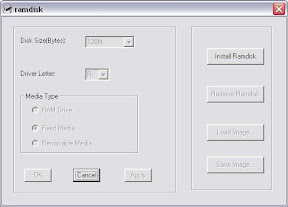
After a few seconds, the controls on the left will be selectable and we can choose which size this RAM disk should have. Since the 901 I'm using has 2 GB of memory, I selected 128M (128 MB) for size, if you netbook as only 1 GB, you might want to use 64 MB. All other settings (Drive: R:, Fixed Media) remain unchanged. Click OK and the program should report Success.
The next thing we need to do is to prepare the RAM disk, since it is currently set to use FAT instead of NTFS. Create a new Batch file in the same folder where RAMDISK.exe is located and name it Setup.bat. This batch will create some folders and save the image (with the folders) to the registry. Since we are using a RAM disk, rebooting the computer will wipe the entire contents of the R: drive. With the batch, we are creating an image of the drive and store it to the registry. When the computer is booted, the RAM disk is re-created from this image automatically.
@echo off
echo This will setup the RAM Disk
pause
format /FS:NTFS /Q /V:RamDisk /A:512 R:
chkdsk /L:2048 R:
CACLS R:\ /G Administrators:F
MKDIR R:\TEMP
MKDIR R:\FFCache
MKDIR R:\IECache
MKDIR R:\Stuff
rdutil R: registry
pause
Execute the batch. Press return to get things rolling, then enter RamDisk to confirm you want to format the R: drive, confirm the format again (Y) and once again (Y). If you now open Explorer, you should have an R: drive with several folder in it. Please note: If you ever change your mind about the size of the RAM disk and change it using RAMDisk.exe you need to execute this batch again!
Next, we need to create a profile in Firefox that will be stored on the RAM disk. Using Explorer, open R:, change to the folder Stuff and create a new folder named RamDiskProfile. Now open a command prompt (Start - Run - cmd.exe) and change to the path where Firefox is installed, e.g. cd "c:\program files\Mozilla Firefox". Execute firefox.exe -ProfileManager. Click on New profile and enter as name RamDiskProfile. As folder, select R:\Stuff\RamDiskProfile. Back in the profile selection, click Start Firefox.

If everything works as expected, you should see the Welcome to Firefox page. Notice: Do not, repeat, DO NOT copy your existing profile! At least on my 901, several files inside the profile had direct likes in it (e.g. C:\Documents and Settings\TeX HeX\...). If you simply copy your existing profile you will end up having some of the files will be written on the SSD again.
What we now need to do is to change the location where this Firefox profile will put the cache files to. In the address bar, type about:config and confirm the warning that appears. Right-click anywhere in the list and select New -> String. As name of the new value type browser.cache.disk.parent_directory. As value for it, type R:\FFCache. Close Firefox.
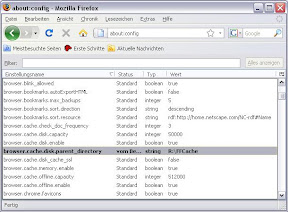
Now we will create a backup of this profile to the SSD. Use Start -> Run again and type %APPDATA%, which will display the folder where your personal data is normally saved. Open the folder Mozilla, then Firefox and then Profiles. Copy the folder R:\Stuff\RamDiskProfile there.
Okay, we are almost there. Create a new batch file that is used to start Firefox with the profile from the RAM disk. It will copy the files from the RamDiskProfile (from %APPDATA%) to the R: drive, wait for Firefox to exit (= you are done with browsing) and copy then any files that were changed back to %APPDATA%.
@echo off
echo.
echo Launching Firefox from RAM disk...
echo.
IF NOT EXIST R:\Stuff\RamDiskProfile\. mkdir R:\Stuff\RamDiskProfile
REM The xcopy command is one line until the "cd" command
xcopy "%APPDATA%\Mozilla\Firefox\Profiles\RamDiskProfile\*.*" "R:\Stuff\RamDiskProfile" /S /I /Y /H /Q
cd /D "R:\Stuff\RamDiskProfile"
attrib -a *.* /S
echo.
echo Firefox launched, this window will close when Firefox is closed
start /wait "Firefox from RAM disk" "%ProgramFiles%\Mozilla Firefox\firefox.exe" -profile R:\Stuff\RamDiskProfile
echo.
echo Copying files back from RAM disk...
REM The xcopy command is one line
xcopy "R:\Stuff\RamDiskProfile\*.*" "%APPDATA%\Mozilla\Firefox\Profiles\RamDiskProfile" /S /I /Y /H /Q /M
Now you also know why we have changed the location of the cache files earlier on: Because the cache files are now longer part of the profile (but instead on R:\FFCache), they don't need to be copied back. Of course, if you want to have your cache persistent, you can easily delete the browser.cache.disk.parent_directory from about:config and the cache files will be copied as well.
Start the batch file and give it a try, I'm pretty sure you will think you have just got a new computer. No more jelly mode, and the speed is what you were expecting from Firefox.
To verify that everything has worked, type about:cache into the address bar and look at the two cache directories, both should be pointing to R. One thing you need to keep in mind: In case you install an add-in or a theme, Firefox is offering to restart it with a single click. Don't do this since the batch will close when Firefox exists. Simply close it manually and restart it again using the batch.
Some other things you can do with the RAM disk: There is already a folder called TEMP so you can simply reconfigure your environment variables TEMP and TMP to use this folder. And finally, the folder IECache can be used to put the temporary internet files there.
Enjoy!
I helped a friend of mine a lot with this, so I thought I should share this. He currently works at a customer's site to create a PowerShell snap-in for administrating the customer its home-grown LOB. It's quite an application, used by 5000+ users and supported by about 20 administrators.
So far, the administrators are freaking out because administration this LOB is a snap with the cmdlets he has written. As more and more administrators use the PowerShell to administrate the LOB, more features requests are coming in and a lot of them are about how the objects are displayed inside PowerShell (see http://msdn.microsoft.com/en-us/library/cc136149(VS.85).aspx for more details).
The PowerShell needs two files to format the returned objects proberly: [NAME]. Types.ps1xml (general information) and [NAME].Format.ps1xml (table based output). These are very simple structured XML files but keeping these files manually in sync with your development and the feature requests can be a pain.
Because it was my idea that my friend should design a PowerShell snap-in instead of the originally planned COM interfaces, I searched for a solution. Since I found none, I wrote it myself (surprise!).
The good: The solution works as expected and my friend is happy. The bad: The code has no unit testing, works by using string constants and string.Format() and has some limitations (e.g. only a single Alias per property while the PS could support 100+ alias for the same property). However, you can use the code a starting point for your own solution.
My solution is based around the custom attributes [xPSObjectAttribute], [xPSPropertyAttribute] and [xPSSortPropertyAttribute]. During development, you simply decorate an object that is returned by a cmdlets with [xPSObject]. Oh, BTW: the xPS simple stands for "PowerShell Extension".
Within the object you then decorate a property with the [xPSProperty] attribute and define several properties on it. For example:
[xPSProperty(Default = true, Alias = "FullName")]
public string Name
When you later on run the PSTypeXMLFormatXMLGenerator:
xPSXMLOutput output = PSTypeXMLFormatXMLGenerator.GetPS1XML(typeof(TestClass));
You will get a type XML (some parts have been omitted):
<Type>
<Name>TestApp1.TestClass</Name>
<Members>
<MemberSet>
<Name>PsStandardMembers</Name>
<Members>
<NoteProperty>
<Name>DefaultDisplayProperty</Name>
<Value>FullName</Value>
</NoteProperty>
<PropertySet>
<Name>DefaultDisplayPropertySet</Name>
<ReferencedProperties>
<Name>FullName</Name>
...
<AliasProperty>
<Name>FullName</Name>
<ReferencedMemberName>Name</ReferencedMemberName>
</AliasProperty>
You can also change in which sequence the properties should be listed by PowerShell:
[xPSProperty(Default = true, Sequence = 10, Alias = "FullName")]
public string Name
[xPSProperty(Sequence = 20)]
public int Size
The result XML:
...
<Name>DefaultDisplayPropertySet</Name>
<ReferencedProperties>
<Name>FullName</Name>
<Name>Size</Name>
...
To provide on which properties the PowerShell should sort a list of this object, use the [xPSSortProperty] attribute (can be applied to several properties):
[xPSSortProperty(SortID = 1)]
public string Name
[xPSSortProperty(SortID = 20)]
public int Size
XML:
<Name>DefaultKeyPropertySet</Name>
<ReferencedProperties>
<Name>Name</Name>
<Name>Size</Name>
</ReferencedProperties>
For the table based output, PSTypeXMLFormatXMLGenerator does also generate a format XML.
[xPSProperty(Default = true, Sequence = 1, Alias = "FullName", ColumnWidth = 30)]
public string Name
[xPSProperty(Sequence = 2, ColumnName = "Size (K)", ColumnRightAligned = true, ColumnScript = "[int]($_.Size / 1024)")]
public int Size
Resulting XML:
<View>
<Name>TestClass</Name>
<ViewSelectedBy>
<TypeName>TestApp1.TestClass</TypeName>
</ViewSelectedBy>
<TableControl>
<TableHeaders>
<TableColumnHeader>
<Label>FullName</Label>
<Width>30</Width>
</TableColumnHeader>
<TableColumnHeader>
<Label>Size (K)</Label>
<Alignment>Right</Alignment>
</TableColumnHeader>
...
<TableRowEntry>
<TableColumnItem>
<PropertyName>Name</PropertyName>
</TableColumnItem>
<TableColumnItem>
<ScriptBlock>[int]($_.Size / 1024)</ScriptBlock>
</TableColumnItem>
...
I guess you are getting the basic idea how this class works. For your reference, here's a screen shot what the [xPSProperty] Attribute supports:

Once again, this class is not fully tested and should be seen as a basis for your own solution. If you use it, you would make me happy to leave a comment or provide a back link. Download the source and a sample application here.
Enjoy!

After nearly three years with a Palm Treo 650, I decided to buy a new mobile Email machine. Because I now have a full Exchange account, I needed to get a Windows Mobile Device this time.
Evaluating several devices (HTC S730, Motorola Q9, Palm Treo 750) I thought the phone that best suits me would be the Samsung SGH-i780. Especially because it has no D-Pad, but instead a touch pad that is easy to use and makes handling a snap.
However, as soon as you want to scroll down a longer email, or viewing a normal website there is one thing were the touch pad sucks: Scrolling. Because of the mouse-like handling you always have to move the cursor to the scrollbars and click on it. This is just plain time consuming. After a short while you will miss a simple D-Pad desperately.
Good: The SGH-i780 has a two buttons on the left side (Volume Up and Down) and another button on the right side (Short press: Mini Media Player, Long press: Camera) that could be used to simulate Up/Down and Enter. Bad: You can't reconfigure these buttons with the normal settings Samsung offers.
... until you get AE Button Plus from Alexander Eltsyn which allows you to reconfigure any (yes, really any) key your device has. You can even double and triple (!) assign any key.
With this software for just 8$ I simply reconfigured the three button to be up, down and Enter (Long press on the Camera key is still the camera) and now I can work on my emails without using the touch pad.

